> ## Documentation Index
> Fetch the complete documentation index at: https://docs.base44.com/llms.txt
> Use this file to discover all available pages before exploring further.
# SCIM provisioning
> Automatically sync your identity provider's users with your Base44 enterprise workspace using SCIM 2.0.
SCIM (System for Cross-domain Identity Management) lets your identity provider (IdP) automatically manage Base44 workspace members. When someone joins or leaves your organization in your IdP, Base44 is updated automatically, with no manual invites or removals needed.
SCIM provisioning is available on enterprise workspaces only.
Base44 supports SCIM 2.0 with the following identity providers:
* **Okta**, set up in the dedicated [Okta SCIM guide](/Enterprise/Okta-SCIM)
* **Microsoft Entra ID** (formerly Azure AD), set up in the dedicated [Microsoft Entra ID SCIM guide](/Enterprise/Microsoft-Entra-SCIM)
* **Custom IdP**, any SCIM 2.0-compatible identity provider
***
## Before you begin
Before setting up SCIM, make sure you have:
* Owner or admin access to your Base44 workspace
* A Workspace API key (found in **Settings** → **Secrets**)
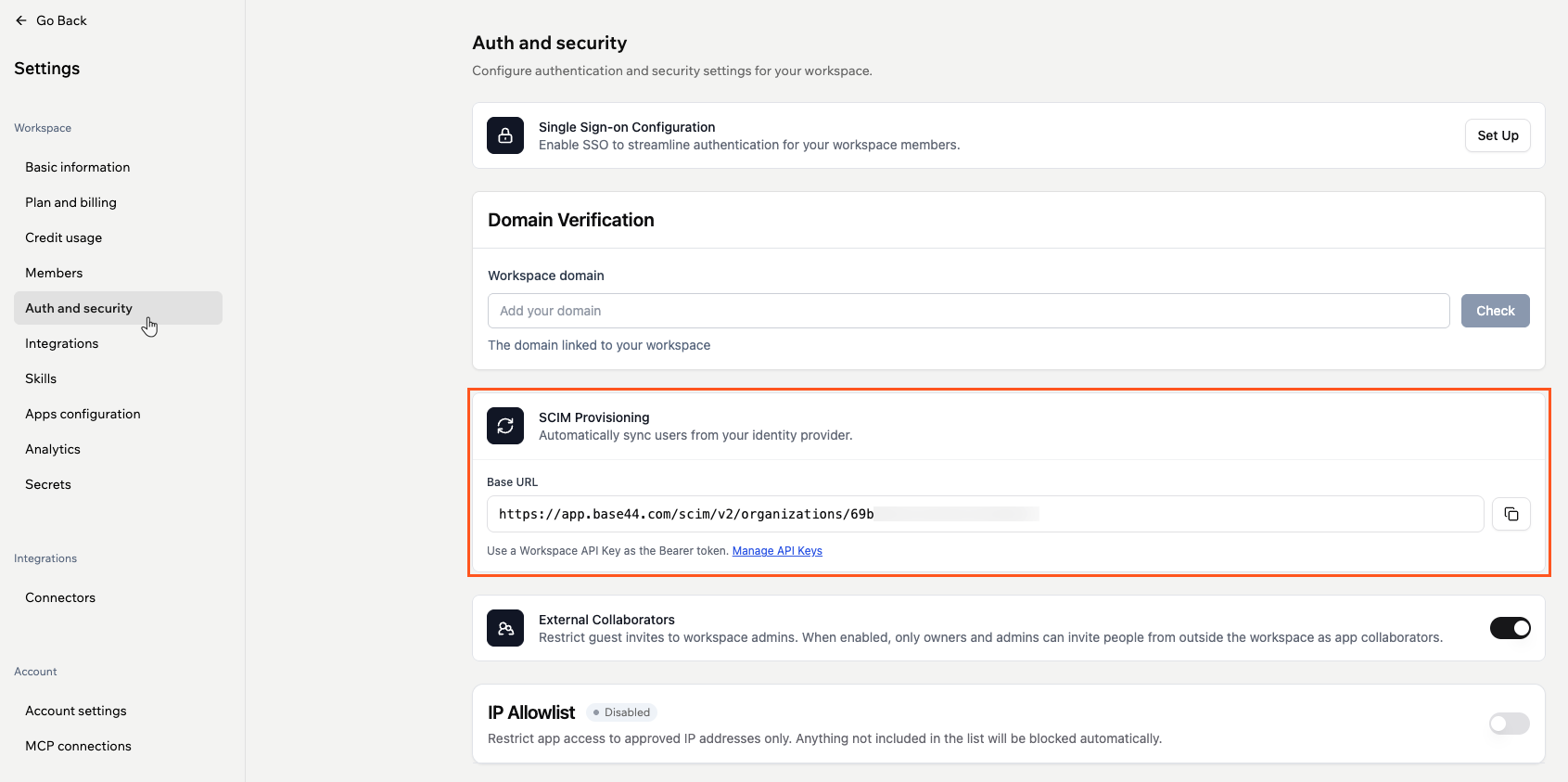
* Your SCIM Base URL (found in **Settings** → **Auth and security**)
 ***
## Custom IdP
Okta and Microsoft Entra ID have their own guides, linked above. Any other SCIM 2.0-compatible identity provider can connect to Base44 using the following settings.
### Connection settings
Use the following values when configuring SCIM in your IdP.
| Setting | Value |
| ------------------ | ----------------------------------------------------------------------- |
| **SCIM base URL** | Copy from **Settings** → **Auth and security** in your Base44 workspace |
| **Authentication** | HTTP header: `Authorization: YOUR_WORKSPACE_API_KEY` |
| **SCIM version** | 2.0 |
Your Workspace API key goes directly in the `Authorization` header. Both `Authorization: YOUR_API_KEY` and `Authorization: Bearer YOUR_API_KEY` are accepted.
### Attribute mapping
Map the following attributes in your IdP:
| SCIM field | Value | Notes |
| --------------------------------------------------------------- | ------------------------------ | -------------------------------------------------------------------------------------- |
| `userName` | User's email address | Required |
| `urn:base44:params:scim:schemas:extension:user:2.0:role` | `admin`, `editor`, or `viewer` | Defaults to `viewer` if omitted |
| `urn:base44:params:scim:schemas:extension:user:2.0:creditLimit` | Non-negative integer | Optional. Leave empty for no per-member cap. Setting this to `0` is treated as no cap. |
When sending extension attributes, include the Base44 extension schema URI in the `schemas` array of your SCIM request:
```text theme={null}
urn:base44:params:scim:schemas:extension:user:2.0
```
***
## Managing your members
Once SCIM is set up, your IdP handles membership changes automatically. Here is what happens in Base44 for each action.
### Adding members
When you assign a user to your SCIM app, Base44 creates their workspace membership automatically. The user can sign in to Base44 using SSO once they are provisioned.
### Updating members
When you update a user's attributes in your IdP (such as their role or credit limit), Base44 updates their workspace membership to match.
Workspace owners cannot be updated or deactivated via SCIM. Owners must be promoted or demoted from the workspace settings directly.
### Removing members
When you unassign a user from your SCIM app, Base44 removes them from the workspace. Their platform-wide Base44 account is not deleted, and they retain access to any other workspaces they belong to.
If you need to re-add a previously removed member, re-assign them in your IdP. Base44 will create a new workspace membership.
***
## Roles
Base44 uses roles to control what each member can do. You assign a role when provisioning a user via SCIM, and you can update it at any time.
| Role | What they can do |
| -------- | --------------------------------------------------------------- |
| `admin` | Manage members, billing, and workspace settings |
| `editor` | Build, edit, and run apps; uses credits from the workspace pool |
| `viewer` | Read-only access to apps; does not consume credits |
`owner`, `member`, and `guest` roles cannot be assigned via SCIM. If your IdP has groups mapped to those roles, update the mapping to use `admin`, `editor`, or `viewer` instead.
### Per-member credit limits
You can optionally cap how many credits a single member can use per month. Set `creditLimit` to a positive integer to apply a cap, or leave it empty for no limit.
Credit limits only apply to `admin` and `editor` roles. Viewers cannot consume credits, so setting a credit limit on a viewer returns an error. Setting `creditLimit` to `0` is treated as no cap.
You can also set credit limits directly from your workspace settings without going through SCIM. See [Managing enterprise workspace members](/Enterprise/managing-enterprise-members#per-member-credit-limits).
***
## Troubleshooting
If provisioning is not working as expected, the steps below cover the most common errors and how to fix them.
Check that your Workspace API key is correct. Verify the SCIM Base URL was copied from Settings → Auth and security and has not been modified.
Check your IdP's provisioning logs for specific errors. Confirm `role` is set to `admin`, `editor`, or `viewer`.
This is by design. Workspace owners must be promoted or demoted from the Base44 dashboard. SCIM cannot modify owner memberships.
`creditLimit` can only be set on `admin` or `editor` roles. Either change the role to `editor` or `admin`, or remove the `creditLimit` value.
***
## Custom IdP
Okta and Microsoft Entra ID have their own guides, linked above. Any other SCIM 2.0-compatible identity provider can connect to Base44 using the following settings.
### Connection settings
Use the following values when configuring SCIM in your IdP.
| Setting | Value |
| ------------------ | ----------------------------------------------------------------------- |
| **SCIM base URL** | Copy from **Settings** → **Auth and security** in your Base44 workspace |
| **Authentication** | HTTP header: `Authorization: YOUR_WORKSPACE_API_KEY` |
| **SCIM version** | 2.0 |
Your Workspace API key goes directly in the `Authorization` header. Both `Authorization: YOUR_API_KEY` and `Authorization: Bearer YOUR_API_KEY` are accepted.
### Attribute mapping
Map the following attributes in your IdP:
| SCIM field | Value | Notes |
| --------------------------------------------------------------- | ------------------------------ | -------------------------------------------------------------------------------------- |
| `userName` | User's email address | Required |
| `urn:base44:params:scim:schemas:extension:user:2.0:role` | `admin`, `editor`, or `viewer` | Defaults to `viewer` if omitted |
| `urn:base44:params:scim:schemas:extension:user:2.0:creditLimit` | Non-negative integer | Optional. Leave empty for no per-member cap. Setting this to `0` is treated as no cap. |
When sending extension attributes, include the Base44 extension schema URI in the `schemas` array of your SCIM request:
```text theme={null}
urn:base44:params:scim:schemas:extension:user:2.0
```
***
## Managing your members
Once SCIM is set up, your IdP handles membership changes automatically. Here is what happens in Base44 for each action.
### Adding members
When you assign a user to your SCIM app, Base44 creates their workspace membership automatically. The user can sign in to Base44 using SSO once they are provisioned.
### Updating members
When you update a user's attributes in your IdP (such as their role or credit limit), Base44 updates their workspace membership to match.
Workspace owners cannot be updated or deactivated via SCIM. Owners must be promoted or demoted from the workspace settings directly.
### Removing members
When you unassign a user from your SCIM app, Base44 removes them from the workspace. Their platform-wide Base44 account is not deleted, and they retain access to any other workspaces they belong to.
If you need to re-add a previously removed member, re-assign them in your IdP. Base44 will create a new workspace membership.
***
## Roles
Base44 uses roles to control what each member can do. You assign a role when provisioning a user via SCIM, and you can update it at any time.
| Role | What they can do |
| -------- | --------------------------------------------------------------- |
| `admin` | Manage members, billing, and workspace settings |
| `editor` | Build, edit, and run apps; uses credits from the workspace pool |
| `viewer` | Read-only access to apps; does not consume credits |
`owner`, `member`, and `guest` roles cannot be assigned via SCIM. If your IdP has groups mapped to those roles, update the mapping to use `admin`, `editor`, or `viewer` instead.
### Per-member credit limits
You can optionally cap how many credits a single member can use per month. Set `creditLimit` to a positive integer to apply a cap, or leave it empty for no limit.
Credit limits only apply to `admin` and `editor` roles. Viewers cannot consume credits, so setting a credit limit on a viewer returns an error. Setting `creditLimit` to `0` is treated as no cap.
You can also set credit limits directly from your workspace settings without going through SCIM. See [Managing enterprise workspace members](/Enterprise/managing-enterprise-members#per-member-credit-limits).
***
## Troubleshooting
If provisioning is not working as expected, the steps below cover the most common errors and how to fix them.
Check that your Workspace API key is correct. Verify the SCIM Base URL was copied from Settings → Auth and security and has not been modified.
Check your IdP's provisioning logs for specific errors. Confirm `role` is set to `admin`, `editor`, or `viewer`.
This is by design. Workspace owners must be promoted or demoted from the Base44 dashboard. SCIM cannot modify owner memberships.
`creditLimit` can only be set on `admin` or `editor` roles. Either change the role to `editor` or `admin`, or remove the `creditLimit` value.