> ## Documentation Index
> Fetch the complete documentation index at: https://docs.base44.com/llms.txt
> Use this file to discover all available pages before exploring further.
# Managing apps and Superagents in your enterprise workspace
> Control app access, visibility, and Superagent availability across your enterprise workspace.
Enterprise workspace settings give admins centralized control over how apps and Superagents behave for everyone in the workspace. You can enforce SSO across all apps, set per-role publishing permissions and visibility policies, and disable Superagents entirely if they are not appropriate for your organization.
***
## Managing SSO for app access
Enterprise admins can enforce SSO across all apps in a workspace through a single provider. This makes it effortless for people to sign in to multiple apps and ensures your security standards are applied everywhere.
For example, if your company has 10 different apps in a Base44 workspace, enabling SSO for app access means everyone logs in with their central company credentials, instead of creating new logins for each app.
**Important:**
* Only enterprise admins can manage SSO for app access. Once enabled, app users use your organization's SSO credentials to access every app in the workspace.
* To enforce workspace SSO for all apps, you must add an additional redirect URI to your identity provider (IdP) configuration: `https://app.base44.com/api/workspace_apps/{{WORKSPACE_ID}}/auth/sso/callback`
**To set up SSO for all apps in the workspace:**
1. Set up your [enterprise workspace SSO](/Enterprise/SSO-for-enterprise-workspace).
2. Click your workspace name at the top left of your account.
3. Click **Settings**.
4. Click **Apps configuration**.
5. Click the **Enforce workspace SSO for all apps** toggle.
* **Enabled:** All apps in your workspace automatically use the workspace SSO settings, and app-level configuration is disabled. This includes apps published as **Public (no login)**, which now require users to sign in through your SSO provider at runtime, for both the app and its API.
* **Disabled:** Your app builders can decide if they want to turn on the workspace SSO in their [app's authentication settings](/Setting-up-your-app/Managing-login-and-registration).
 ***
## Publishing permissions
Publishing permissions let you control what each role (Owner, Admin, Editor, and Guest) can do when publishing apps: whether they can publish, which visibility levels they can choose from, and which is set by default. When a member's role blocks a publish action, they can send you a [publish approval request](#publish-approval-requests) instead, so work keeps moving without loosening your policies.
**Notes:**
* The Owner role always has publish rights and can use any visibility level, so its settings cannot be changed.
* Members with a role that cannot publish can still build and edit their apps.
### Setting publishing permissions
Configure publishing rights and visibility levels for each role from your workspace settings.
***
## Publishing permissions
Publishing permissions let you control what each role (Owner, Admin, Editor, and Guest) can do when publishing apps: whether they can publish, which visibility levels they can choose from, and which is set by default. When a member's role blocks a publish action, they can send you a [publish approval request](#publish-approval-requests) instead, so work keeps moving without loosening your policies.
**Notes:**
* The Owner role always has publish rights and can use any visibility level, so its settings cannot be changed.
* Members with a role that cannot publish can still build and edit their apps.
### Setting publishing permissions
Configure publishing rights and visibility levels for each role from your workspace settings.
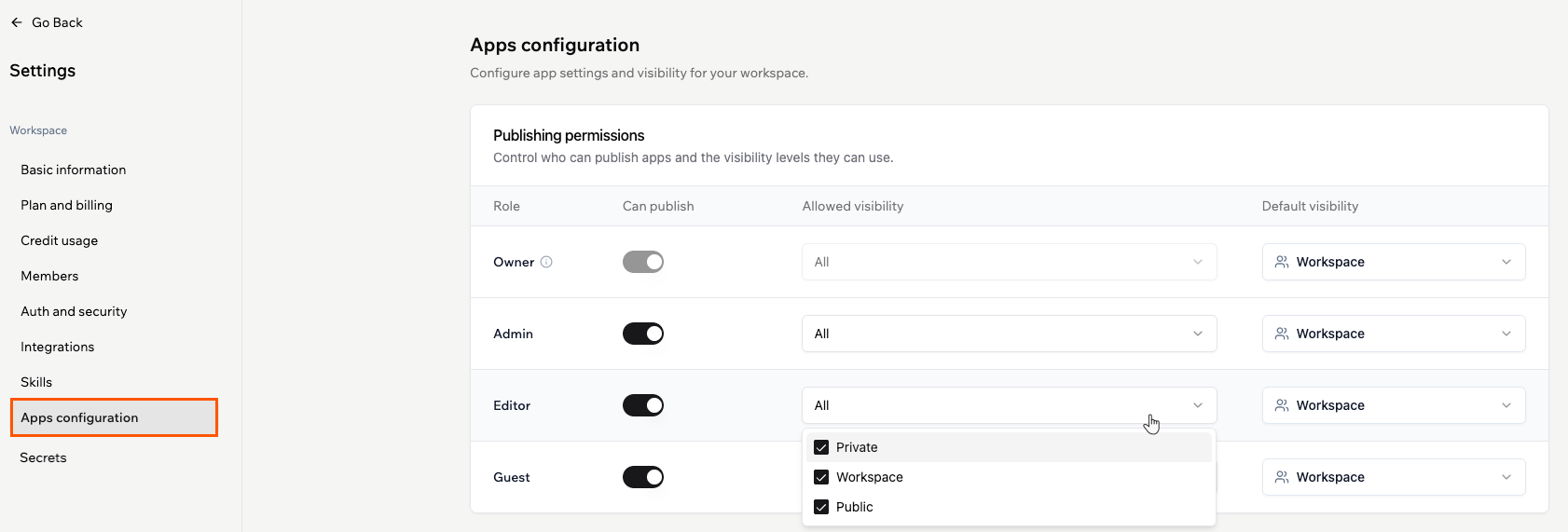 **To set publishing permissions by role:**
1. Click your workspace name at the top left of your account.
2. Click **Settings**.
3. Click **Apps configuration**.
4. In the **Publishing permissions** table, find the role you want to configure.
5. Use the **Can publish** toggle to allow or block publishing for that role.
6. Under **Allowed visibility**, select the visibility levels the role can use. Keep at least one level selected:
* **All:** The role can use any visibility level.
* **Private:** Only users you explicitly invite can access.
* **Workspace:** All workspace members can access.
* **Public (login required):** Anyone with a Base44 account can access, including people outside your workspace.
* **Public (no login):** Anyone on the internet can access. No account needed.
7. Under **Default visibility**, choose the visibility level that is selected automatically when someone with the role publishes. You can only choose from the levels you allowed in the previous step.
To return every role to its original settings, click **Reset to defaults**.
For governance tracking, changes to publishing permissions are recorded in your workspace audit logs as governance rule changes, along with every app publish, unpublish, and publish approval request event. You can retrieve these events with the [Audit Logs API](/developers/references/audit-logs-api/get-started/overview).
### Publish approval requests
When someone in your workspace tries to publish but their role does not have permission, or the visibility level they choose is not allowed for their role, they can send a publish request instead of being blocked. You and the other workspace owners and admins are notified by email and in your Base44 notifications, under the **Bell** icon at the top of your workspace. Clicking the notification opens the app in the editor, where any of you can review and publish it on the member's behalf.
On the member's side, the **Publish** panel in their app editor shows a **Request to publish** button. It opens a short request form where they select the visibility they want for the app, optionally add a message for the reviewer, and click **Send request**.
**To set publishing permissions by role:**
1. Click your workspace name at the top left of your account.
2. Click **Settings**.
3. Click **Apps configuration**.
4. In the **Publishing permissions** table, find the role you want to configure.
5. Use the **Can publish** toggle to allow or block publishing for that role.
6. Under **Allowed visibility**, select the visibility levels the role can use. Keep at least one level selected:
* **All:** The role can use any visibility level.
* **Private:** Only users you explicitly invite can access.
* **Workspace:** All workspace members can access.
* **Public (login required):** Anyone with a Base44 account can access, including people outside your workspace.
* **Public (no login):** Anyone on the internet can access. No account needed.
7. Under **Default visibility**, choose the visibility level that is selected automatically when someone with the role publishes. You can only choose from the levels you allowed in the previous step.
To return every role to its original settings, click **Reset to defaults**.
For governance tracking, changes to publishing permissions are recorded in your workspace audit logs as governance rule changes, along with every app publish, unpublish, and publish approval request event. You can retrieve these events with the [Audit Logs API](/developers/references/audit-logs-api/get-started/overview).
### Publish approval requests
When someone in your workspace tries to publish but their role does not have permission, or the visibility level they choose is not allowed for their role, they can send a publish request instead of being blocked. You and the other workspace owners and admins are notified by email and in your Base44 notifications, under the **Bell** icon at the top of your workspace. Clicking the notification opens the app in the editor, where any of you can review and publish it on the member's behalf.
On the member's side, the **Publish** panel in their app editor shows a **Request to publish** button. It opens a short request form where they select the visibility they want for the app, optionally add a message for the reviewer, and click **Send request**.
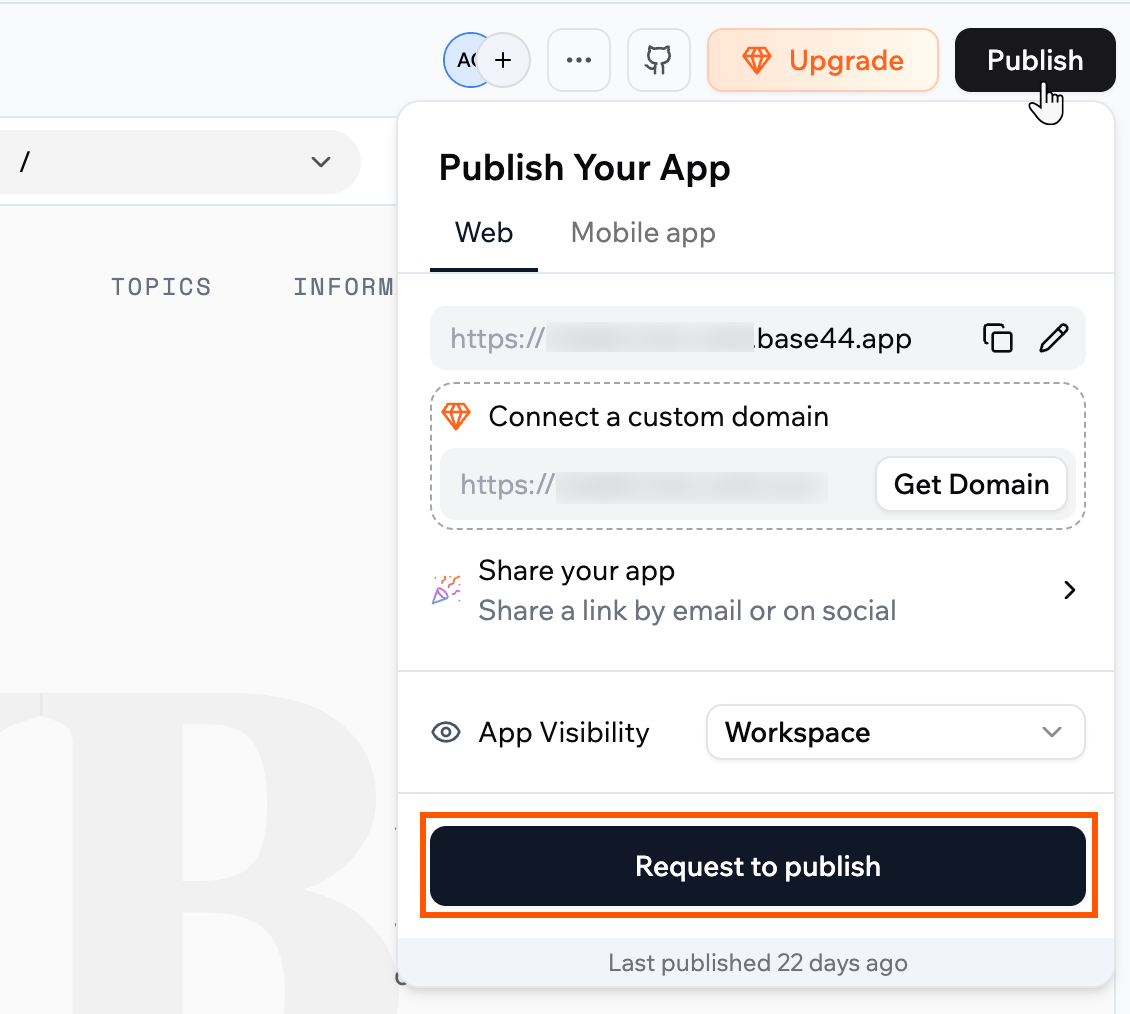 Each request shows you the member's email address, the visibility they requested, and their message.
***
## Managing Superagents
You can prevent workspace members from creating, accessing, or interacting with Superagents. When this setting is enabled, Superagents are hidden from all members across the workspace.
This is useful if your organization has not approved AI agents for use, or if you want to roll out Superagents gradually to specific teams.
Only workspace owners and admins can enable or disable Superagents for the workspace.
**To disable Superagents for your workspace:**
1. Click your workspace name at the top left of your account.
2. Click **Settings**.
3. Click **Basic information**.
4. Enable the **Disable Superagents** toggle.
Each request shows you the member's email address, the visibility they requested, and their message.
***
## Managing Superagents
You can prevent workspace members from creating, accessing, or interacting with Superagents. When this setting is enabled, Superagents are hidden from all members across the workspace.
This is useful if your organization has not approved AI agents for use, or if you want to roll out Superagents gradually to specific teams.
Only workspace owners and admins can enable or disable Superagents for the workspace.
**To disable Superagents for your workspace:**
1. Click your workspace name at the top left of your account.
2. Click **Settings**.
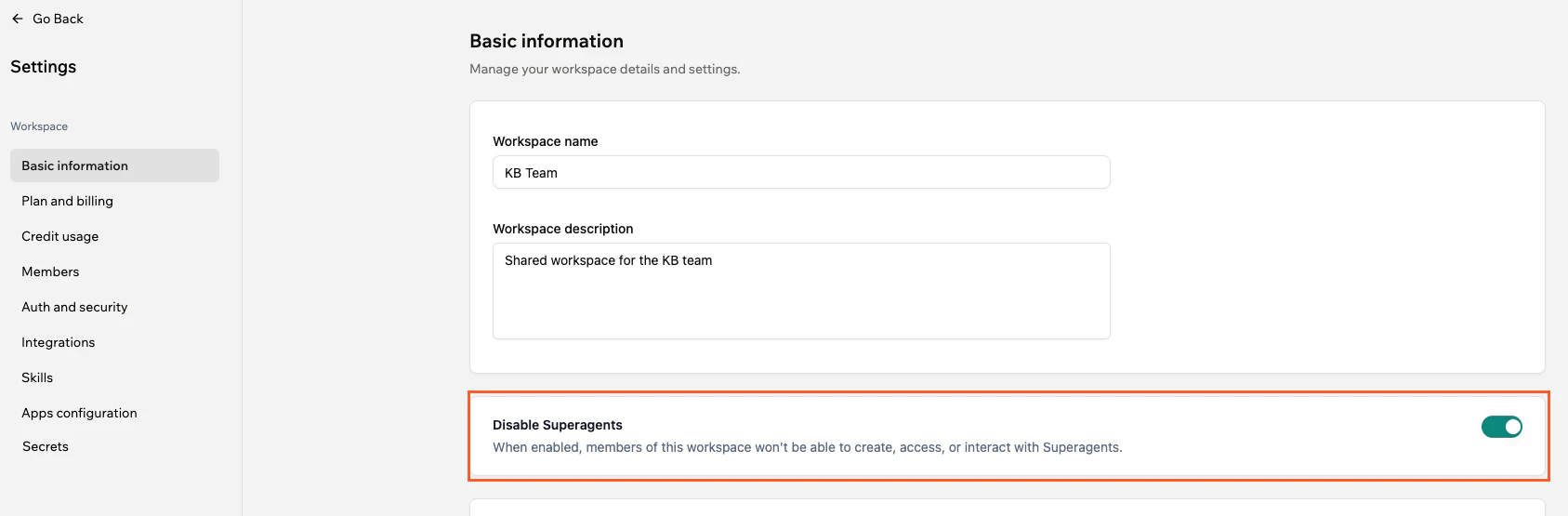
3. Click **Basic information**.
4. Enable the **Disable Superagents** toggle.
 ***
## FAQs
Select a question below to learn more about app SSO and visibility.
Existing apps automatically use your workspace SSO settings if enforcement is enabled. App-level SSO settings are locked and can only be managed by enterprise admins.
No. When workspace SSO enforcement is enabled, all workspace apps use the company's SSO provider. App builders can choose SSO settings only if enforcement is disabled by an admin.
Yes, you can change an app's visibility in the app settings at any time, unless restricted by workspace policies.
For organizations with both internal and customer-facing apps, configure your workspace like this:
**Workspace Level:**
* Workspace SSO: ON (employees use company credentials)
* Enforce SSO for all apps: OFF (don't force it globally)
**App Level:**
* Internal apps: Enable workspace SSO individually
* Customer-facing apps: Use their own auth (email/password, Google) with appropriate visibility controls
This gives you flexibility to protect internal tools while keeping customer apps accessible.
App-level auth settings carry over to the new workspace, but keep these considerations in mind:
1. If your workspace has Enforce workspace SSO for all apps turned on, workspace SSO will override any app-level auth settings immediately.
2. Existing app users are preserved, but if the app previously used a login method that is not configured in the new workspace (such as a custom SSO with a different redirect URI), users may hit login issues until auth is reconfigured.
3. If the app has connectors set up (OAuth connections to Google, Slack, etc.) that are tied to the individual who set them up rather than the app itself, those connections may need to be re-authorized in the new workspace context.
***
## FAQs
Select a question below to learn more about app SSO and visibility.
Existing apps automatically use your workspace SSO settings if enforcement is enabled. App-level SSO settings are locked and can only be managed by enterprise admins.
No. When workspace SSO enforcement is enabled, all workspace apps use the company's SSO provider. App builders can choose SSO settings only if enforcement is disabled by an admin.
Yes, you can change an app's visibility in the app settings at any time, unless restricted by workspace policies.
For organizations with both internal and customer-facing apps, configure your workspace like this:
**Workspace Level:**
* Workspace SSO: ON (employees use company credentials)
* Enforce SSO for all apps: OFF (don't force it globally)
**App Level:**
* Internal apps: Enable workspace SSO individually
* Customer-facing apps: Use their own auth (email/password, Google) with appropriate visibility controls
This gives you flexibility to protect internal tools while keeping customer apps accessible.
App-level auth settings carry over to the new workspace, but keep these considerations in mind:
1. If your workspace has Enforce workspace SSO for all apps turned on, workspace SSO will override any app-level auth settings immediately.
2. Existing app users are preserved, but if the app previously used a login method that is not configured in the new workspace (such as a custom SSO with a different redirect URI), users may hit login issues until auth is reconfigured.
3. If the app has connectors set up (OAuth connections to Google, Slack, etc.) that are tied to the individual who set them up rather than the app itself, those connections may need to be re-authorized in the new workspace context.