> ## Documentation Index
> Fetch the complete documentation index at: https://docs.base44.com/llms.txt
> Use this file to discover all available pages before exploring further.
# Getting paid for client work
> Request, track, and manage client payments in Base44.
Get paid for client work right from your Base44 workspace. Send one-time or monthly payment requests in client conversations, track their status, and manage monthly plans.
 **Before you begin:** You must be an approved [Base44 partner](/Community-and-support/partner-program) in a supported location to request and receive client payments.
***
## Connecting your payment account
Connect Wix Payments once before sending your first payment request. Complete account verification and set up payouts in the Wix Payments dashboard. Learn more about the [Wix Payments verification process](https://support.wix.com/en/article/wix-payments-verification-process).
**To connect your payment account:**
1. In your workspace, click **Partners** in the sidebar.
2. Click **Messages**.
3. Click **Payments**.
4. If prompted, enter your legal name in the **First name** and **Last name** fields.
5. Review the [Wix Payments terms of service](https://www.wix.com/about/terms-of-payments) and [service fees](https://support.wix.com/en/article/wix-payments-service-fees).
6. Select the **I agree to the Wix Payments terms of service** checkbox.
7. Click **Connect Wix Payments**.
8. Follow the instructions in the Wix Payments dashboard to verify your account and set up payouts.
***
## Requesting a payment
Send a payment request directly from the relevant client conversation. Your client receives a **Payment request** card in the conversation and can pay through a secure checkout page.
**To request a payment:**
1. In your workspace, click **Partners** in the sidebar.
2. Click **Messages**.
3. On the **Clients** tab, open the relevant client conversation.
4. Click **Request payment**.
5. Enter what the payment covers in the **What's it for?** field.
6. Enter the payment amount in the **Amount** field. The minimum payment amount appears below the field.
7. Select a **Frequency**:
* **One-time:** Request a single payment.
* **Monthly:** Request monthly payments until you or your client cancels the plan.
8. Review the **Base44 fee (15%)** and the amount under **You receive (before provider fees)**.
9. Click **Send request**.
**Before you begin:** You must be an approved [Base44 partner](/Community-and-support/partner-program) in a supported location to request and receive client payments.
***
## Connecting your payment account
Connect Wix Payments once before sending your first payment request. Complete account verification and set up payouts in the Wix Payments dashboard. Learn more about the [Wix Payments verification process](https://support.wix.com/en/article/wix-payments-verification-process).
**To connect your payment account:**
1. In your workspace, click **Partners** in the sidebar.
2. Click **Messages**.
3. Click **Payments**.
4. If prompted, enter your legal name in the **First name** and **Last name** fields.
5. Review the [Wix Payments terms of service](https://www.wix.com/about/terms-of-payments) and [service fees](https://support.wix.com/en/article/wix-payments-service-fees).
6. Select the **I agree to the Wix Payments terms of service** checkbox.
7. Click **Connect Wix Payments**.
8. Follow the instructions in the Wix Payments dashboard to verify your account and set up payouts.
***
## Requesting a payment
Send a payment request directly from the relevant client conversation. Your client receives a **Payment request** card in the conversation and can pay through a secure checkout page.
**To request a payment:**
1. In your workspace, click **Partners** in the sidebar.
2. Click **Messages**.
3. On the **Clients** tab, open the relevant client conversation.
4. Click **Request payment**.
5. Enter what the payment covers in the **What's it for?** field.
6. Enter the payment amount in the **Amount** field. The minimum payment amount appears below the field.
7. Select a **Frequency**:
* **One-time:** Request a single payment.
* **Monthly:** Request monthly payments until you or your client cancels the plan.
8. Review the **Base44 fee (15%)** and the amount under **You receive (before provider fees)**.
9. Click **Send request**.
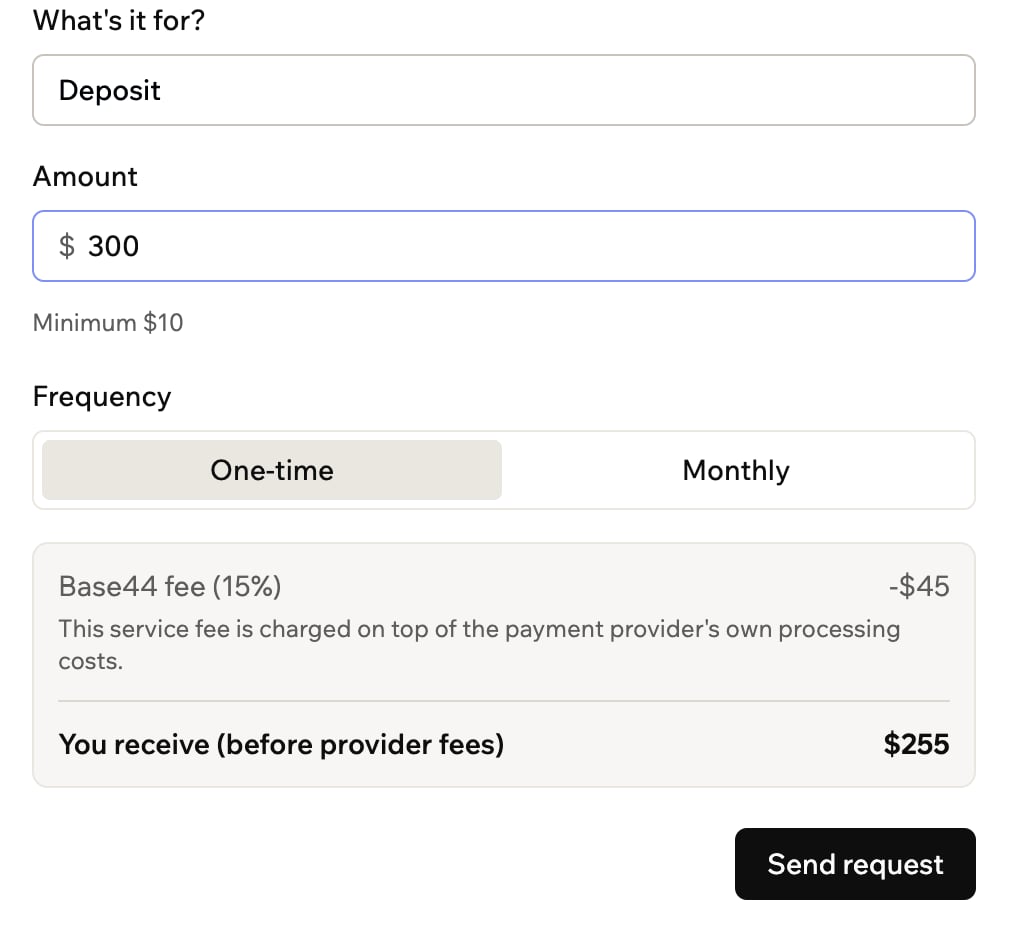 **You receive (before provider fees)** reflects the payment amount after the 15% Base44 fee. Your payment provider deducts its processing fees separately.
***
## Managing your payments
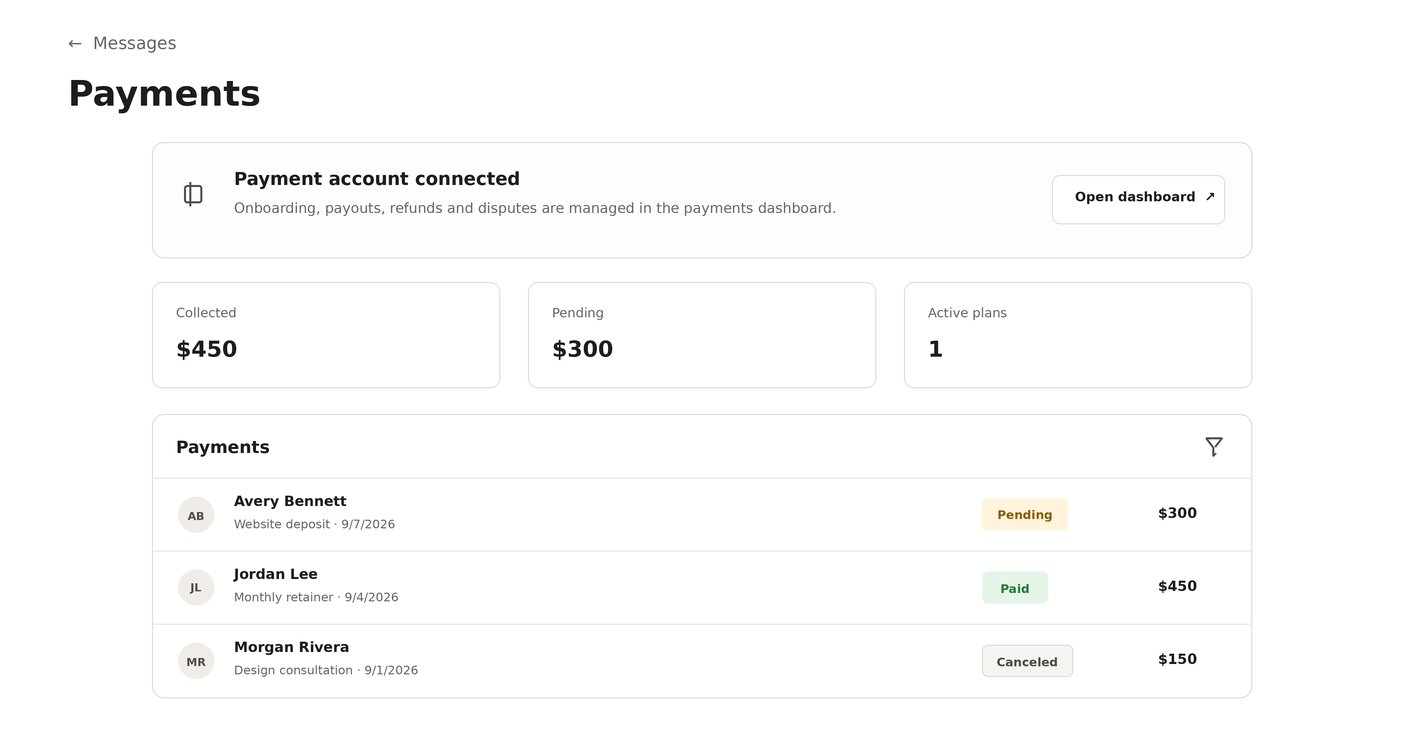
Track payment requests and monthly plans, follow up on pending payments, and manage payouts, refunds, and disputes.
**To manage your payments:**
1. In your workspace, click **Partners** in the sidebar.
2. Click **Messages**.
3. Click **Payments**.
4. Choose what you want to do:
* **Filter the list:** Show **All**, **Pending**, **Paid**, or **Canceled** payments.
* **Send reminder:** Remind your client about a pending request.
* **Cancel request:** Cancel a pending payment request.
* **Cancel plan:** Stop future charges for a monthly plan.
5. Click **Open dashboard** to manage account verification, payouts, refunds, and disputes. Learn more about [receiving payouts from Wix Payments](https://support.wix.com/en/article/receiving-your-payouts-from-wix-payments).
***
## FAQs
All payment requests use the currency of your payment account.
Yes. The minimum amount is 10 in the currency of your payment account. It appears below the **Amount** field when you create a payment request.
Your client opens a secure checkout page from the **Payment request** card in your conversation. They can also view and pay requests and see upcoming monthly payments from their **Payments** tab.
Yes. Your client can click **Cancel service** from their **Payments** tab. Their plan remains active until the end of the current billing period and does not renew. You can also cancel it from your **Payments** tab.
**You receive (before provider fees)** reflects the payment amount after the 15% Base44 fee. Your payment provider deducts its processing fees separately.
***
## Managing your payments
Track payment requests and monthly plans, follow up on pending payments, and manage payouts, refunds, and disputes.
**To manage your payments:**
1. In your workspace, click **Partners** in the sidebar.
2. Click **Messages**.
3. Click **Payments**.
4. Choose what you want to do:
* **Filter the list:** Show **All**, **Pending**, **Paid**, or **Canceled** payments.
* **Send reminder:** Remind your client about a pending request.
* **Cancel request:** Cancel a pending payment request.
* **Cancel plan:** Stop future charges for a monthly plan.
5. Click **Open dashboard** to manage account verification, payouts, refunds, and disputes. Learn more about [receiving payouts from Wix Payments](https://support.wix.com/en/article/receiving-your-payouts-from-wix-payments).
***
## FAQs
All payment requests use the currency of your payment account.
Yes. The minimum amount is 10 in the currency of your payment account. It appears below the **Amount** field when you create a payment request.
Your client opens a secure checkout page from the **Payment request** card in your conversation. They can also view and pay requests and see upcoming monthly payments from their **Payments** tab.
Yes. Your client can click **Cancel service** from their **Payments** tab. Their plan remains active until the end of the current billing period and does not renew. You can also cancel it from your **Payments** tab.