> ## Documentation Index
> Fetch the complete documentation index at: https://docs.base44.com/llms.txt
> Use this file to discover all available pages before exploring further.
# Using your app's API page
> Browse your app's ready-made API reference, copy code for your data, functions, and agents, and download the OpenAPI spec from the API page in your dashboard.
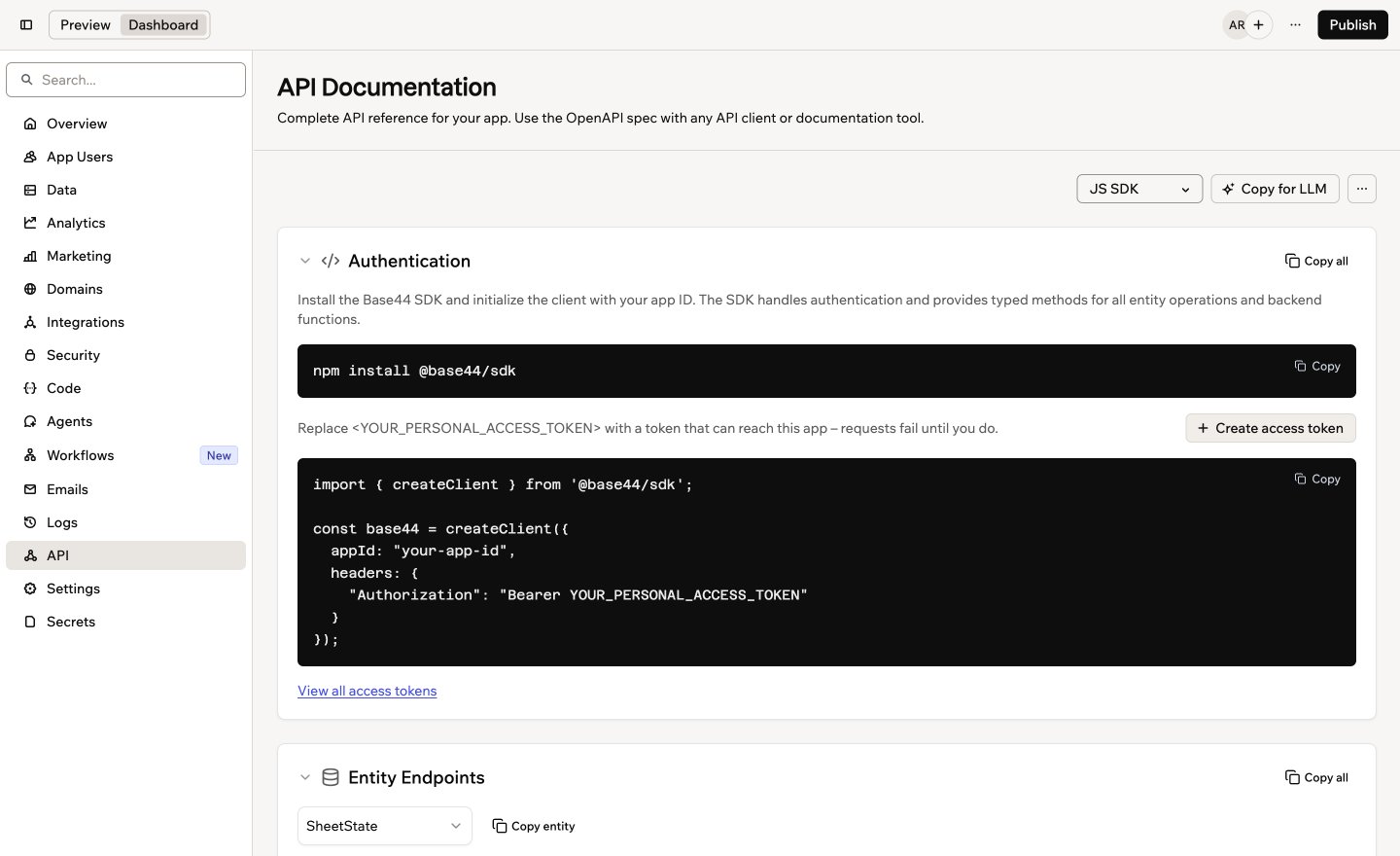
Your app's API lets other tools work with your app's data. For example, you can send new form entries to a spreadsheet, have a script update records every night, or give an AI coding assistant everything it needs to build an integration for you. The **API** page in your app dashboard explains your app's API and gives you code you can copy, so you don't need to write it from scratch.
 Want to connect your app to other tools without writing code? Try [workflows](/Building-your-app/Creating-workflows) or [connectors](/Integrations/Connectors) instead.
***
## Opening the API page
The API page lives in your app dashboard, next to your app's data and logs.
**To open the API page:**
1. Click **Dashboard** in your app editor.
2. Click **API**.
3. Choose a language from the drop-down at the top of the page: **JS SDK**, **JS Fetch**, **cURL**, or **Python**.
***
## What's on the page
The page is split into sections, and each code sample updates when you change the language:
* **Authentication:** How other tools sign in to your app. Requests use a [personal access token](/Workspaces/Personal-access-tokens). If you don't have one yet, click **Create access token** in this section. If you chose **JS SDK**, this section also shows how to install the Base44 SDK and set it up with your app's ID and your token.
* **Entity Endpoints:** Each table in your app, with its **Schema** and **Endpoints** side by side. Click **Copy entity** to copy one table's reference, or **Copy all** to copy every table. To copy code for reading or updating one table, see [connecting your data to another app](/Building-your-app/Managing-your-app-data#connecting-your-data-to-another-app).
* **Backend Functions:** How to run your app's backend functions from another tool.
* **App Agent:** How to talk to your app's in-app agent, such as starting a conversation, sending messages, and getting replies.
**Good to know:**
* An entity is a table of data in your app, such as Tasks or Orders.
* An endpoint is the address another tool sends a request to.
* An access token works like a password for your app's API.
* OpenAPI is a standard file format that API tools understand.
***
## Getting help from AI
The easiest way to use your app's API is to let an AI coding assistant write the code for you. **Copy for LLM** copies your app's full API reference in a format AI tools understand, so the code it writes matches your app.
**To get an AI assistant to write code for your app's API:**
1. Click **Dashboard** in your app editor.
2. Click **API**.
3. Click **Copy for LLM**.
4. Paste it into your AI coding assistant, then describe what you want to build. For example:
```text theme={null}
Using this API reference, write a script that adds a new row to my Tasks table every time I run it.
```
5. When the code is ready, click **Create access token** on the API page and add the token where the code asks for it.
Your access token gives access to your app's data. Keep it private: don't paste it into an AI chat, a shared document, or a screenshot. If a token is exposed, delete it and create a new one.
***
## Downloading the OpenAPI spec
Download your app's API reference as an OpenAPI file to use it in an API client or documentation tool.
**To download the OpenAPI spec:**
1. Click **Dashboard** in your app editor.
2. Click **API**.
3. Click the **More actions** icon .
4. Click **Download OpenAPI Spec**.
The API page shows your app as it is when you open it. After you add or change tables, backend functions, or agents, refresh the page to see the change in the reference and in any files you export.
***
## Going further
If you're a developer, the developer docs cover your app's API and the Base44 SDK in depth.
Set up the SDK and learn how it works with your app.
Read, create, update, and delete records in your app's tables from code.
Define and secure the tables behind your app's API.
Create and manage the tokens your scripts and tools use to sign in.
This documentation is built and hosted on [Mintlify](https://mintlify.com), a developer documentation platform.
Want to connect your app to other tools without writing code? Try [workflows](/Building-your-app/Creating-workflows) or [connectors](/Integrations/Connectors) instead.
***
## Opening the API page
The API page lives in your app dashboard, next to your app's data and logs.
**To open the API page:**
1. Click **Dashboard** in your app editor.
2. Click **API**.
3. Choose a language from the drop-down at the top of the page: **JS SDK**, **JS Fetch**, **cURL**, or **Python**.
***
## What's on the page
The page is split into sections, and each code sample updates when you change the language:
* **Authentication:** How other tools sign in to your app. Requests use a [personal access token](/Workspaces/Personal-access-tokens). If you don't have one yet, click **Create access token** in this section. If you chose **JS SDK**, this section also shows how to install the Base44 SDK and set it up with your app's ID and your token.
* **Entity Endpoints:** Each table in your app, with its **Schema** and **Endpoints** side by side. Click **Copy entity** to copy one table's reference, or **Copy all** to copy every table. To copy code for reading or updating one table, see [connecting your data to another app](/Building-your-app/Managing-your-app-data#connecting-your-data-to-another-app).
* **Backend Functions:** How to run your app's backend functions from another tool.
* **App Agent:** How to talk to your app's in-app agent, such as starting a conversation, sending messages, and getting replies.
**Good to know:**
* An entity is a table of data in your app, such as Tasks or Orders.
* An endpoint is the address another tool sends a request to.
* An access token works like a password for your app's API.
* OpenAPI is a standard file format that API tools understand.
***
## Getting help from AI
The easiest way to use your app's API is to let an AI coding assistant write the code for you. **Copy for LLM** copies your app's full API reference in a format AI tools understand, so the code it writes matches your app.
**To get an AI assistant to write code for your app's API:**
1. Click **Dashboard** in your app editor.
2. Click **API**.
3. Click **Copy for LLM**.
4. Paste it into your AI coding assistant, then describe what you want to build. For example:
```text theme={null}
Using this API reference, write a script that adds a new row to my Tasks table every time I run it.
```
5. When the code is ready, click **Create access token** on the API page and add the token where the code asks for it.
Your access token gives access to your app's data. Keep it private: don't paste it into an AI chat, a shared document, or a screenshot. If a token is exposed, delete it and create a new one.
***
## Downloading the OpenAPI spec
Download your app's API reference as an OpenAPI file to use it in an API client or documentation tool.
**To download the OpenAPI spec:**
1. Click **Dashboard** in your app editor.
2. Click **API**.
3. Click the **More actions** icon .
4. Click **Download OpenAPI Spec**.
The API page shows your app as it is when you open it. After you add or change tables, backend functions, or agents, refresh the page to see the change in the reference and in any files you export.
***
## Going further
If you're a developer, the developer docs cover your app's API and the Base44 SDK in depth.
Set up the SDK and learn how it works with your app.
Read, create, update, and delete records in your app's tables from code.
Define and secure the tables behind your app's API.
Create and manage the tokens your scripts and tools use to sign in.
This documentation is built and hosted on [Mintlify](https://mintlify.com), a developer documentation platform.