> ## Documentation Index
> Fetch the complete documentation index at: https://docs.base44.com/llms.txt
> Use this file to discover all available pages before exploring further.
# Working with branches
> Create branches to build and test new ideas safely, work on several in parallel, then merge them into your app when they are ready.
Branches let you try new ideas, features, or redesigns without affecting your app. Each branch has its own chat and its own live preview, and you can **work on several branches in parallel**, then merge each one into your app when you are happy with the result.
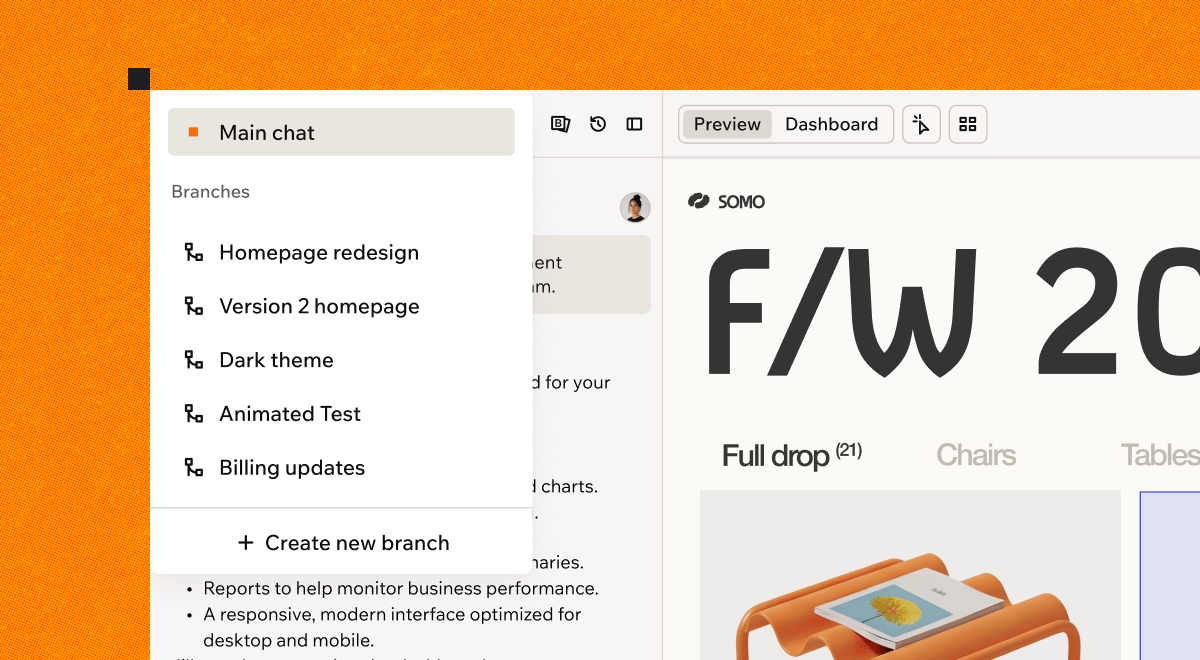 Try a new look for your app and compare it with the current version. If you change your mind, simply leave the branch behind.
When a small fix comes up mid-project, fix and publish it from main right away. Your bigger work in progress stays safely on its branch.
Work ahead of a release and keep the feature on a branch until launch day.
Build on several branches at the same time, and work with your team on different ideas at once, each on their own branch.
You can manage your app's versions with either branches or GitHub, not both. [Learn more about managing app versions](#faqs).
***
## How branches work
Your app's main version is called **main**. When you create a branch, Base44 starts a separate line of work from the current state of main.
**Each branch has its own:**
* **Chat.** The conversation on a branch is separate from main, and the AI keeps the context of what you built before.
* **Preview.** You see the branch's changes in a dedicated live preview, while main stays untouched.
* **Copy of your app's design and pages.** Changes you make on a branch stay on that branch until you merge them.
* **Build.** Each branch builds on its own, so **branches run in parallel** and work on one keeps going while you build on another.
**Shared between main and every branch:**
* **Your app's data.** Branches read and write the same live records as main.
* **Connections and automation.** Integrations, secrets, automations, workflows, and in-app agents.
* **App settings and publishing.** Your app's settings, domains, and published version.
A branch previews your app with your real, live data. Records you add, change, or delete while previewing a branch affect the same data your app uses everywhere.
To experiment on a branch without touching your live data, switch your preview to test data while you work. Test data is available on the [**Builder plan**](https://base44.com/pricing) and higher. Learn more about [testing your app with test data](/documentation/managing-app-data/testing-your-data).
***
## Creating a branch
Describe what you want to build, and Base44 creates the branch, names it based on your first message, and starts building right away.
**Before you begin:** If your app was built a while ago, you may need to make one change on main before you can create your first branch. If that applies to your app, Base44 tells you when you try.
**To create a branch:**
1. In the app editor, click your app's name at the top of the chat panel.
2. Click **Create new branch**.
3. Pick one of the suggestions, or type what you want to build in the chat box.
4. Send the message.
Try a new look for your app and compare it with the current version. If you change your mind, simply leave the branch behind.
When a small fix comes up mid-project, fix and publish it from main right away. Your bigger work in progress stays safely on its branch.
Work ahead of a release and keep the feature on a branch until launch day.
Build on several branches at the same time, and work with your team on different ideas at once, each on their own branch.
You can manage your app's versions with either branches or GitHub, not both. [Learn more about managing app versions](#faqs).
***
## How branches work
Your app's main version is called **main**. When you create a branch, Base44 starts a separate line of work from the current state of main.
**Each branch has its own:**
* **Chat.** The conversation on a branch is separate from main, and the AI keeps the context of what you built before.
* **Preview.** You see the branch's changes in a dedicated live preview, while main stays untouched.
* **Copy of your app's design and pages.** Changes you make on a branch stay on that branch until you merge them.
* **Build.** Each branch builds on its own, so **branches run in parallel** and work on one keeps going while you build on another.
**Shared between main and every branch:**
* **Your app's data.** Branches read and write the same live records as main.
* **Connections and automation.** Integrations, secrets, automations, workflows, and in-app agents.
* **App settings and publishing.** Your app's settings, domains, and published version.
A branch previews your app with your real, live data. Records you add, change, or delete while previewing a branch affect the same data your app uses everywhere.
To experiment on a branch without touching your live data, switch your preview to test data while you work. Test data is available on the [**Builder plan**](https://base44.com/pricing) and higher. Learn more about [testing your app with test data](/documentation/managing-app-data/testing-your-data).
***
## Creating a branch
Describe what you want to build, and Base44 creates the branch, names it based on your first message, and starts building right away.
**Before you begin:** If your app was built a while ago, you may need to make one change on main before you can create your first branch. If that applies to your app, Base44 tells you when you try.
**To create a branch:**
1. In the app editor, click your app's name at the top of the chat panel.
2. Click **Create new branch**.
3. Pick one of the suggestions, or type what you want to build in the chat box.
4. Send the message.
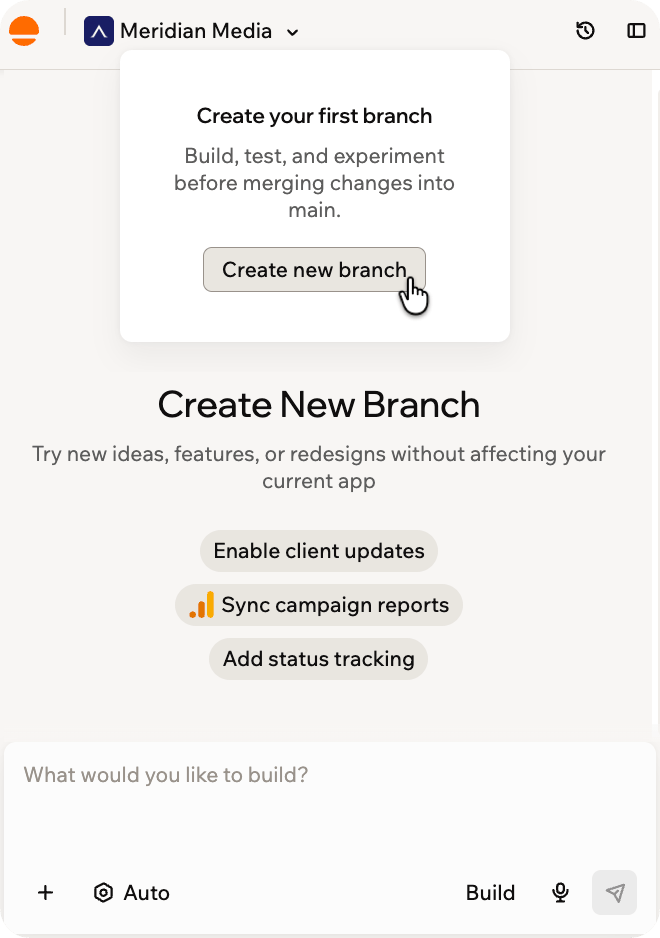 Branches always start from main. If you create a branch while you are on another branch, the new branch still starts from main.
***
## Working on a branch
While you are on a branch, the branch's name replaces your app's name at the top of the chat panel, and a spinning icon shows when the AI is working. You build on a branch the same way you build on main: describe what you want in the chat.
A few things work differently on a branch:
* **Merge to main** replaces the **Publish** button. You publish changes from main after merging.
* The preview shows the branch's version of your app.
* The page URL includes the branch, so you can share a link that opens the app editor on that branch.
**Branches run in parallel.** Send a request on one branch, switch to another, and keep building there while the first one finishes. Your app runs up to 5 builds at the same time, so you and your team can move on several ideas at once, each on their own branch.
The branch menu shows which branches are building, so you can check on them as you go.
Branches are for changes to your app's design, pages, and frontend behavior. Some actions are only available on main:
* Publishing your app
* Editing your data structure (entity schemas)
* Creating or changing secrets, connectors, automations, workflows, and in-app agents
* Editing code directly in the code editor
* Changing your app's theme settings
* Restoring an earlier version from version history
If you ask for one of these on a branch, Base44 asks you to do it on main or merge the branch first.
Support for building backend functions on a branch is rolling out gradually. If it is not available in your app yet, Base44 asks you to make backend changes on main.
***
## Switching between branches
You can move between main and your branches at any time, and every branch keeps its changes until you merge it. On a branch, you can also click the **X** next to **Merge to main** to exit back to main.
**To switch to another branch or back to main:**
1. Click the branch name at the top of the chat panel.
2. Select a branch from the list, or select **Main chat** to return to main.
Branches always start from main. If you create a branch while you are on another branch, the new branch still starts from main.
***
## Working on a branch
While you are on a branch, the branch's name replaces your app's name at the top of the chat panel, and a spinning icon shows when the AI is working. You build on a branch the same way you build on main: describe what you want in the chat.
A few things work differently on a branch:
* **Merge to main** replaces the **Publish** button. You publish changes from main after merging.
* The preview shows the branch's version of your app.
* The page URL includes the branch, so you can share a link that opens the app editor on that branch.
**Branches run in parallel.** Send a request on one branch, switch to another, and keep building there while the first one finishes. Your app runs up to 5 builds at the same time, so you and your team can move on several ideas at once, each on their own branch.
The branch menu shows which branches are building, so you can check on them as you go.
Branches are for changes to your app's design, pages, and frontend behavior. Some actions are only available on main:
* Publishing your app
* Editing your data structure (entity schemas)
* Creating or changing secrets, connectors, automations, workflows, and in-app agents
* Editing code directly in the code editor
* Changing your app's theme settings
* Restoring an earlier version from version history
If you ask for one of these on a branch, Base44 asks you to do it on main or merge the branch first.
Support for building backend functions on a branch is rolling out gradually. If it is not available in your app yet, Base44 asks you to make backend changes on main.
***
## Switching between branches
You can move between main and your branches at any time, and every branch keeps its changes until you merge it. On a branch, you can also click the **X** next to **Merge to main** to exit back to main.
**To switch to another branch or back to main:**
1. Click the branch name at the top of the chat panel.
2. Select a branch from the list, or select **Main chat** to return to main.
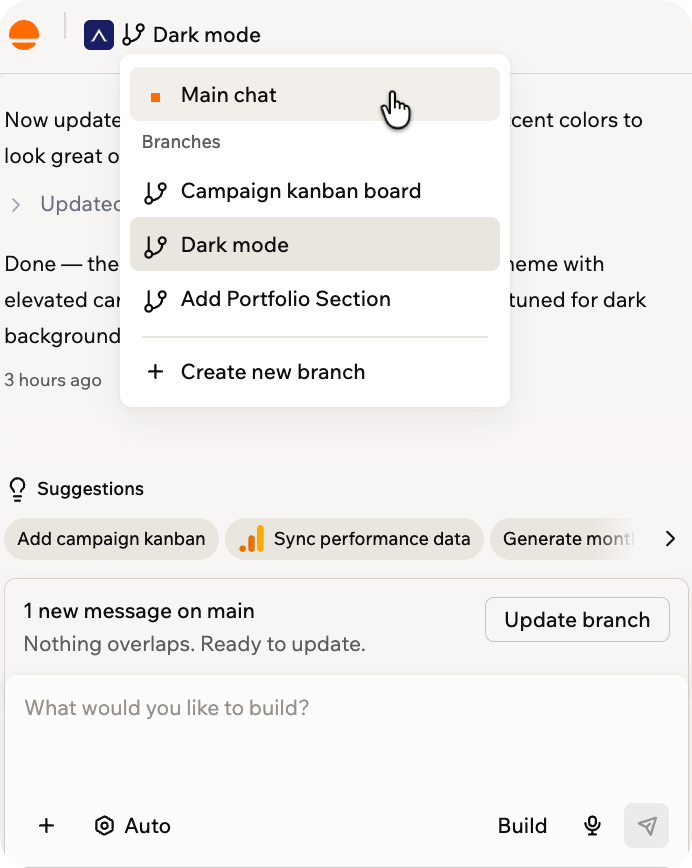 Each branch in the list shows its current status:
| Status | Meaning |
| ----------- | ------------------------------------------------------------------------------ |
| **Active** | The branch is open and ready to build on. |
| **Working** | The AI is building on this branch right now. |
| **Merging** | The branch is being merged into main. |
| **Merged** | The branch was merged into main. Its chat stays readable, but it is read-only. |
You can switch branches while the AI is building, and it keeps working on the branch you left. Save or discard any edits on main first.
***
## Updating a branch with changes from main
If main changes while your branch is open, a banner appears above the chat box on the branch. It tells you how much changed on main and whether any of it overlaps with your branch.
When you update, the AI combines main's changes with your branch. If some changes overlap, the AI resolves them for you. If the two versions genuinely conflict, the AI asks you a question in the chat so you can decide what to keep.
**To bring main's latest changes into your branch:**
1. On the branch, find the update banner above the chat box.
2. Click **Update branch**.
If an update runs into a problem, Base44 rolls it back and your branch's work stays unchanged.
***
## Merging a branch into main
Merging brings everything you built on the branch into main. Your changes reach your app's users only when you publish from main, so you decide exactly what goes out and when.
After the merge, a summary of the branch's changes appears in main's chat, and the branch stays in your branch list as merged, so you can still read its chat history, but it becomes read-only.
**To merge a branch:**
1. On the branch, click **Merge to main** at the top of the editor.
2. Review the confirmation, then click **Merge to main**.
If the branch conflicts with changes made on main, Base44 asks you to update it first. [Update the branch from main](#updating-a-branch-with-changes-from-main) to resolve the conflicts, then merge again.
***
## FAQs
Click a question below to learn more about branches.
No. Publishing always happens from main. On a branch, the **Publish** button is replaced by **Merge to main**. Merge the branch first, then publish from main.
No. All branches share the same live data as main. If you add, change, or delete records while previewing a branch, those changes affect your app's real data everywhere. To keep experiments separate from your live data, switch your preview to [test data](/documentation/managing-app-data/testing-your-data) while you work on the branch.
There is no set limit. You can keep as many branches going at once as you want, and merge each one whenever it is ready.
The branch stays in your branch list, marked as merged, and becomes read-only. You can open it and read its chat history at any time. To continue from where it left off, create a new branch from main.
Yes. Each collaborator can open a different branch and chat there, and each branch builds on its own. Your app runs up to 5 builds at the same time, and anything beyond that waits in the queue and runs in order.
No. Building on a branch uses credits the same way as building on main, from the same credit balance.
No. Apps connected to [GitHub](/developers/app-code/local-development/github) manage branches through GitHub instead, so if you try to create a branch, Base44 lets you know it is not available. To use branches on that app, disconnect the repository first. Disconnecting brings your latest code from GitHub back into Base44.
Merge your open branches first, then connect. Branches you merged before connecting stay available to read.
Each branch in the list shows its current status:
| Status | Meaning |
| ----------- | ------------------------------------------------------------------------------ |
| **Active** | The branch is open and ready to build on. |
| **Working** | The AI is building on this branch right now. |
| **Merging** | The branch is being merged into main. |
| **Merged** | The branch was merged into main. Its chat stays readable, but it is read-only. |
You can switch branches while the AI is building, and it keeps working on the branch you left. Save or discard any edits on main first.
***
## Updating a branch with changes from main
If main changes while your branch is open, a banner appears above the chat box on the branch. It tells you how much changed on main and whether any of it overlaps with your branch.
When you update, the AI combines main's changes with your branch. If some changes overlap, the AI resolves them for you. If the two versions genuinely conflict, the AI asks you a question in the chat so you can decide what to keep.
**To bring main's latest changes into your branch:**
1. On the branch, find the update banner above the chat box.
2. Click **Update branch**.
If an update runs into a problem, Base44 rolls it back and your branch's work stays unchanged.
***
## Merging a branch into main
Merging brings everything you built on the branch into main. Your changes reach your app's users only when you publish from main, so you decide exactly what goes out and when.
After the merge, a summary of the branch's changes appears in main's chat, and the branch stays in your branch list as merged, so you can still read its chat history, but it becomes read-only.
**To merge a branch:**
1. On the branch, click **Merge to main** at the top of the editor.
2. Review the confirmation, then click **Merge to main**.
If the branch conflicts with changes made on main, Base44 asks you to update it first. [Update the branch from main](#updating-a-branch-with-changes-from-main) to resolve the conflicts, then merge again.
***
## FAQs
Click a question below to learn more about branches.
No. Publishing always happens from main. On a branch, the **Publish** button is replaced by **Merge to main**. Merge the branch first, then publish from main.
No. All branches share the same live data as main. If you add, change, or delete records while previewing a branch, those changes affect your app's real data everywhere. To keep experiments separate from your live data, switch your preview to [test data](/documentation/managing-app-data/testing-your-data) while you work on the branch.
There is no set limit. You can keep as many branches going at once as you want, and merge each one whenever it is ready.
The branch stays in your branch list, marked as merged, and becomes read-only. You can open it and read its chat history at any time. To continue from where it left off, create a new branch from main.
Yes. Each collaborator can open a different branch and chat there, and each branch builds on its own. Your app runs up to 5 builds at the same time, and anything beyond that waits in the queue and runs in order.
No. Building on a branch uses credits the same way as building on main, from the same credit balance.
No. Apps connected to [GitHub](/developers/app-code/local-development/github) manage branches through GitHub instead, so if you try to create a branch, Base44 lets you know it is not available. To use branches on that app, disconnect the repository first. Disconnecting brings your latest code from GitHub back into Base44.
Merge your open branches first, then connect. Branches you merged before connecting stay available to read.