> ## Documentation Index
> Fetch the complete documentation index at: https://docs.base44.com/llms.txt
> Use this file to discover all available pages before exploring further.
# Building a presentation
> Describe the deck you want and Base44 builds a presentation you run from your browser, with speaker notes, a presenter view, and a separate audience display.
Ask for a presentation and Base44 builds you one. You get a deck you can run straight from your browser, with a presenter view, a separate display for your audience, and a version built for printing.
Your presentation is still a Base44 app, so you keep the AI chat, version history, publishing, and your own domain. Building and changing it uses [credits](/Account-and-billing/Credits) in the same way as any other app.
 ***
## Creating your presentation
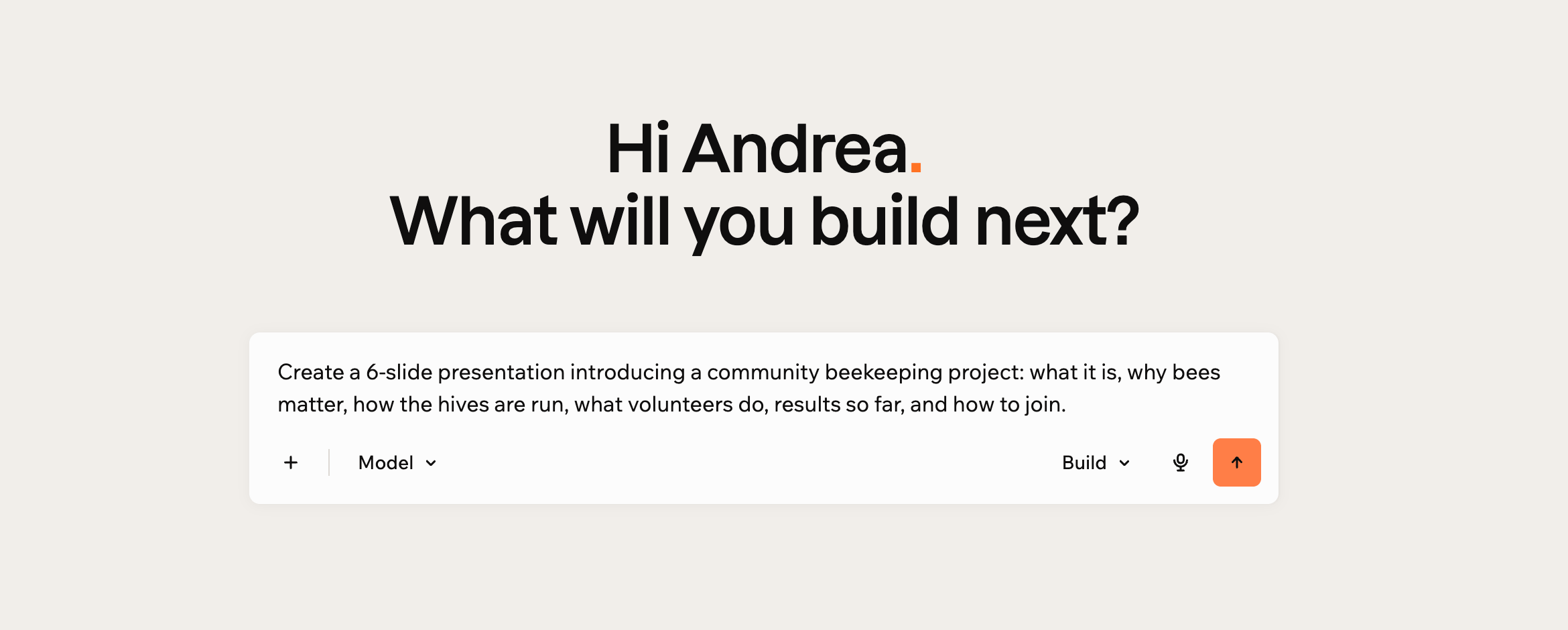
Describe the deck you want in the same place you would describe any app. Say how many slides you want and what each one should cover, and Base44 writes the content, designs the slides, and generates speaker notes for you.
***
## Creating your presentation
Describe the deck you want in the same place you would describe any app. Say how many slides you want and what each one should cover, and Base44 writes the content, designs the slides, and generates speaker notes for you.
 **To create a presentation:**
1. Go to the Base44 home page.
2. In the prompt box, describe the presentation you want, including roughly how many slides and what each should cover.
3. Click the send icon.
4. Wait while Base44 builds your deck. It writes the copy, designs each slide, and picks images to match, which usually takes a few minutes.
***
## Working on your slides
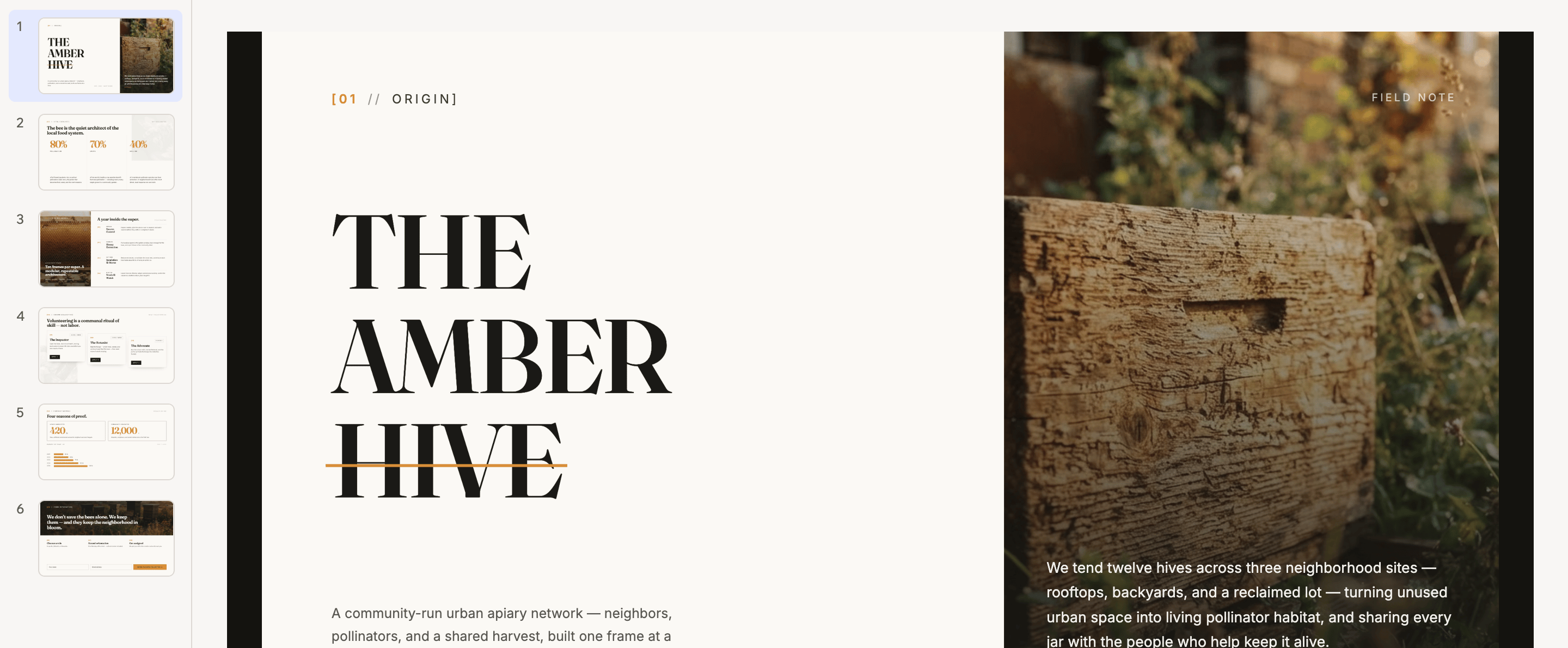
Your presentation opens in the app editor, with a rail of slide thumbnails down the side and a **Speaker Notes** panel underneath. Select a thumbnail to jump to that slide, and drag the edge of the rail to make the thumbnails larger or smaller.
To change anything, ask in the AI chat as you would with any app. Rewriting a slide, reordering the deck, changing the colors, adding a chart, or translating the whole presentation are all chat requests.
For a quick wording change you do not need the chat at all. Click **Edit** in the toolbar, then click the text on the slide and type over it. Base44 builds each slide so its text stays editable this way.
**To create a presentation:**
1. Go to the Base44 home page.
2. In the prompt box, describe the presentation you want, including roughly how many slides and what each should cover.
3. Click the send icon.
4. Wait while Base44 builds your deck. It writes the copy, designs each slide, and picks images to match, which usually takes a few minutes.
***
## Working on your slides
Your presentation opens in the app editor, with a rail of slide thumbnails down the side and a **Speaker Notes** panel underneath. Select a thumbnail to jump to that slide, and drag the edge of the rail to make the thumbnails larger or smaller.
To change anything, ask in the AI chat as you would with any app. Rewriting a slide, reordering the deck, changing the colors, adding a chart, or translating the whole presentation are all chat requests.
For a quick wording change you do not need the chat at all. Click **Edit** in the toolbar, then click the text on the slide and type over it. Base44 builds each slide so its text stays editable this way.
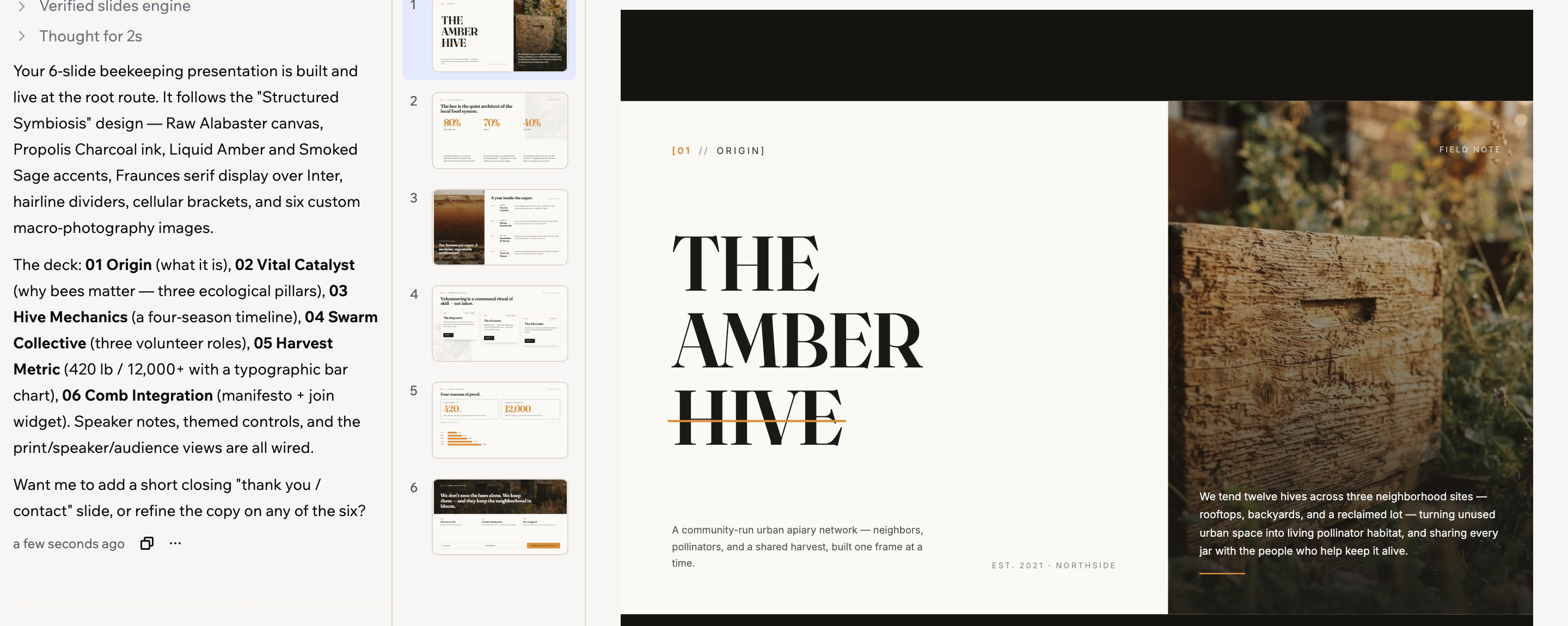 Your notes are part of the presentation, so you can write them yourself in the **Speaker Notes** panel, or click **Generate notes** and have Base44 draft them from the slide.
***
## Presenting
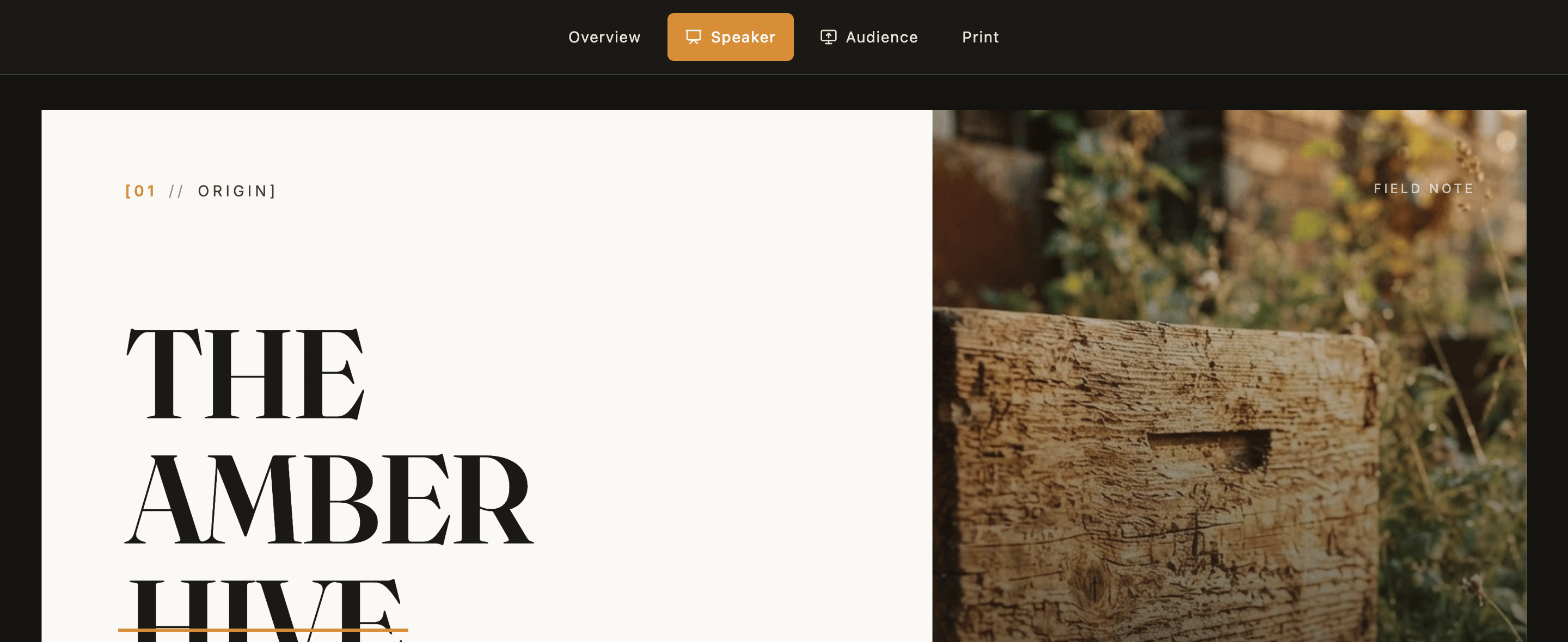
[Publish your presentation](#sharing-your-presentation), then open its link. You get 4 ways to use it, shown across the top.
* **Overview:** Every slide in the deck at once, so you can see the whole thing and jump to any slide.
* **Speaker:** Your presenter view, with your notes, a timer, and next and previous controls.
* **Audience:** A clean display with no controls or notes, for a projector or a shared window.
* **Print:** A printable version of the deck. Use your browser's print dialog to send it to a printer or save it as a PDF.
Your notes are part of the presentation, so you can write them yourself in the **Speaker Notes** panel, or click **Generate notes** and have Base44 draft them from the slide.
***
## Presenting
[Publish your presentation](#sharing-your-presentation), then open its link. You get 4 ways to use it, shown across the top.
* **Overview:** Every slide in the deck at once, so you can see the whole thing and jump to any slide.
* **Speaker:** Your presenter view, with your notes, a timer, and next and previous controls.
* **Audience:** A clean display with no controls or notes, for a projector or a shared window.
* **Print:** A printable version of the deck. Use your browser's print dialog to send it to a printer or save it as a PDF.
 **Opening your presentation:**
* These controls belong to your presentation rather than to Base44, so they do not appear in the editor preview. Publish your presentation and open its link to use them.
* To keep editing, return to your Base44 tab, or open the app again from your apps list.
### Seeing the whole deck
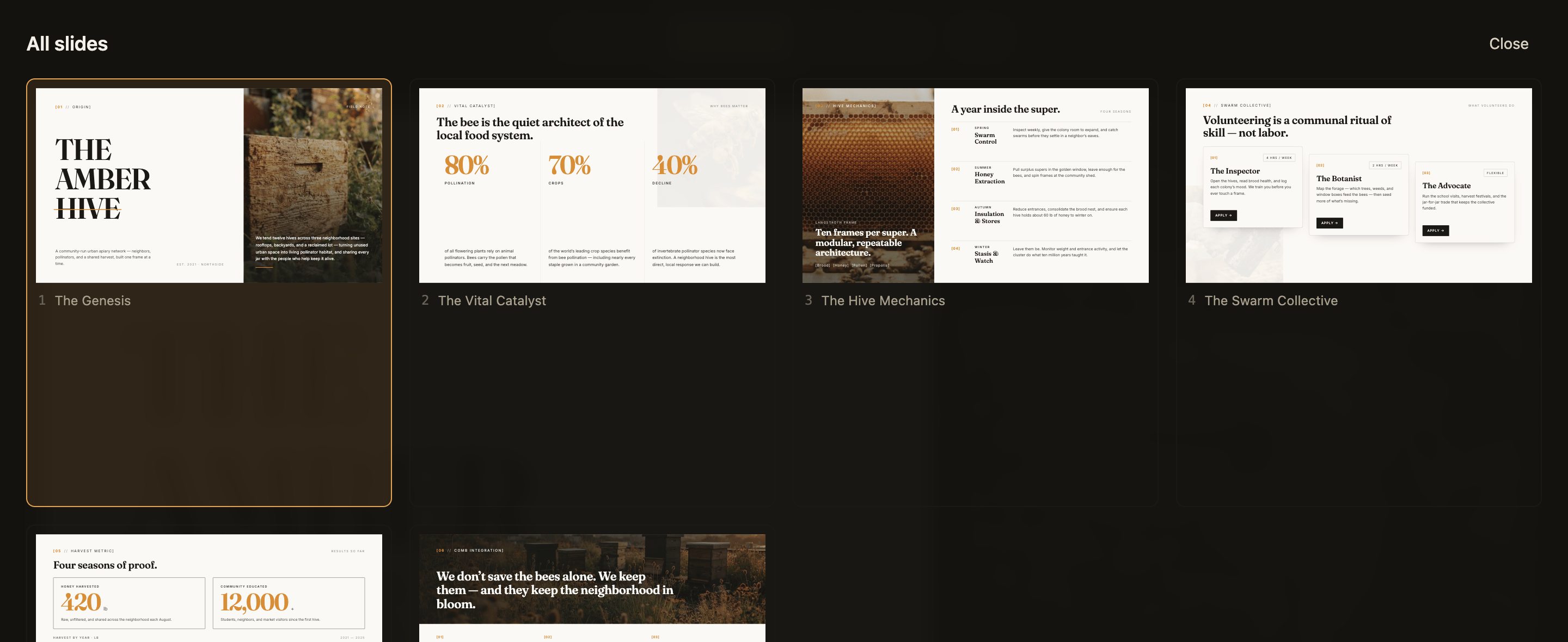
**Overview** shows every slide as a thumbnail with its title, so you can find the slide you want without clicking through the deck. Select a slide to go to it, or click **Close** to return.
**Opening your presentation:**
* These controls belong to your presentation rather than to Base44, so they do not appear in the editor preview. Publish your presentation and open its link to use them.
* To keep editing, return to your Base44 tab, or open the app again from your apps list.
### Seeing the whole deck
**Overview** shows every slide as a thumbnail with its title, so you can find the slide you want without clicking through the deck. Select a slide to go to it, or click **Close** to return.
 ### Presenting to a room
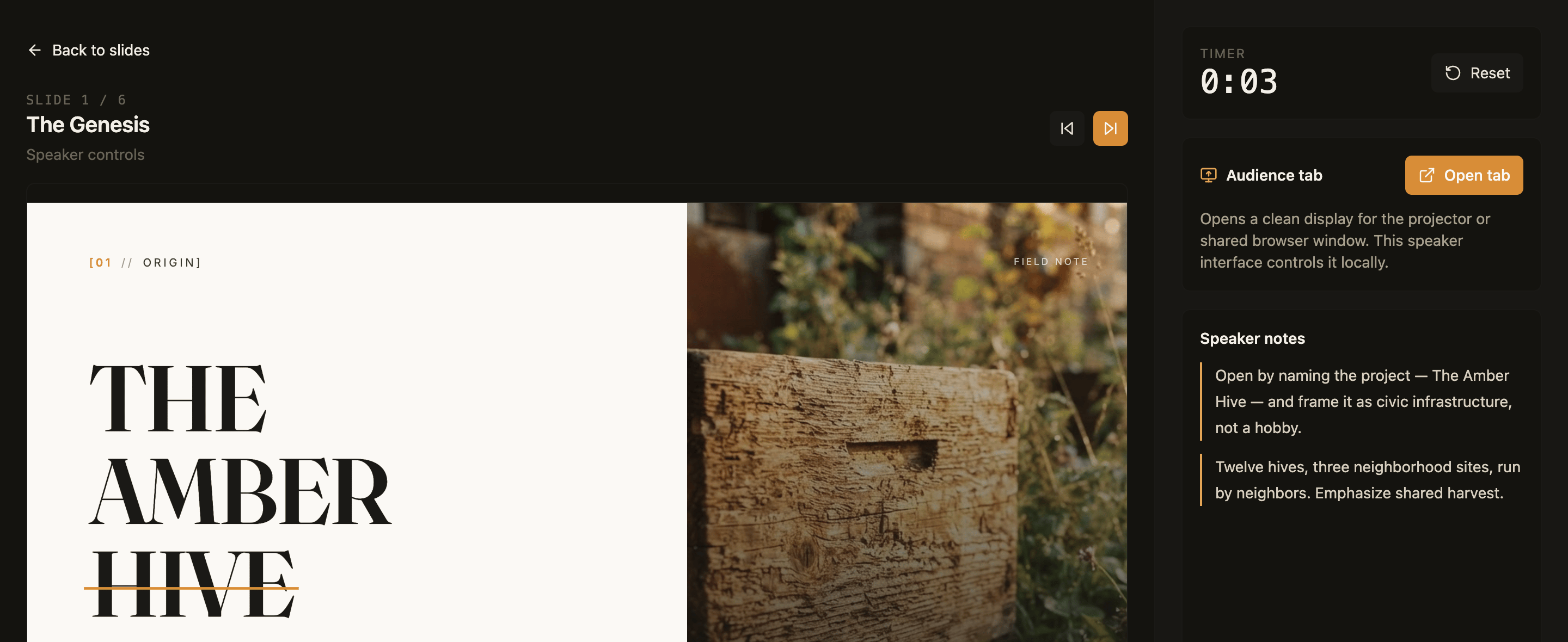
**Speaker** is the view you keep on your own screen. It shows the current slide, your speaker notes, how far through the deck you are, and a timer you can reset.
### Presenting to a room
**Speaker** is the view you keep on your own screen. It shows the current slide, your speaker notes, how far through the deck you are, and a timer you can reset.
 **To present with a second screen:**
1. Open your presentation and click **Speaker**.
2. Next to **Audience tab**, click **Open tab**.
3. Move the new tab to your projector or shared screen, and make it full screen.
4. Move through your deck with the arrow keys. The audience display follows you.
**Moving through your deck with the keyboard:**
* The right arrow, down arrow, space, or **Page Down** go to the next slide.
* The left arrow, up arrow, or **Page Up** go back.
* **Home** and **End** jump to the first and last slide.
* **O** opens and closes the overview.
***
## Sharing your presentation
Publish your presentation the same way you publish any Base44 app, and share the link. Anyone who opens it gets the presentation itself, with the same controls you have.
You can connect your own domain, and set who is allowed to open it, exactly as you would for any other app.
The 4 views are part of your presentation rather than part of Base44, so anyone who can open it sees the same controls you do. That includes **Speaker**, so treat your speaker notes as visible to anyone you send the link to. The audience display your speaker view opens is the exception, and shows the slide on its own with no controls.
A presentation cannot be built as a native mobile app. Everything else about publishing works as normal.
***
## FAQs
Here are some common questions about building presentations.
Yes. Ask in the AI chat for the colors, fonts, layout, or artwork you want. You can also ask Base44 to match the presentation to your brand.
Yes. Ask in the AI chat to translate your presentation, and the slide content and the presenter controls are both translated. Languages that read right to left are supported.
Yes. A presentation is a Base44 app, so you can ask for a signup form, a database, or anything else you would add to an app, alongside your slides.
**To present with a second screen:**
1. Open your presentation and click **Speaker**.
2. Next to **Audience tab**, click **Open tab**.
3. Move the new tab to your projector or shared screen, and make it full screen.
4. Move through your deck with the arrow keys. The audience display follows you.
**Moving through your deck with the keyboard:**
* The right arrow, down arrow, space, or **Page Down** go to the next slide.
* The left arrow, up arrow, or **Page Up** go back.
* **Home** and **End** jump to the first and last slide.
* **O** opens and closes the overview.
***
## Sharing your presentation
Publish your presentation the same way you publish any Base44 app, and share the link. Anyone who opens it gets the presentation itself, with the same controls you have.
You can connect your own domain, and set who is allowed to open it, exactly as you would for any other app.
The 4 views are part of your presentation rather than part of Base44, so anyone who can open it sees the same controls you do. That includes **Speaker**, so treat your speaker notes as visible to anyone you send the link to. The audience display your speaker view opens is the exception, and shows the slide on its own with no controls.
A presentation cannot be built as a native mobile app. Everything else about publishing works as normal.
***
## FAQs
Here are some common questions about building presentations.
Yes. Ask in the AI chat for the colors, fonts, layout, or artwork you want. You can also ask Base44 to match the presentation to your brand.
Yes. Ask in the AI chat to translate your presentation, and the slide content and the presenter controls are both translated. Languages that read right to left are supported.
Yes. A presentation is a Base44 app, so you can ask for a signup form, a database, or anything else you would add to an app, alongside your slides.