> ## Documentation Index
> Fetch the complete documentation index at: https://docs.base44.com/llms.txt
> Use this file to discover all available pages before exploring further.
# Uploading and managing media
> Make your app stand out with images, videos, documents, data files, audio, and your own branding.
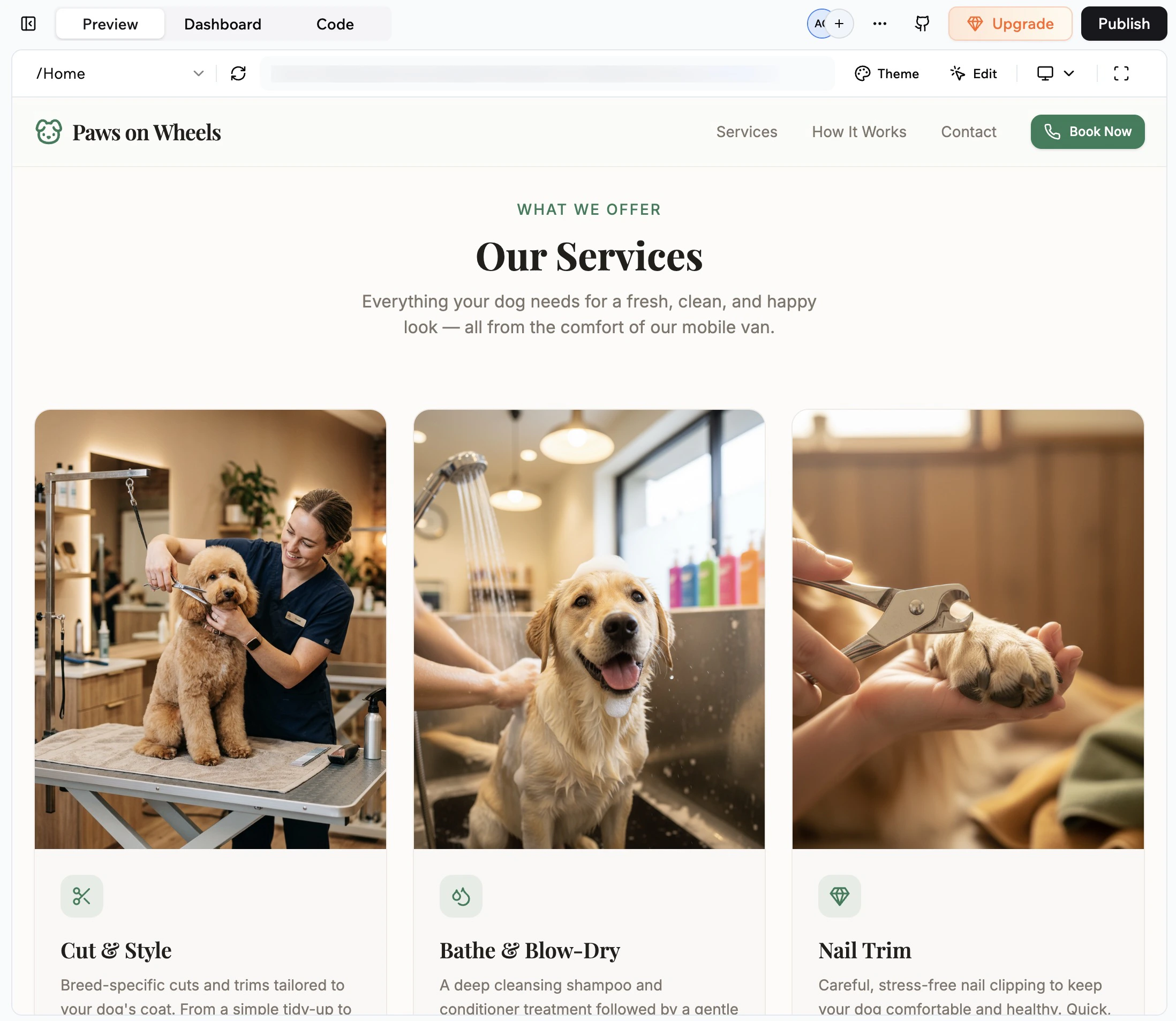
Media files such as images, videos, audio, documents, and data files help you create a rich, interactive app experience for people using your app. You can upload files while [building your app](https://base44.com/ai-app-builder) and in your live app, giving people new ways to share and engage.
 You can also add a custom logo that appears when someone adds your app to their home screen. The logo is also used as the browser favicon, so your app always looks professional and on-brand from both desktop and mobile.
***
## Using your file library
Your app has its own file library where Base44 stores files that you upload or generate while you build. This gives you one place to organize and reuse media and reference files across your app. You can keep images, videos, brand guides, PRDs, and data exports in your file library, then use them in your app or add them to the AI chat as context.
Any images and videos the AI generates and any files you upload from the editor or AI chat are automatically stored in the file library, and when you add a file from the library to the AI chat, the AI uses it as context for your prompts.
The file library is per app. Files saved in one app's library are not shared with other apps in your workspace.
You can also add a custom logo that appears when someone adds your app to their home screen. The logo is also used as the browser favicon, so your app always looks professional and on-brand from both desktop and mobile.
***
## Using your file library
Your app has its own file library where Base44 stores files that you upload or generate while you build. This gives you one place to organize and reuse media and reference files across your app. You can keep images, videos, brand guides, PRDs, and data exports in your file library, then use them in your app or add them to the AI chat as context.
Any images and videos the AI generates and any files you upload from the editor or AI chat are automatically stored in the file library, and when you add a file from the library to the AI chat, the AI uses it as context for your prompts.
The file library is per app. Files saved in one app's library are not shared with other apps in your workspace.
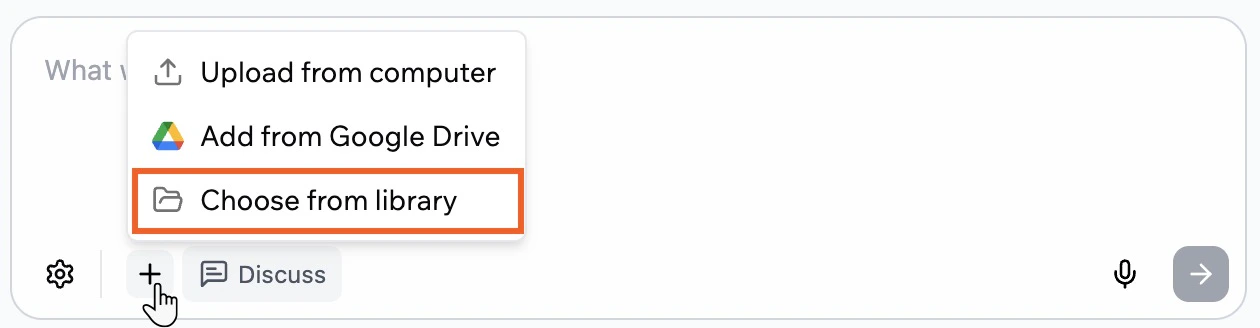
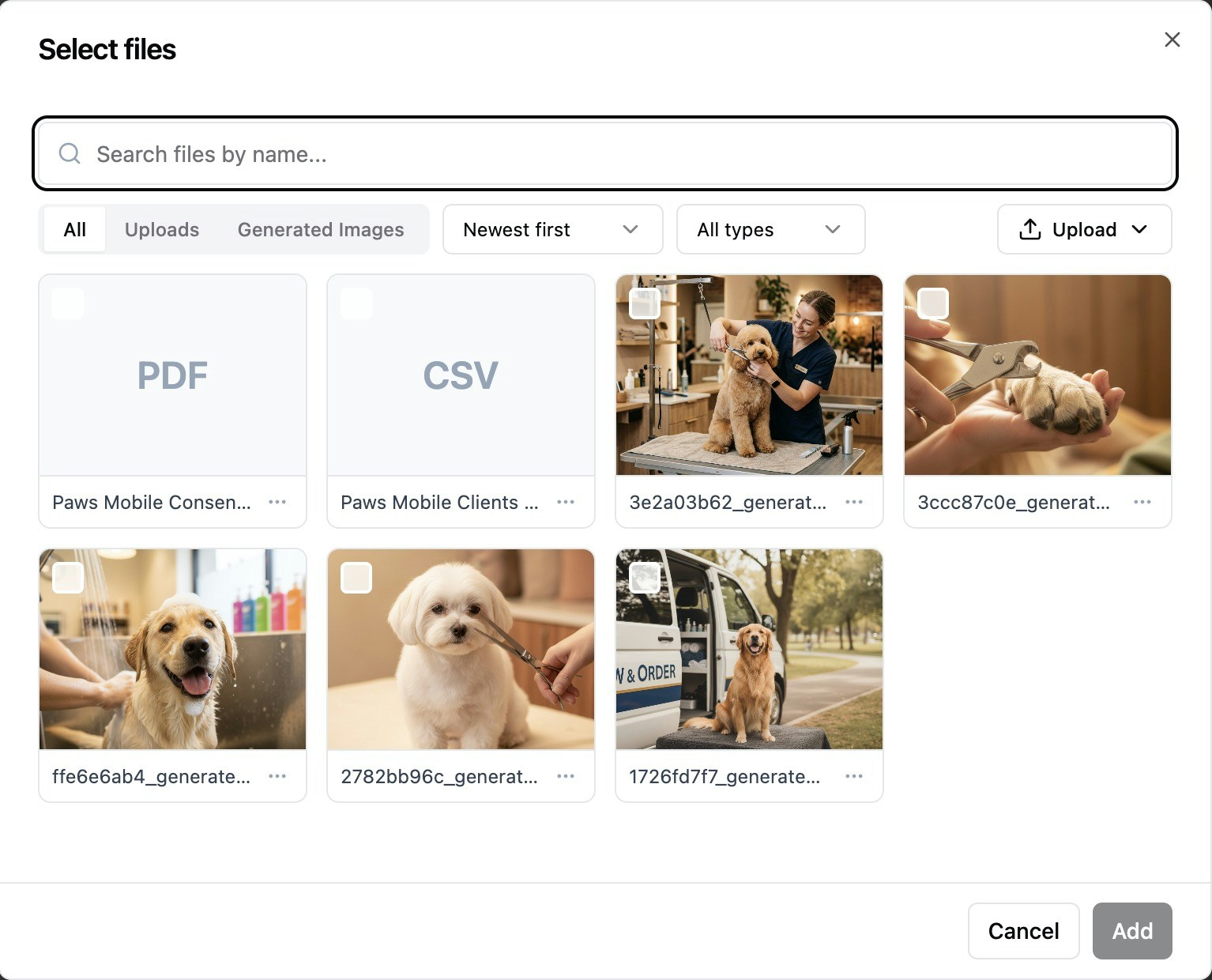 **To access your file library:**
1. Go to your app editor.
2. Click the **Add** icon in the AI chat.
3. Click **Choose from library**.
**To access your file library:**
1. Go to your app editor.
2. Click the **Add** icon in the AI chat.
3. Click **Choose from library**.
 ***
## Adding files to your app
You can add files to your app from your file library, from your computer, or from Google Drive. All files you add this way are stored in your app's file library so you can reuse them across your app and in the AI chat.
For example, you can keep product photos or demo videos in your file library and then attach them in the AI chat when you ask the AI to design a new section.
You can also ask the AI to generate and add images or videos to your app.
### From your file library
Use your file library whenever you want to reuse existing media instead of uploading a new file.
**To add a file from the library in the AI chat:**
1. Go to your app editor.
2. Click the **Add** icon in the AI chat.
3. Click **Choose from library**.
4. In the **Select files** dialog, search or browse to find the file you want.
5. Select the file and click **Add**.
6. Type your message to explain what you want the AI to do with the file, then send it.
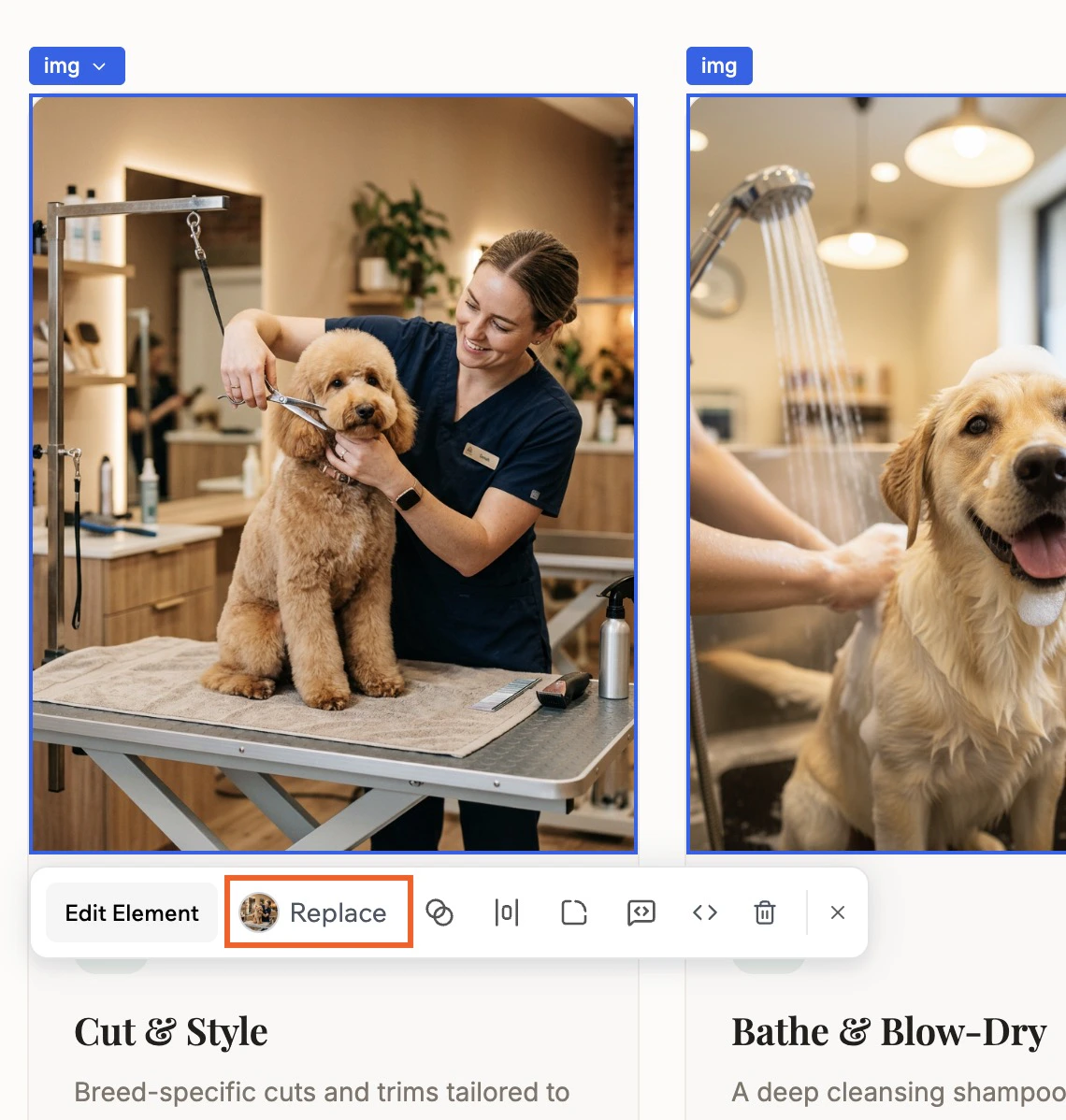
You can replace standalone images in your app using **Edit** mode. This does not work for images that are part of components, such as a gallery. For that, use the AI chat or edit the data directly from **Data** in the dashboard.
**To replace an image using your file library:**
1. Go to your app editor.
2. Click **Edit** in the chat.
3. Click the file you want to change.
4. Click **Replace**.
5. Search or browse your file library to find the new file.
6. Select the file and click **Replace**.
***
## Adding files to your app
You can add files to your app from your file library, from your computer, or from Google Drive. All files you add this way are stored in your app's file library so you can reuse them across your app and in the AI chat.
For example, you can keep product photos or demo videos in your file library and then attach them in the AI chat when you ask the AI to design a new section.
You can also ask the AI to generate and add images or videos to your app.
### From your file library
Use your file library whenever you want to reuse existing media instead of uploading a new file.
**To add a file from the library in the AI chat:**
1. Go to your app editor.
2. Click the **Add** icon in the AI chat.
3. Click **Choose from library**.
4. In the **Select files** dialog, search or browse to find the file you want.
5. Select the file and click **Add**.
6. Type your message to explain what you want the AI to do with the file, then send it.
You can replace standalone images in your app using **Edit** mode. This does not work for images that are part of components, such as a gallery. For that, use the AI chat or edit the data directly from **Data** in the dashboard.
**To replace an image using your file library:**
1. Go to your app editor.
2. Click **Edit** in the chat.
3. Click the file you want to change.
4. Click **Replace**.
5. Search or browse your file library to find the new file.
6. Select the file and click **Replace**.
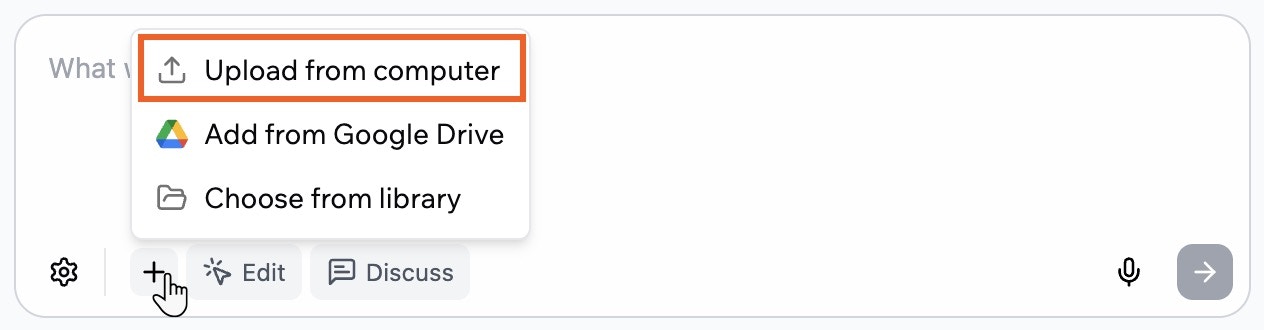
 ### From your computer
Upload files that are saved locally on your device when you want to share images, videos, documents, or data files directly with the AI chat.
**To upload a file from your computer:**
1. Go to your app editor.
2. Click the **Add** icon in the AI chat.
3. Click **Upload from computer**.
4. Select the file you want to use and confirm.
5. Type your message to explain what you want the AI to do with the file, then send it.
### From your computer
Upload files that are saved locally on your device when you want to share images, videos, documents, or data files directly with the AI chat.
**To upload a file from your computer:**
1. Go to your app editor.
2. Click the **Add** icon in the AI chat.
3. Click **Upload from computer**.
4. Select the file you want to use and confirm.
5. Type your message to explain what you want the AI to do with the file, then send it.
 ### From Google Drive
Connect Google Drive if you want the AI chat to work directly with Docs, Sheets, and Slides stored in your Drive without downloading them first.
### From Google Drive
Connect Google Drive if you want the AI chat to work directly with Docs, Sheets, and Slides stored in your Drive without downloading them first.
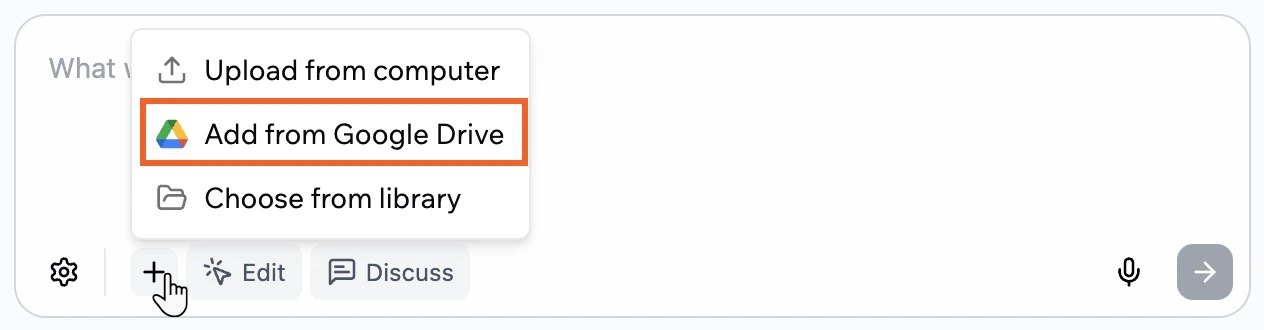 When you connect Google Drive, only the files you select are accessed. Base44 stores a copy of each selected file in your app's file library so the AI chat can use the content as context.
**To add a file from Google Drive:**
1. Go to your app editor.
2. Click the **Add** icon in the AI chat.
3. Click **Add from Google Drive**.
4. Review the information in the **Connect to Google Drive** window and click **Connect Google Drive**.
5. Complete the Google sign-in flow and approve access if this is your first time connecting.
6. Choose the Docs, Sheets, or Slides files you want to use from your Google Drive and confirm.
7. Type your message to explain what you want the AI to do with the file content, then send it.
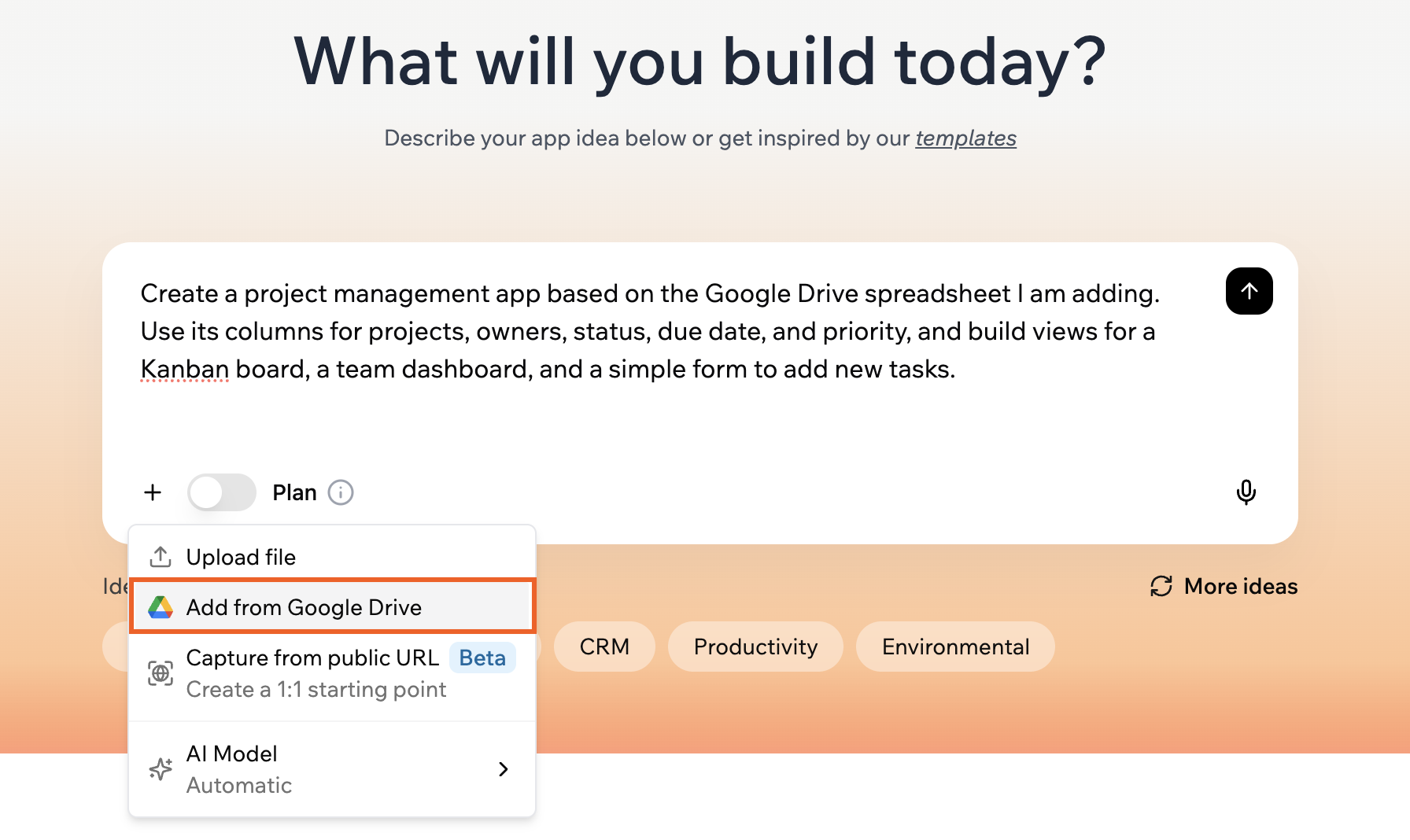
**Tip:** You can also add files from Google Drive in your very first prompt:
When you connect Google Drive, only the files you select are accessed. Base44 stores a copy of each selected file in your app's file library so the AI chat can use the content as context.
**To add a file from Google Drive:**
1. Go to your app editor.
2. Click the **Add** icon in the AI chat.
3. Click **Add from Google Drive**.
4. Review the information in the **Connect to Google Drive** window and click **Connect Google Drive**.
5. Complete the Google sign-in flow and approve access if this is your first time connecting.
6. Choose the Docs, Sheets, or Slides files you want to use from your Google Drive and confirm.
7. Type your message to explain what you want the AI to do with the file content, then send it.
**Tip:** You can also add files from Google Drive in your very first prompt:
 ### File upload limits
These limits apply to files you upload into your app's file library while building your app, whether you add them from the AI chat or directly from the editor.
**Images:** PNG, JPG, JPEG, GIF, WEBP, SVG
* Max size: 40MB (SVG: 5MB)
* Max dimensions: 1024x1024 pixels (larger images are resized automatically)
* Example: Upload a screenshot of a website you like and say: "Use this header style for my homepage."
**Videos:** MP4, WEBM, MOV, AVI, MKV, M4V, WMV, OGV, 3GP, 3G2
* Max size: 100MB per video
* Example: Upload a product demo, walkthrough, or reference video and ask the AI to use it as context while building your app.
**Documents and text files:** PDF, TXT, HTML, DOCX, MD
* Max size:
* PDF: 10MB
* TXT and HTML: 5MB
* DOCX and MD: 5MB
* Example: Upload a PRD or brand guide so the AI follows your product and style rules, or share a markdown file with requirements for a new app.
**Data files:** CSV, XLS, XLSX, JSON
* Max size:
* CSV and JSON: 10MB
* XLS and XLSX: 15MB
* Example: Upload a CSV, Excel, or JSON file with your existing business data and ask the AI to analyze it, suggest entities and fields, propose a data model for your app, or prepare the data for import. To learn how to import the data into your tables, see [Managing your app data](/Building-your-app/Managing-your-app-data).
**Audio:** MP3, WAV
* Max size: 100MB
**Zip files**
* Max size: 25MB
***
## Sharing media on your live app
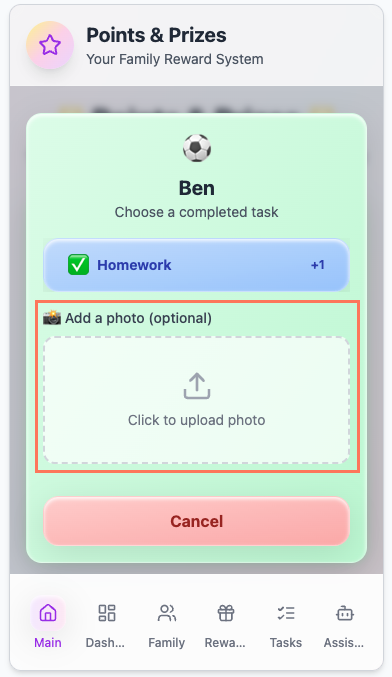
Let your users upload media directly in your live app. You and your users can share, download, or interact with content to create a more engaging experience.
Just tell the AI chat what you want your users to be able to do, and the AI will set it up for you. This feature uses the built-in UploadFile integration.
### File upload limits
These limits apply to files you upload into your app's file library while building your app, whether you add them from the AI chat or directly from the editor.
**Images:** PNG, JPG, JPEG, GIF, WEBP, SVG
* Max size: 40MB (SVG: 5MB)
* Max dimensions: 1024x1024 pixels (larger images are resized automatically)
* Example: Upload a screenshot of a website you like and say: "Use this header style for my homepage."
**Videos:** MP4, WEBM, MOV, AVI, MKV, M4V, WMV, OGV, 3GP, 3G2
* Max size: 100MB per video
* Example: Upload a product demo, walkthrough, or reference video and ask the AI to use it as context while building your app.
**Documents and text files:** PDF, TXT, HTML, DOCX, MD
* Max size:
* PDF: 10MB
* TXT and HTML: 5MB
* DOCX and MD: 5MB
* Example: Upload a PRD or brand guide so the AI follows your product and style rules, or share a markdown file with requirements for a new app.
**Data files:** CSV, XLS, XLSX, JSON
* Max size:
* CSV and JSON: 10MB
* XLS and XLSX: 15MB
* Example: Upload a CSV, Excel, or JSON file with your existing business data and ask the AI to analyze it, suggest entities and fields, propose a data model for your app, or prepare the data for import. To learn how to import the data into your tables, see [Managing your app data](/Building-your-app/Managing-your-app-data).
**Audio:** MP3, WAV
* Max size: 100MB
**Zip files**
* Max size: 25MB
***
## Sharing media on your live app
Let your users upload media directly in your live app. You and your users can share, download, or interact with content to create a more engaging experience.
Just tell the AI chat what you want your users to be able to do, and the AI will set it up for you. This feature uses the built-in UploadFile integration.
 ### File upload limits for your app
These limits apply to files that people upload through your live app using the UploadFile integration.
* **Images:** PNG, JPG, JPEG, WEBP, SVG (max size: 50MB)
* **Documents:** PDF, TXT, HTML (max size: 50MB)
* **Data files:** CSV, XLS, XLSX, JSON (max size: 50MB)
* **Videos:** MP4, WEBM, MOV, AVI, MKV, M4V, WMV, OGV, 3GP, 3G2 (max size: 100MB per video)
* **Audio:** MP3, WAV (max size: 50MB)
***
## Customizing your app's logo
Personalize your app by adding a logo. Your logo is visible to users when they add your [app to their home screen](/Building-your-app/Mobile-experience#installing-your-app-to-the-home-screen) and also appears as the browser favicon.
### Changing your logo
1. Go to your app's dashboard and click **Overview**.
2. Click the **Edit** icon on the logo and either:
* Upload your own image file
* Click **Generate Logo** to create a new one with the AI
### File upload limits for your app
These limits apply to files that people upload through your live app using the UploadFile integration.
* **Images:** PNG, JPG, JPEG, WEBP, SVG (max size: 50MB)
* **Documents:** PDF, TXT, HTML (max size: 50MB)
* **Data files:** CSV, XLS, XLSX, JSON (max size: 50MB)
* **Videos:** MP4, WEBM, MOV, AVI, MKV, M4V, WMV, OGV, 3GP, 3G2 (max size: 100MB per video)
* **Audio:** MP3, WAV (max size: 50MB)
***
## Customizing your app's logo
Personalize your app by adding a logo. Your logo is visible to users when they add your [app to their home screen](/Building-your-app/Mobile-experience#installing-your-app-to-the-home-screen) and also appears as the browser favicon.
### Changing your logo
1. Go to your app's dashboard and click **Overview**.
2. Click the **Edit** icon on the logo and either:
* Upload your own image file
* Click **Generate Logo** to create a new one with the AI
 Logos generated in Base44 can only be used within your app and cannot be exported.
### File limits for your logo
Use these limits when you choose or generate a logo image for your app.
* **Image formats:** PNG, JPG, JPEG
* **Max size:** 5MB
* **Max dimensions:** 1024x1024 pixels (larger images are resized automatically)
For best results, use a clear, square image with a transparent background.
***
## Setting your social image
Add a social image to control how your app looks when someone shares its link on social platforms like Slack, WhatsApp, or iMessage. The image appears in the preview card alongside your app name and description.
Logos generated in Base44 can only be used within your app and cannot be exported.
### File limits for your logo
Use these limits when you choose or generate a logo image for your app.
* **Image formats:** PNG, JPG, JPEG
* **Max size:** 5MB
* **Max dimensions:** 1024x1024 pixels (larger images are resized automatically)
For best results, use a clear, square image with a transparent background.
***
## Setting your social image
Add a social image to control how your app looks when someone shares its link on social platforms like Slack, WhatsApp, or iMessage. The image appears in the preview card alongside your app name and description.
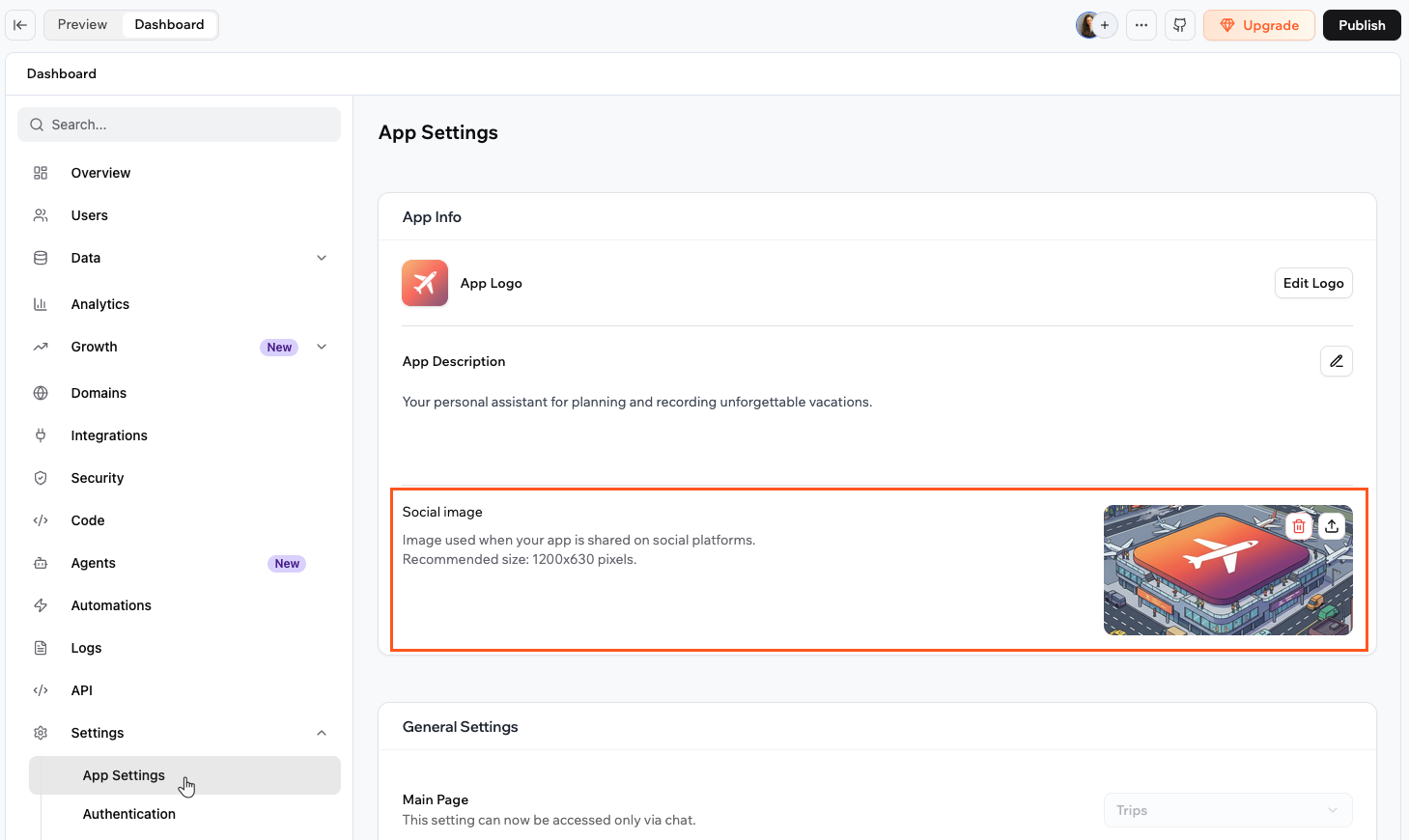 **To add a social image:**
1. Go to your app's dashboard and click **Settings**.
2. Click **App Settings**.
3. In the **App Info** section, click or drag an image into the **Social image** upload area.
Use an image that is 1200x630 pixels for the best results across platforms.
**To replace or remove your social image:**
1. Go to your app's dashboard and click **Settings**.
2. Click **App Settings**.
3. In the **App Info** section, hover over the social image:
* Click the **Upload** icon to replace it with a new image.
* Click the **Delete** icon to remove it.
### File limits for your social image
* **Image formats:** PNG, JPG, WEBP
* **Recommended size:** 1200x630 pixels
* **Max size:** 5MB
For best results, avoid text-heavy images as they may be cropped on some platforms.
***
## FAQs
Click a question below to learn more.
If your file isn't uploading to the chat, it's most likely because the file is too large or the wrong format. Review the limits above and try again.
This error can happen if you upload a file that was renamed without converting it properly. For example, changing the file name from `.webp` to `.png` or from one video format to another does not convert the file.
**To fix this:**
* Try reverting your last message if you just uploaded the file.
* Check that your file is one of the supported formats listed in the [Media guide](/Building-your-app/Using-media) and has not simply been renamed from another file type.
* Make sure your file does not exceed the size limits set in the Media guide.
* Try uploading your file again using a supported format.
If you still have trouble after these steps, [contact support](/Community-and-support/Contacting-support) for help.
You can disconnect Google Drive at any time from your account settings.
**To disconnect Google Drive:**
1. Click your profile icon at the top-right of Base44.
2. Click **Settings**.
3. Click **Account settings** under **Account**.
4. Scroll to the **Chat Settings** section.
5. In the **Google Drive** card, click **Disconnect**.
6. Confirm the disconnection.
Yes, you can replace your logo image at any time from your dashboard inside the app editor. The new logo appears once your changes are published.
No, a social image is optional. If you do not set one, social platforms show a generic preview when your app link is shared. Adding a social image gives you control over how your app appears and can make it more recognizable.
There is no hard storage limit per app. You can store as many files as your app needs. The only constraints are on individual file sizes, see the limits above for each file type.
**To add a social image:**
1. Go to your app's dashboard and click **Settings**.
2. Click **App Settings**.
3. In the **App Info** section, click or drag an image into the **Social image** upload area.
Use an image that is 1200x630 pixels for the best results across platforms.
**To replace or remove your social image:**
1. Go to your app's dashboard and click **Settings**.
2. Click **App Settings**.
3. In the **App Info** section, hover over the social image:
* Click the **Upload** icon to replace it with a new image.
* Click the **Delete** icon to remove it.
### File limits for your social image
* **Image formats:** PNG, JPG, WEBP
* **Recommended size:** 1200x630 pixels
* **Max size:** 5MB
For best results, avoid text-heavy images as they may be cropped on some platforms.
***
## FAQs
Click a question below to learn more.
If your file isn't uploading to the chat, it's most likely because the file is too large or the wrong format. Review the limits above and try again.
This error can happen if you upload a file that was renamed without converting it properly. For example, changing the file name from `.webp` to `.png` or from one video format to another does not convert the file.
**To fix this:**
* Try reverting your last message if you just uploaded the file.
* Check that your file is one of the supported formats listed in the [Media guide](/Building-your-app/Using-media) and has not simply been renamed from another file type.
* Make sure your file does not exceed the size limits set in the Media guide.
* Try uploading your file again using a supported format.
If you still have trouble after these steps, [contact support](/Community-and-support/Contacting-support) for help.
You can disconnect Google Drive at any time from your account settings.
**To disconnect Google Drive:**
1. Click your profile icon at the top-right of Base44.
2. Click **Settings**.
3. Click **Account settings** under **Account**.
4. Scroll to the **Chat Settings** section.
5. In the **Google Drive** card, click **Disconnect**.
6. Confirm the disconnection.
Yes, you can replace your logo image at any time from your dashboard inside the app editor. The new logo appears once your changes are published.
No, a social image is optional. If you do not set one, social platforms show a generic preview when your app link is shared. Adding a social image gives you control over how your app appears and can make it more recognizable.
There is no hard storage limit per app. You can store as many files as your app needs. The only constraints are on individual file sizes, see the limits above for each file type.