> ## Documentation Index
> Fetch the complete documentation index at: https://docs.base44.com/llms.txt
> Use this file to discover all available pages before exploring further.
# Managing your app data
> Stay organized and power your app with easy, flexible data management.
***
In Base44, your app’s data is the information that brings everything to life. It includes all the information that your app holds, such as people who sign in, the content you show, orders you process, and the activities that happen in your app.
***
## Understanding your data
All of your app's data is organized in tables, just like a spreadsheet. Each table groups one type of info (such as people or products) and sorts it into columns called fields, such as names, dates, or prices.
For example, if you [create an app](https://base44.com/ai-app-builder) to run your shop’s business, you can use the data tables in Base44 to keep everything organized. You might have a **Users** data table to store your customers' names and email addresses, a **Products** table listing what you sell, and an **Orders** table to track every purchase.
Each new customer, product, or order is automatically added as a new row in the right table, so you can quickly find, update, or manage your shop’s information.
***
## Data field types
When you, or the AI, add a field (column) to your table, you choose what type of information it stores. Some common field types include:
* **Text:** For words, phrases, or descriptions (such as customer names or product details)
* **Number:** For prices, quantities, or measurements
* **Yes/No (Boolean):** For fields that are true or false (such as “Is active?”)
* **Date/Time:** To save dates such as sign-up day, order date, or event time
* **File:** For images, documents, or other files
* **Reference:** To link this table to another table (for example, linking each order to the right customer)
* **Object:** For advanced cases, this lets you add structured information such as a JSON object
***
## Accessing your app's data
It is easy to see all the information your app collects. You can view your data at any time from the dashboard, where each table gives you a clear, organized look at your people, products, orders, and more. This helps you track what is happening in your app and keep everything up to date.
### Viewing your app's data
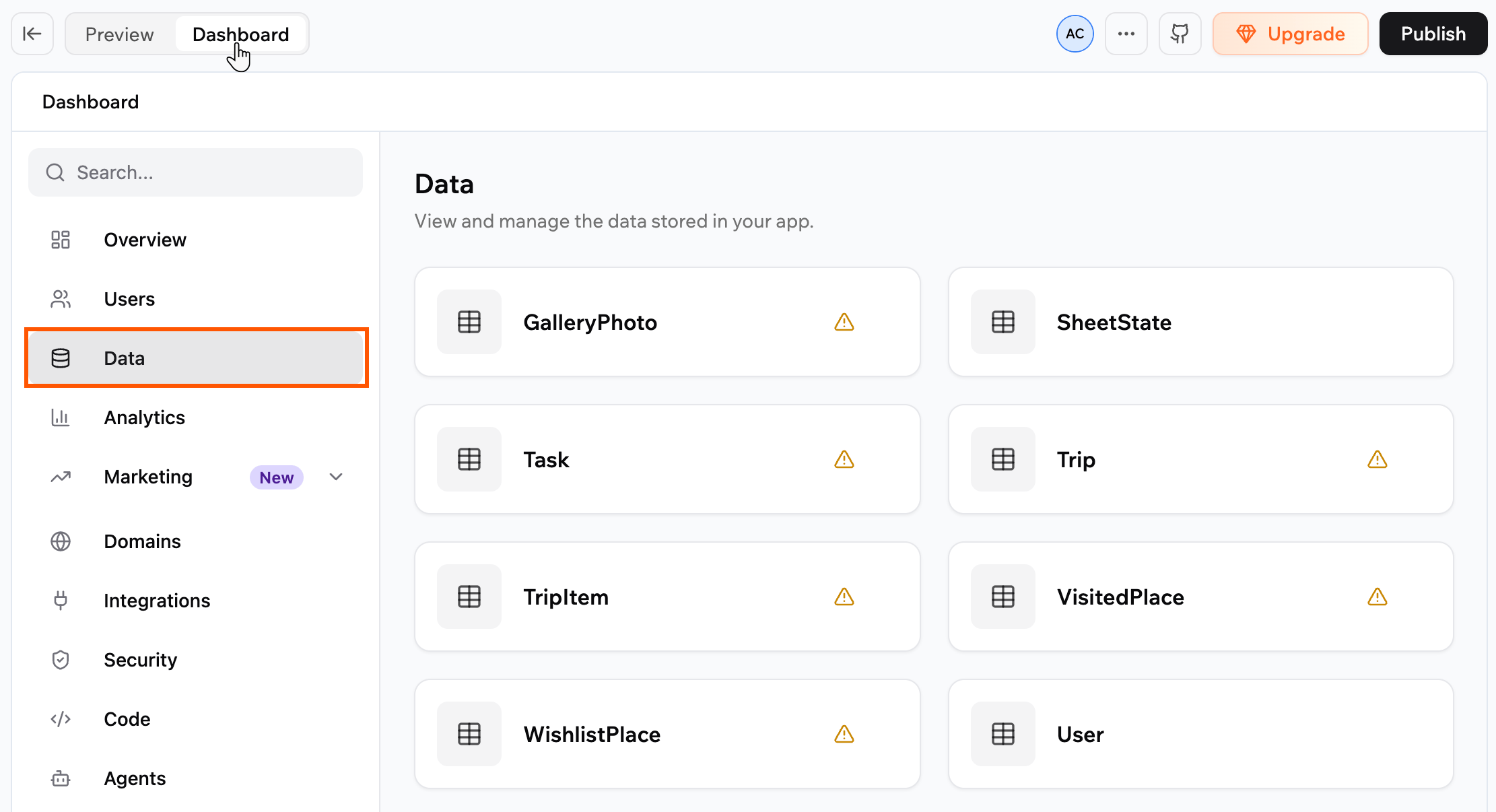
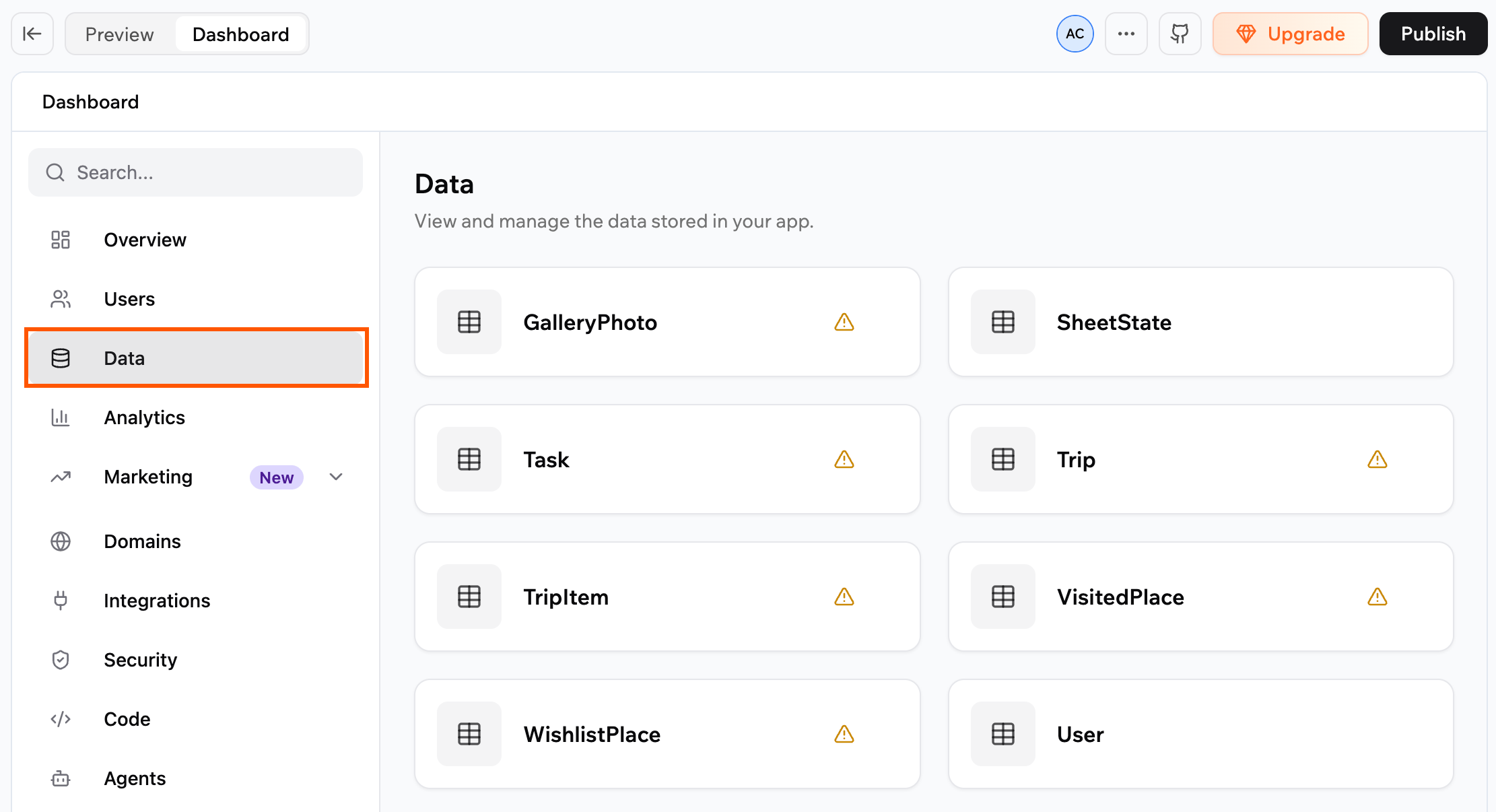
The **Data** page shows every table in your app as a card. Click a card to open its records.
1. Click **Dashboard** in your app editor.
2. Click **Data**.
3. Select the relevant data set (table).
Each card has a **More Actions** icon with quick options for that table: **View Data**, **Export**, **Schema**, **Recently Deleted**, and **Delete All**. A warning icon on a card means the table has a row-level security risk. See [Fixing permission risks](#fixing-permission-risks) to review and fix who can access its data.
You can also access an entity's data table directly from **Edit** mode. Click any element that displays data from an entity and select **Edit data**.
### Searching for specific data
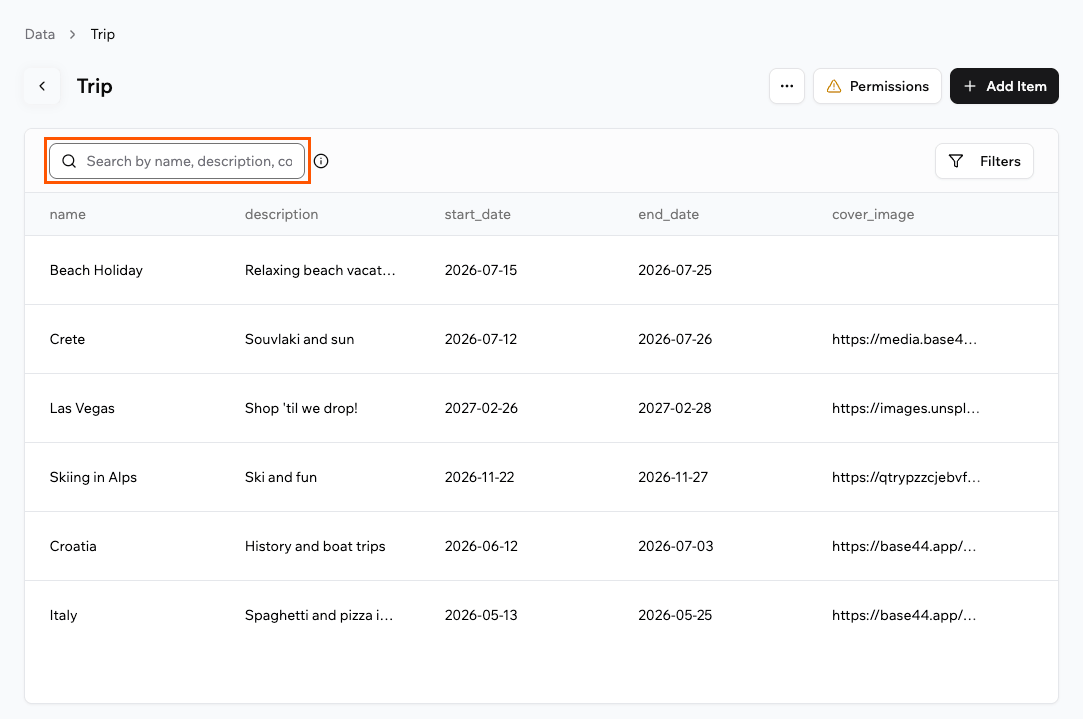
Use the search bar above the table to quickly find relevant rows. The search looks through all text fields in your data, so you can jump straight to a specific row instead of scrolling.
**To search for data:**
1. Click **Dashboard** in your app editor.
2. Click **Data**.
3. Enter a word, number or phrase in the search bar above the table.
### Filtering your data
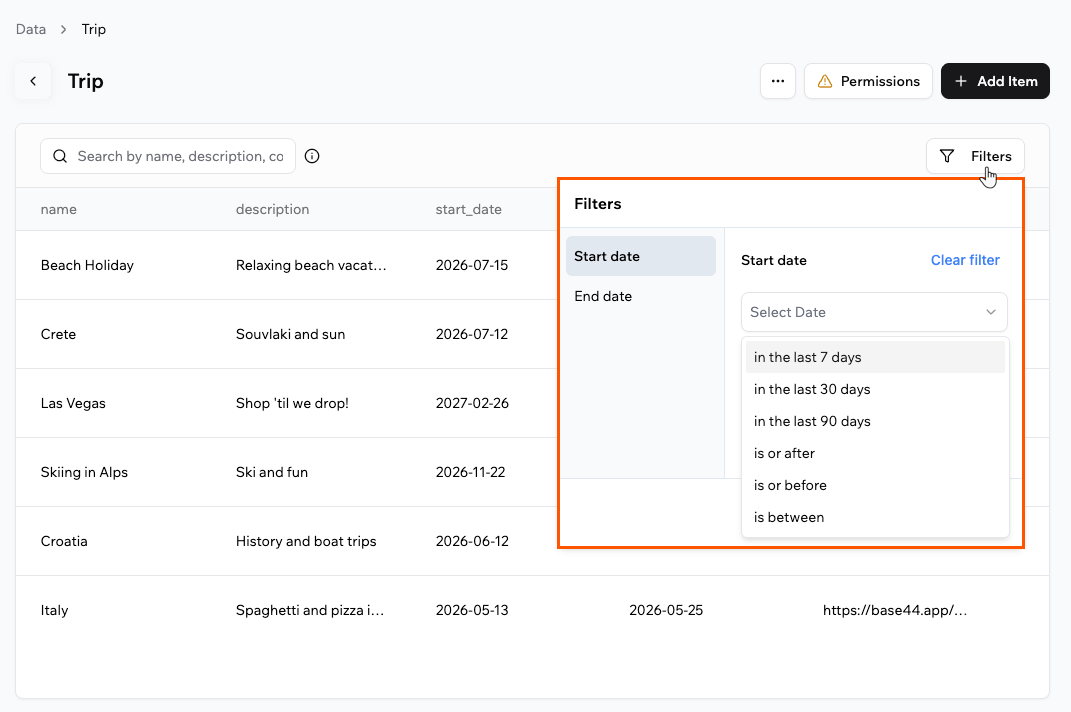
Use filters to turn a long table into a focused view, for example to see only shipped features, items owned by your team, or work planned for a specific quarter.
The filters displayed come from the fields in your data set, so each table has its own relevant list of filter options.
**To filter your data:**
1. Click **Dashboard** in your app editor.
2. Click **Data**.
3. Click **Filters** in the top right of the table and select your filters.
***
## Adding and updating data
Base44 automatically collects and updates your app’s data as people interact with your app. The AI sets up your tables so the right information is saved and kept up to date for you. However, if you want to manually add information (for example, add a product, update a record, or input test data), you can do it easily from your app’s dashboard inside your app editor.
### Manually adding data
1. Click **Dashboard** in your app editor.
2. Click **Data**.
3. Select the relevant data set (table).
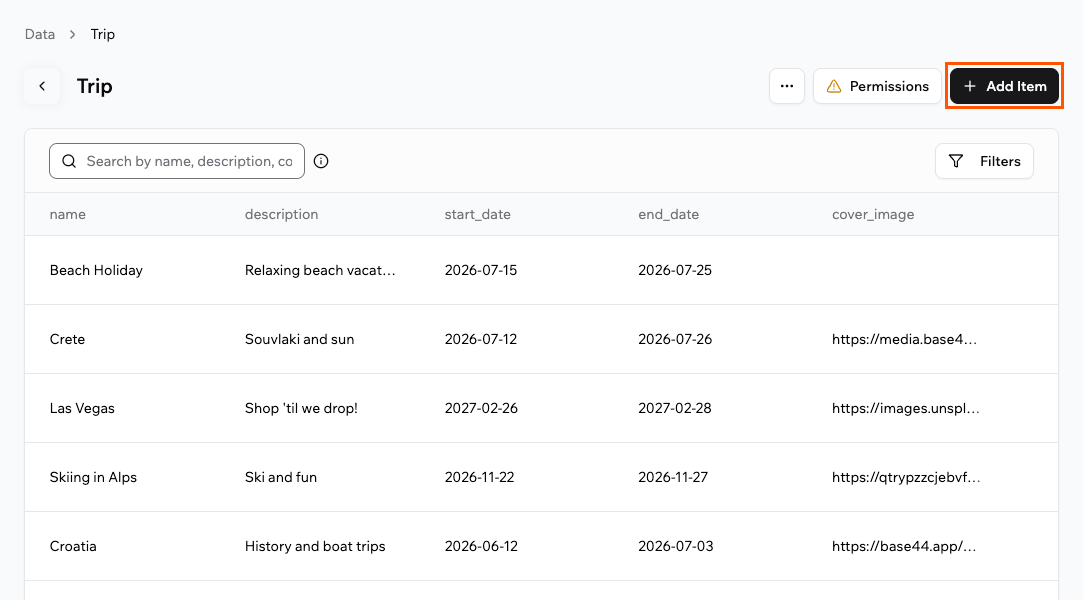
4. Click **Add Item**.
5. Enter the data and click **Submit**.
### Editing data
To edit a data record, click the row of the table that you want to edit, complete the details and click **Submit**.
### Deleting data
Delete your app's data at any time.
**Note:** You can view and restore recently deleted records from any data table. Deleted records are kept for 30 days, so you have time to recover information if needed. Click the **More Actions** icon on the top of the data table and click **Recently Deleted** to see and restore deleted records. After 30 days the data is permanently deleted and cannot be restored.
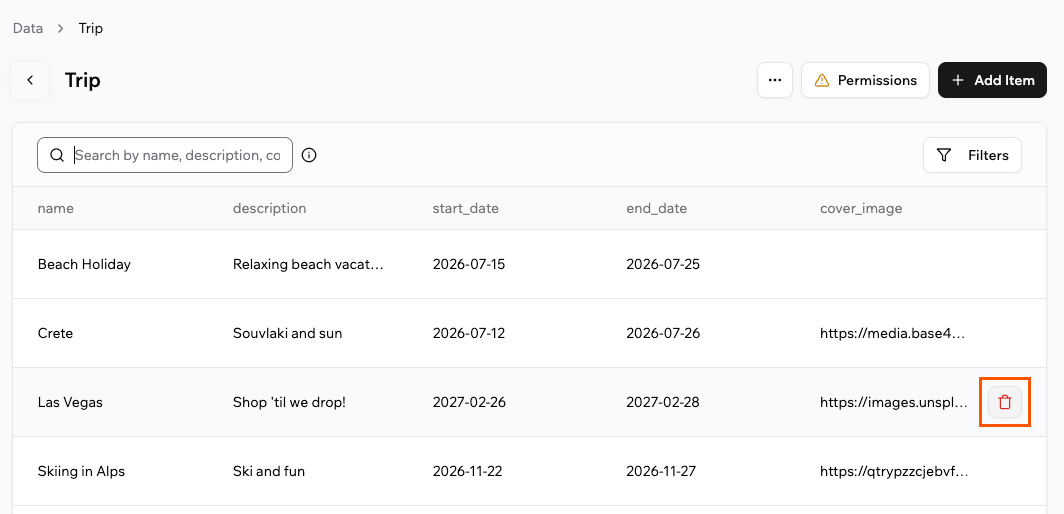
To delete a single record, click the **Delete** icon on the relevant row of the table.
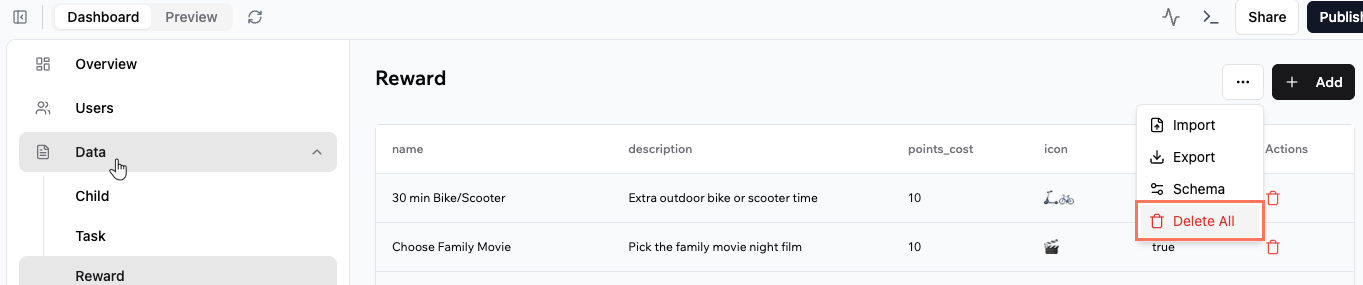
To delete all the records in a table, click the **More Actions** icon on the data entity and click **Delete All**.
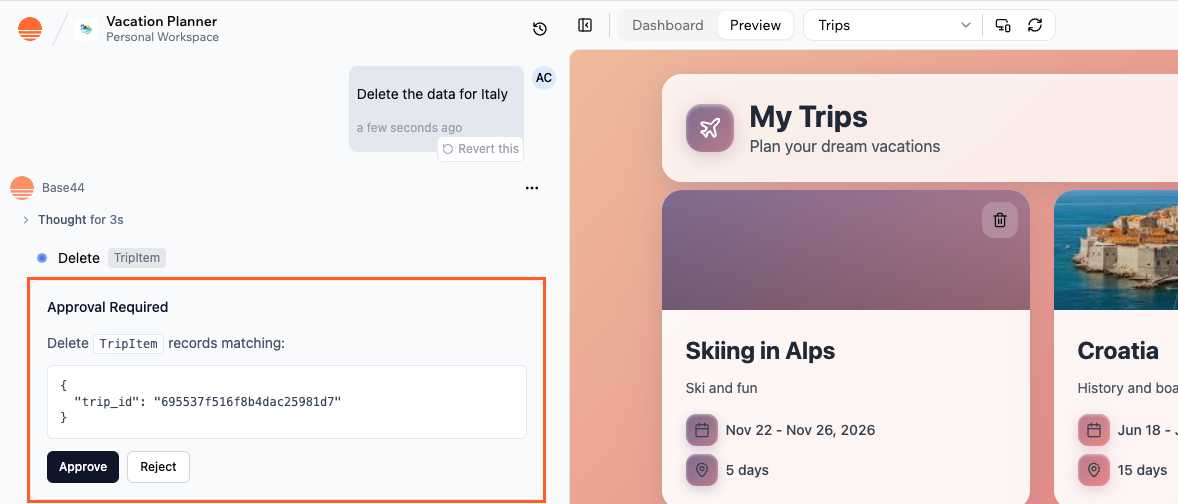
You can also ask the AI chat to delete records for you. The AI prepares the delete action and asks for your approval before anything is removed.
**To delete data with the AI chat:**
1. Open the AI chat in your app editor.
2. Describe what you want to delete, for example: `Delete the data for Italy in the TripItem entity.`
3. Review the delete request that the AI suggests, including the entity name.
4. Click **Approve** to confirm the deletion, or **Reject** to cancel.
***
## Importing data
Sometimes you want to bring in lots of information to your app at once. You can import data in 2 ways, depending on whether you want to work directly in the dashboard or ask the AI chat to help.
Imports add new rows to your tables. They do not update or overwrite existing records. If you want your file to replace the data in a table, first delete the current records in that table, then run the import again with your file.
### Using the AI chat
Use the AI chat to turn existing data files into entities and records in your app. This is helpful when you already have information in a spreadsheet or JSON file and want to bring it into Base44. You can upload structured data files and ask the AI to create or update entities for you, including setting up tables and mapping fields.
Supported formats for importing data:
* CSV (.csv)
* Excel (.xlsx, .xls)
* JSON (.json)
If you upload an Excel file with multiple sheets, you can ask the AI to import a single sheet or import all sheets into their matching entities.
* `Import this data into the Customers entity.`
* `Import this JSON file into my Orders entity.`
* `Import the ‘Orders’ sheet into the Orders entity.`
* `Here is a CSV of my Products. Create a Products entity with matching fields and import these rows.`
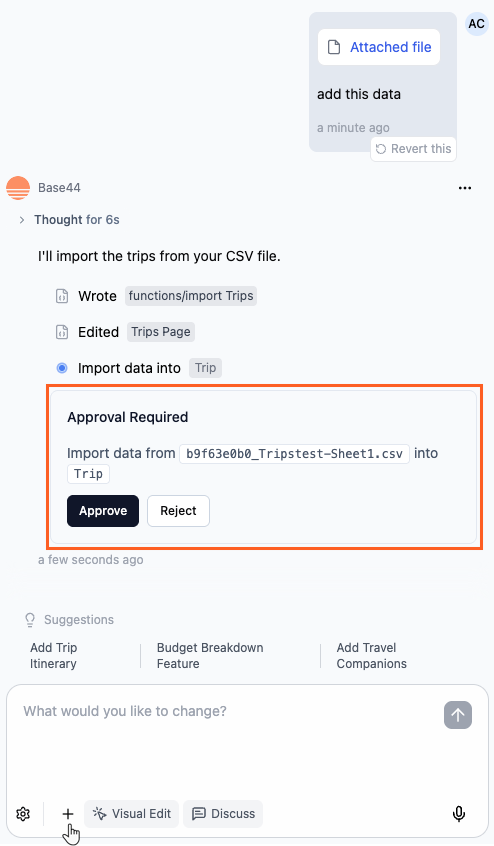
**To import data using the AI chat:**
1. Create the entity you want to import into (for example, Products, Contacts, Orders).
2. Open the AI chat in your app editor.
3. Click the **Upload files** icon and select your data file.
4. Ask the AI to import the data.
5. Review the response and approve the import in the chat.
When you import data this way, Base44 analyzes your file structure and maps columns to your entity fields. It can create or update entities if your schema needs to change, adding new entities or fields, or adjusting field types to match your file. It does not update or overwrite existing records; it always appends new rows.
If something does not match, the AI updates the schema where it is safe to do so, then retries the import so you do not need to fix everything manually.
For file size limits and more details about uploading files to the AI chat, see [Uploading and managing files](/Building-your-app/Using-media).
**To use the AI chat to replace existing data:**
If you want the content of a file to replace all the current records in an entity, you need to clear the entity first, then import the new rows from your file.
**Tip:** Before you delete records, consider exporting the table so you have a backup copy of your original data.
1. Ask the AI chat to delete the records in the relevant entity (for example, `Delete all records from the Orders entity.`).
2. Confirm that you want to delete the records.
3. Click the **Upload files** icon and select your data file.
4. Ask the AI chat to import the file into the same entity.
### Directly in the dashboard
Use this option when you already have a CSV that matches your table and you simply want the rows to appear in your data. Dashboard imports currently support CSV (.csv) files.
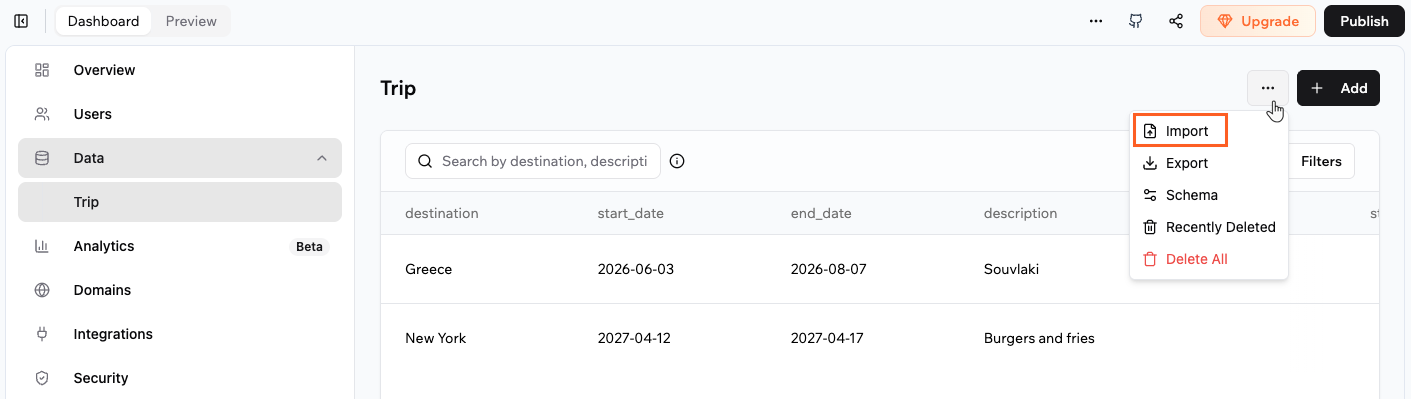
**To import data from the dashboard:**
1. Click **Dashboard** in your app editor.
2. Click **Data**.
3. Select the relevant data set (table).
4. Click the **More Actions** icon and click **Import**.
5. Choose your CSV file and click **Open**.
**Note:** Imports from the dashboard also add new rows only. They do not update or overwrite existing records. If you want to replace everything in a table with the content of a CSV file, first click **Delete All** on that table to clear the records, then import the CSV.
Example: Export your customer list from another tool as a CSV, adjust the columns to match your **Customers** table, then import the file so you can manage those customers directly in Base44.
***
## Exporting data
You might want to take your app's data out for backup, analysis, or to use in other tools. To do this, you can use the **Export** option. For example, you might want to export your store orders or people lists to share with your accountant, or use the data to create custom reports.
Your data downloads as a CSV file you can open in spreadsheet software such as Excel or Google Sheets.
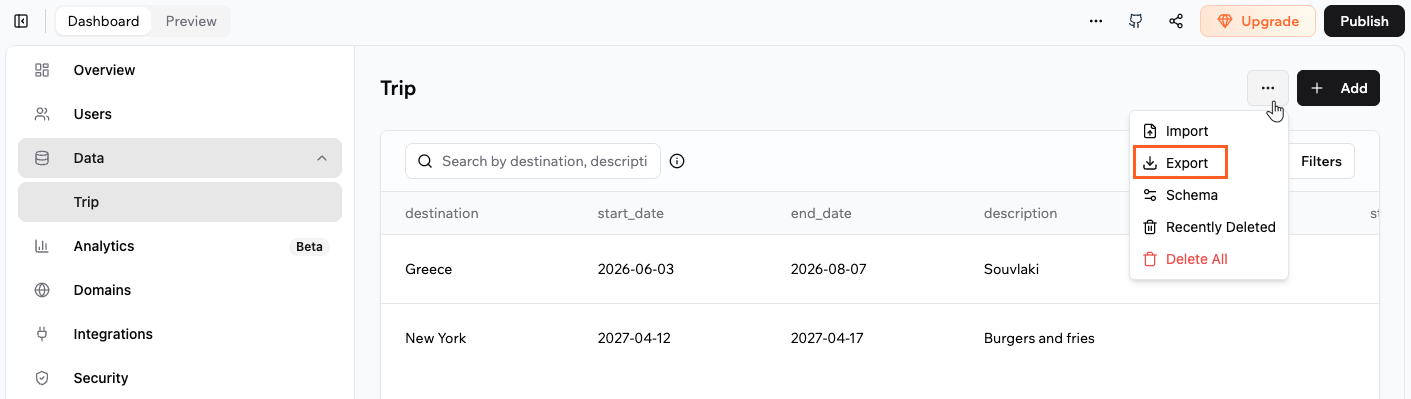
**To export your app's data:**
1. Click **Dashboard** in your app editor.
2. Click **Data**.
3. Select the relevant data set (table).
4. Click the **More Actions** icon and click **Export**.
***
## Changing data permissions
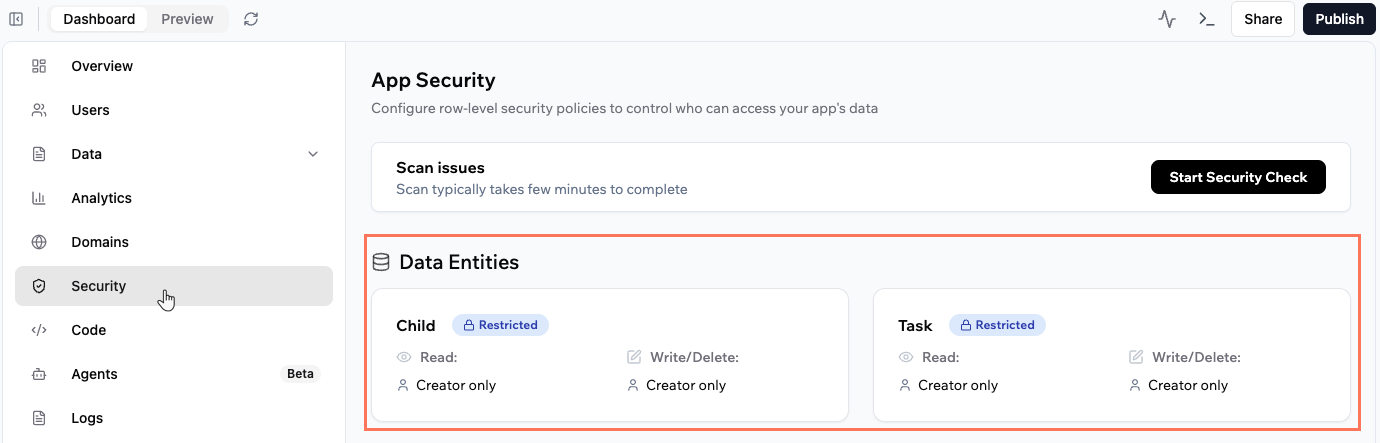
Each data table has its own security settings, controlling who can **read** and **write** its data.
**Read Access**: Who can view records\
**Write Access**: Who can create, update, or delete records
**Note:** For more detailed explanations, see the [Managing security settings guide](/Setting-up-your-app/Managing-security-settings).
**To change the permissions for your data:**
1. Click **Dashboard** in your app editor.
2. Click **Security**.
3. Click the relevant data entity and set the permissions.
### Fixing permission risks
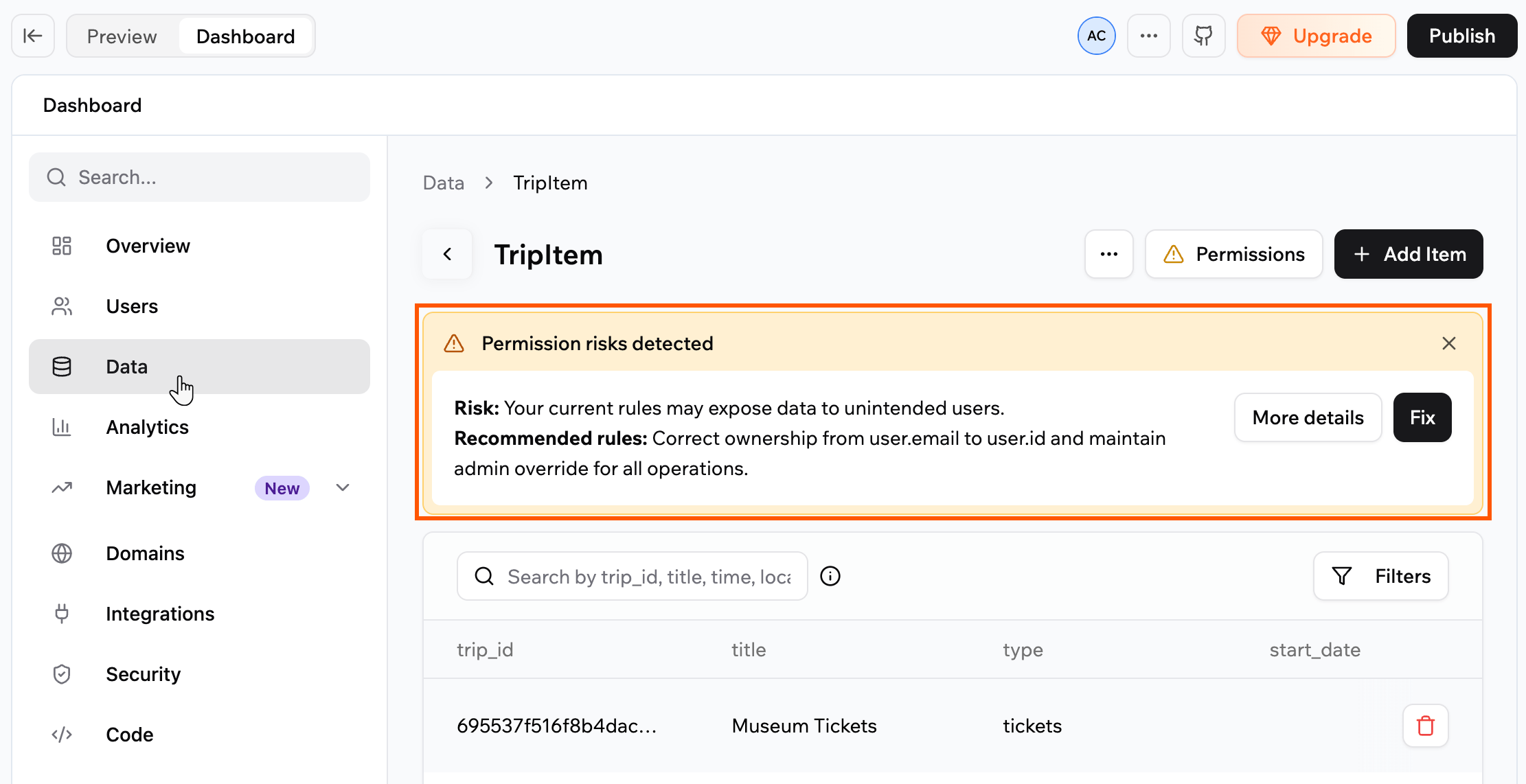
When a table has a row-level security risk, a warning icon appears on its card on the **Data** page. Open the table to see a **Permission risks detected** banner that explains the risk and the recommended rules.
* Click **Fix** to apply the recommended rules automatically.
* Click **More details** to review the risk and the suggested changes first.
***
## Connecting your data to another app
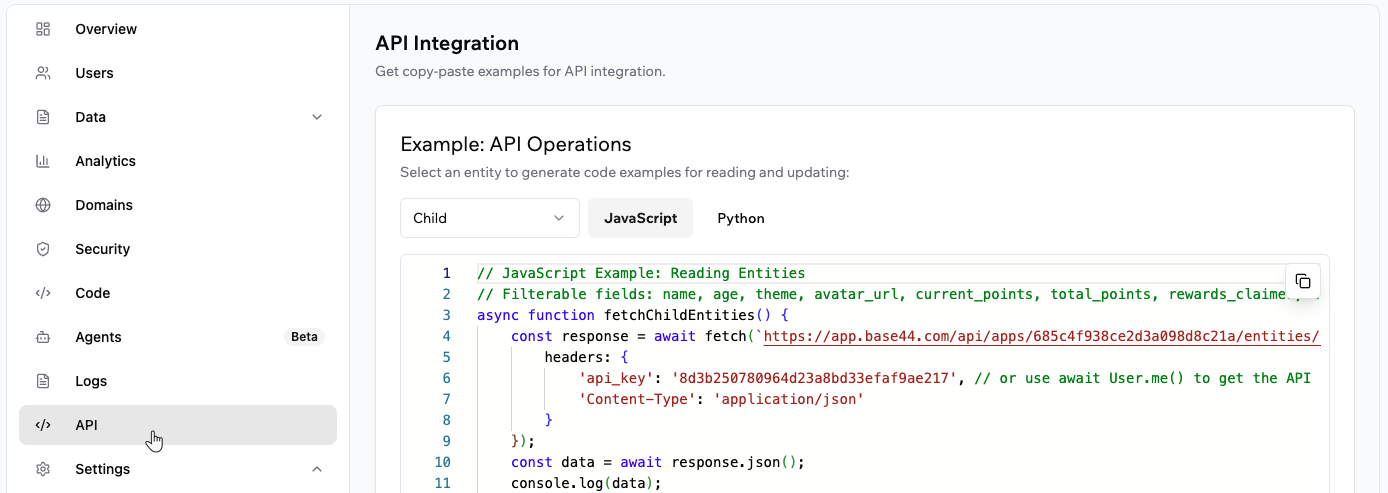
You can let another app read or write data from your Base44 app. This is useful if you want to sync information, automate tasks, or give access to outside tools.
1. Click **Dashboard** in your app editor.
2. Click **API**.
3. Select the relevant data entity from the drop-down menu.
4. Choose which code sample you need (for example, JavaScript or Python).
5. Copy the provided code for reading or updating data.
6. Paste this code into the other app or tool, so it knows how to connect to your table.
***
## FAQs
Select a question below to learn more about your app's data.
It is not currently possible to automatically merge two separate apps into a single app in Base44. Each app is managed as an independent project with its own codebase, settings, permissions, and integrations.
If you want to combine the features of two apps, you need to manually recreate or copy code, components, and settings from one app to the other. After combining the code and functionality, thoroughly test the new app to make sure everything works as expected.
Yes, to delete your data, go to **Data** in your app's dashboard. On the relevant data tab, click **More Actions** and then **Delete All**. You can access and restore the deleted data for 30 days but after that it is permanently deleted.
You can access and restore your deleted data for 30 days. After that, deleted data is permanently removed and cannot be restored.
Yes. You can safely ask the AI chat to add mock data for testing. By default, it adds new records without changing or removing existing ones, so your important information stays protected.
For structured testing, it is better to use the built-in test data feature instead of adding ad hoc mock records to your live tables. Test data lets you quickly generate, reset, and remove sample records without affecting your real production data. Learn more in [Testing your data](/documentation/managing-app-data/testing-your-data).
If you do choose to add test records directly to a table with the AI chat, you can clear them later from the dashboard by deleting those records.
The AI chat focuses on adding and importing data. It does not remove records unless you clearly ask it to delete data from a specific entity and confirm the action.
If you want to replace all data in an entity with the content of a file, the safe pattern is:
* Export the current table if you want a backup.
* Ask the AI chat to delete the records in the relevant entity.
* Upload your file and ask the AI chat to import it into the same entity.
This makes sure the entity is cleared first, then filled with the new rows from your file.
If you want to add a new column (field) or make other changes to your data tables, ask the AI chat to do it for you. The AI chat handles updates to your data schema, you just need to describe what you want to change.
For example, if you want to add a "Notes" column to one of your data tables, prompt the chat to add it. It is best if you use Discuss mode in the chat to help the AI decide how to go about the change before implementing it.
Starting November 27, 2025, there is a limit of 5,000 items per request to help keep performance fast, stable, and reliable.
If your app currently pulls everything in one large request, you may need to update it to load data in smaller pieces. Once this change goes live, double-check your flows to make sure everything still works as expected.
**Tip:** To make sure you are within the limitation, you can paste this message into the Base44 AI chat: “Make sure all data pull requests are limited to 5,000 items.”
You have not lost your data. When a collection has more than 5,000 records, the system limits how many items can load at once to protect performance. What you see depends on where you are looking:
* **In your dashboard**: The data table only shows up to 5,000 items, even if your collection contains more. All of your records are still stored. To review everything, export the collection to CSV from the dashboard so you can see all items outside the table view.
* **In your app pages**: Pages that try to fetch the entire collection in one request also only show up to 5,000 items. The rest of the records are still there, but they are not loaded on that page. Set up pagination so your app loads data in smaller chunks, for example 50 to 200 items at a time. You can ask the AI chat to add pagination for you.
Yes. If the data is stored inside your Base44 app, you can read from your entities and display it on any plan, including the free plan. Basic data fetching and display does not require backend functions or a paid plan.
Backend functions are only needed when you want to connect to an external service or API outside of Base44, such as Strava, Stripe, or a third-party database. Connecting to external APIs requires the **Builder plan** or higher.
Yes. You can build a full role and hierarchy system in your app, including managers, teams, and even separate spaces for each customer if you are building a SaaS app.
At a high level, the pattern works like this:
* People sign up and sign in through the normal Base44 login flow. Their account details are stored in the built-in **User** entity. You do not change the security rules of this entity.
* You create your own entities to model your business, for example Company, Team, and TeamMember.
* Each record in these entities links back to a User record using a reference field, such as userId. This lets you connect login accounts with your own business roles.
* You use data permissions and row-level security on your entities so each person only sees the records they should see.
For example:
* In a SaaS app, each Company record can represent one of your customers. Data permissions make sure people from one company cannot see another company’s data.
* Within each company, TeamMember records can store fields such as role, manager, and team. You can then set rules so managers see all records for their team, while individual team members only see their own records or items assigned to them.
* Global admins in your app can have a role that allows them to see and manage all records across companies and teams.
This approach lets you support complex, multi-level apps (sometimes called “User of User” or UoU) while Base44 continues to manage login and the core User entity securely. To design the exact rules, use the data permissions and row-level security options described in the [Managing security settings](/Setting-up-your-app/Managing-security-settings) guide.


 ***
## Understanding your data
All of your app's data is organized in tables, just like a spreadsheet. Each table groups one type of info (such as people or products) and sorts it into columns called fields, such as names, dates, or prices.
For example, if you [create an app](https://base44.com/ai-app-builder) to run your shop’s business, you can use the data tables in Base44 to keep everything organized. You might have a **Users** data table to store your customers' names and email addresses, a **Products** table listing what you sell, and an **Orders** table to track every purchase.
Each new customer, product, or order is automatically added as a new row in the right table, so you can quickly find, update, or manage your shop’s information.
***
## Understanding your data
All of your app's data is organized in tables, just like a spreadsheet. Each table groups one type of info (such as people or products) and sorts it into columns called fields, such as names, dates, or prices.
For example, if you [create an app](https://base44.com/ai-app-builder) to run your shop’s business, you can use the data tables in Base44 to keep everything organized. You might have a **Users** data table to store your customers' names and email addresses, a **Products** table listing what you sell, and an **Orders** table to track every purchase.
Each new customer, product, or order is automatically added as a new row in the right table, so you can quickly find, update, or manage your shop’s information.
 Each card has a **More Actions** icon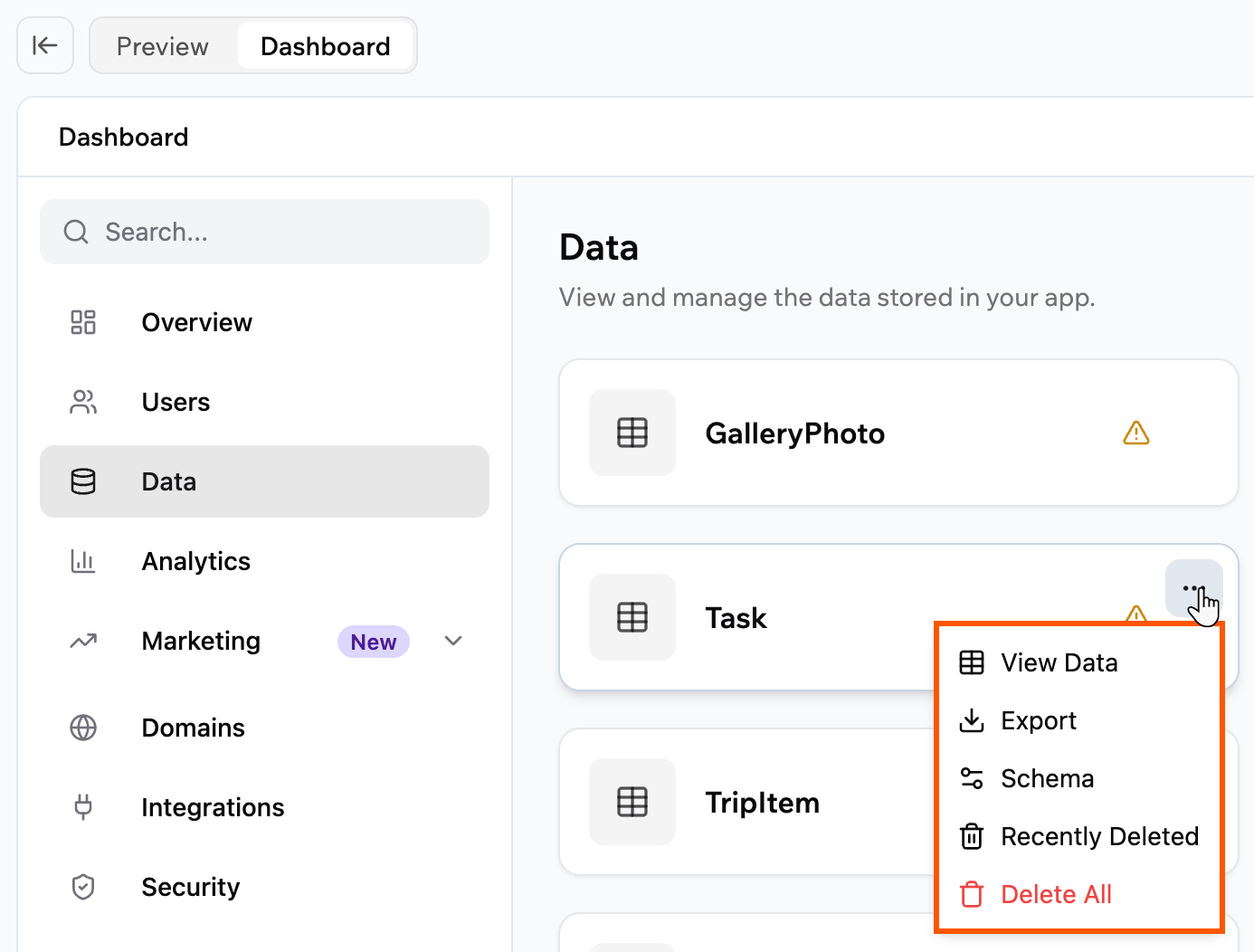
 ### Filtering your data
Use filters to turn a long table into a focused view, for example to see only shipped features, items owned by your team, or work planned for a specific quarter.
The filters displayed come from the fields in your data set, so each table has its own relevant list of filter options.
**To filter your data:**
1. Click **Dashboard** in your app editor.
2. Click **Data**.
3. Click **Filters** in the top right of the table and select your filters.
### Filtering your data
Use filters to turn a long table into a focused view, for example to see only shipped features, items owned by your team, or work planned for a specific quarter.
The filters displayed come from the fields in your data set, so each table has its own relevant list of filter options.
**To filter your data:**
1. Click **Dashboard** in your app editor.
2. Click **Data**.
3. Click **Filters** in the top right of the table and select your filters.
 ***
## Adding and updating data
Base44 automatically collects and updates your app’s data as people interact with your app. The AI sets up your tables so the right information is saved and kept up to date for you. However, if you want to manually add information (for example, add a product, update a record, or input test data), you can do it easily from your app’s dashboard inside your app editor.
### Manually adding data
1. Click **Dashboard** in your app editor.
2. Click **Data**.
3. Select the relevant data set (table).
4. Click **Add Item**.
5. Enter the data and click **Submit**.
***
## Adding and updating data
Base44 automatically collects and updates your app’s data as people interact with your app. The AI sets up your tables so the right information is saved and kept up to date for you. However, if you want to manually add information (for example, add a product, update a record, or input test data), you can do it easily from your app’s dashboard inside your app editor.
### Manually adding data
1. Click **Dashboard** in your app editor.
2. Click **Data**.
3. Select the relevant data set (table).
4. Click **Add Item**.
5. Enter the data and click **Submit**.
 ### Editing data
To edit a data record, click the row of the table that you want to edit, complete the details and click **Submit**.
### Deleting data
Delete your app's data at any time.
### Editing data
To edit a data record, click the row of the table that you want to edit, complete the details and click **Submit**.
### Deleting data
Delete your app's data at any time.
 To delete all the records in a table, click the **More Actions** icon
  ***
## Importing data
Sometimes you want to bring in lots of information to your app at once. You can import data in 2 ways, depending on whether you want to work directly in the dashboard or ask the AI chat to help.
***
## Importing data
Sometimes you want to bring in lots of information to your app at once. You can import data in 2 ways, depending on whether you want to work directly in the dashboard or ask the AI chat to help.
 When you import data this way, Base44 analyzes your file structure and maps columns to your entity fields. It can create or update entities if your schema needs to change, adding new entities or fields, or adjusting field types to match your file. It does not update or overwrite existing records; it always appends new rows.
If something does not match, the AI updates the schema where it is safe to do so, then retries the import so you do not need to fix everything manually.
When you import data this way, Base44 analyzes your file structure and maps columns to your entity fields. It can create or update entities if your schema needs to change, adding new entities or fields, or adjusting field types to match your file. It does not update or overwrite existing records; it always appends new rows.
If something does not match, the AI updates the schema where it is safe to do so, then retries the import so you do not need to fix everything manually.
 **To import data from the dashboard:**
1. Click **Dashboard** in your app editor.
2. Click **Data**.
3. Select the relevant data set (table).
4. Click the **More Actions** icon and click **Import**.
5. Choose your CSV file and click **Open**.
**To import data from the dashboard:**
1. Click **Dashboard** in your app editor.
2. Click **Data**.
3. Select the relevant data set (table).
4. Click the **More Actions** icon and click **Import**.
5. Choose your CSV file and click **Open**.
 ***
## Changing data permissions
Each data table has its own security settings, controlling who can **read** and **write** its data.
**Read Access**: Who can view records\
**Write Access**: Who can create, update, or delete records
***
## Changing data permissions
Each data table has its own security settings, controlling who can **read** and **write** its data.
**Read Access**: Who can view records\
**Write Access**: Who can create, update, or delete records
 ### Fixing permission risks
When a table has a row-level security risk, a warning icon appears on its card on the **Data** page. Open the table to see a **Permission risks detected** banner that explains the risk and the recommended rules.
* Click **Fix** to apply the recommended rules automatically.
* Click **More details** to review the risk and the suggested changes first.
### Fixing permission risks
When a table has a row-level security risk, a warning icon appears on its card on the **Data** page. Open the table to see a **Permission risks detected** banner that explains the risk and the recommended rules.
* Click **Fix** to apply the recommended rules automatically.
* Click **More details** to review the risk and the suggested changes first.
 ***
## Connecting your data to another app
You can let another app read or write data from your Base44 app. This is useful if you want to sync information, automate tasks, or give access to outside tools.
1. Click **Dashboard** in your app editor.
2. Click **API**.
3. Select the relevant data entity from the drop-down menu.
4. Choose which code sample you need (for example, JavaScript or Python).
5. Copy the provided code for reading or updating data.
6. Paste this code into the other app or tool, so it knows how to connect to your table.
***
## Connecting your data to another app
You can let another app read or write data from your Base44 app. This is useful if you want to sync information, automate tasks, or give access to outside tools.
1. Click **Dashboard** in your app editor.
2. Click **API**.
3. Select the relevant data entity from the drop-down menu.
4. Choose which code sample you need (for example, JavaScript or Python).
5. Copy the provided code for reading or updating data.
6. Paste this code into the other app or tool, so it knows how to connect to your table.
 ***
## FAQs
Select a question below to learn more about your app's data.
***
## FAQs
Select a question below to learn more about your app's data.