> ## Documentation Index
> Fetch the complete documentation index at: https://docs.base44.com/llms.txt
> Use this file to discover all available pages before exploring further.
# Designing with AI
> Learn to design your app with AI: brief it like a designer, tweak elements in Edit mode, set boundaries with AI Controls, and refine the options it offers.
AI is at the center of how you design in Base44. Describe what you want in natural language, and AI updates code, styles, and components for you. **Edit** mode lets you tweak what you see on screen, and AI Controls help you set boundaries. This page covers each workflow with prompts and examples you can use directly.
 For the Theme panel, fonts, and global styling within one app, see [Customizing the design of your app](/Building-your-app/Design).
***
## How design works
You do not need a design tool or any design experience. Your app's design is part of its code, and the AI changes that code for you: every design change is a request in plain language, from "make the buttons rounder" to "redesign this whole page".
There are three ways to make a design change, and choosing the right one saves you time:
| Change you want | Use |
| -------------------------------------------------------------------- | ------------------- |
| Colors or fonts across the whole app | The **Theme** panel |
| One element or section you can point at | **Edit** mode |
| Anything bigger, such as new layouts, redesigns, or a different feel | The AI chat |
**A good order for a full redesign:**
1. Set the overall look first: colors and fonts in the [Theme panel](/Building-your-app/Design#global-changes).
2. Ask the AI for page-level changes, one page at a time.
3. Polish individual elements in **Edit** mode.
Nothing is permanent. You can click **Revert** on any prompt to undo that change, or restore an earlier version of your app from its version history, so it is always safe to experiment.
***
## Designing in the chat
The AI chat is ideal for global changes and design decisions that affect many parts of your app. You can define a persona and brief once, then build on that:
```text theme={null}
You are my product designer for this app.
Design brief:
- Purpose: Help content teams plan, write, and ship articles faster.
- People: Busy content leads and writers on laptops during the workday.
- Feel: Calm, focused, modern, trustworthy.
Use this brief as the basis for all design suggestions and decisions.
```
You also do not need design vocabulary. Describe the feeling you want, name a product whose style you like, or upload a screenshot of a design you admire and ask the AI to match its style:
```text theme={null}
Make this page feel calmer and more premium. Use the attached screenshot as a reference for the overall style.
```
Helpful patterns:
* Ask for a critique before asking for changes.
* Ask for a plan in Discuss mode, approve it, and then ask AI to implement it.
* Always clarify the scope of the design: the whole app, one page, or one element.
Example:
```text theme={null}
Critique the design of this dashboard only.
Focus on layout, hierarchy, color, typography, and spacing.
Then propose a short plan of small changes.
Wait for my approval before you apply anything.
```
After you review:
```text theme={null}
Apply the plan you proposed for this dashboard.
Make changes in small groups and describe each group briefly as you go.
```
***
## Choosing a design option
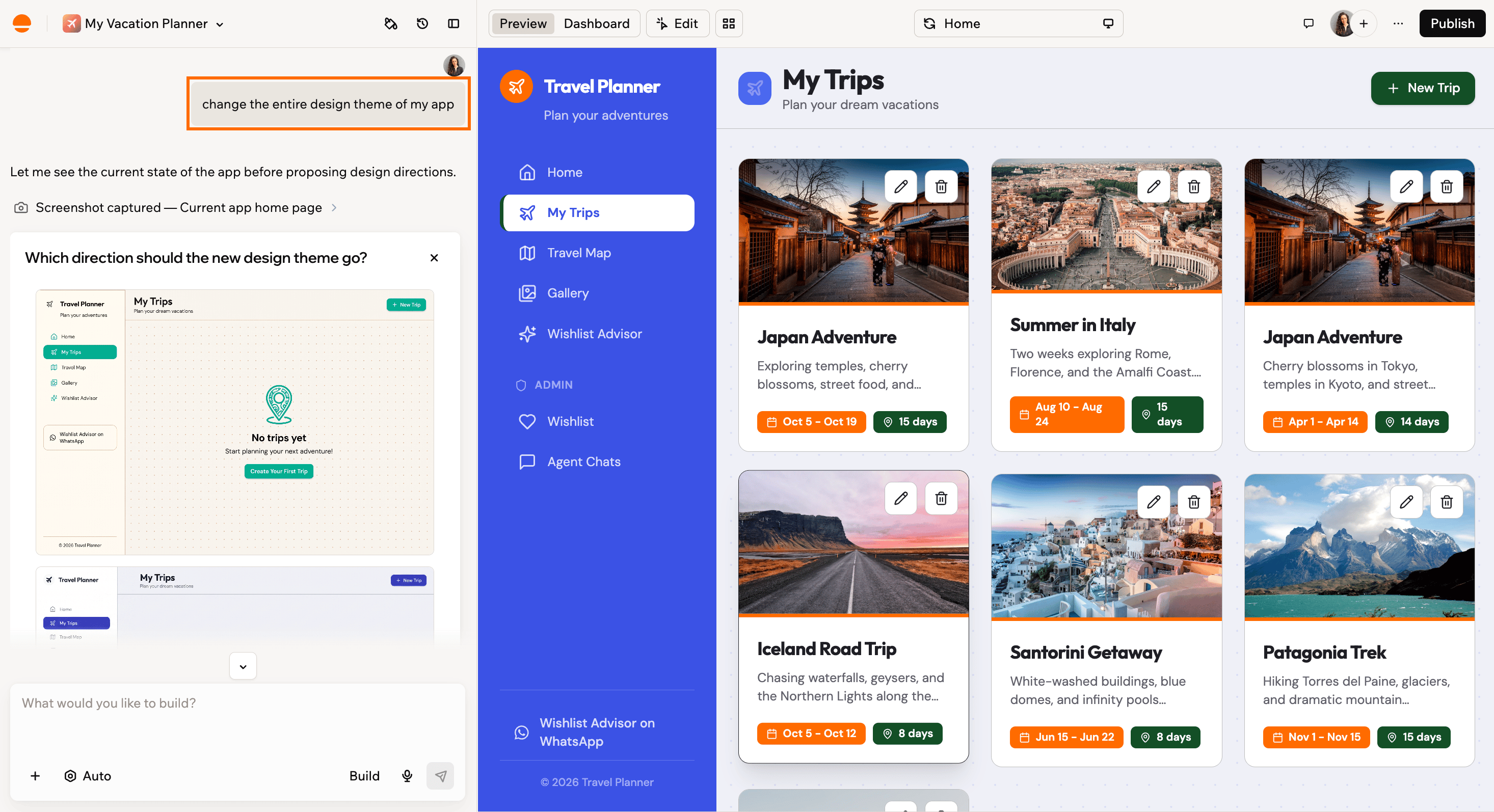
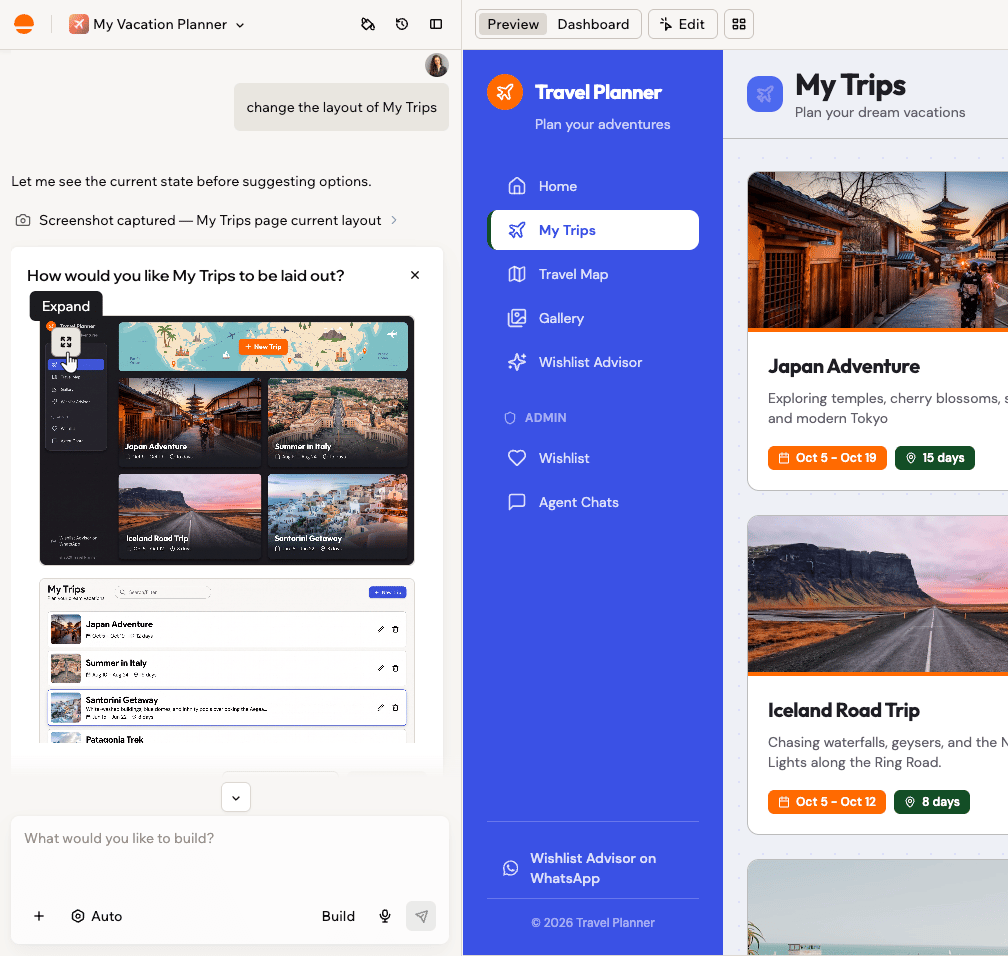
When you ask the AI to change the design or layout of a section or element, it may present visual options for you to choose from instead of applying a change right away. Each option shows a preview so you can see what it will look like before committing.
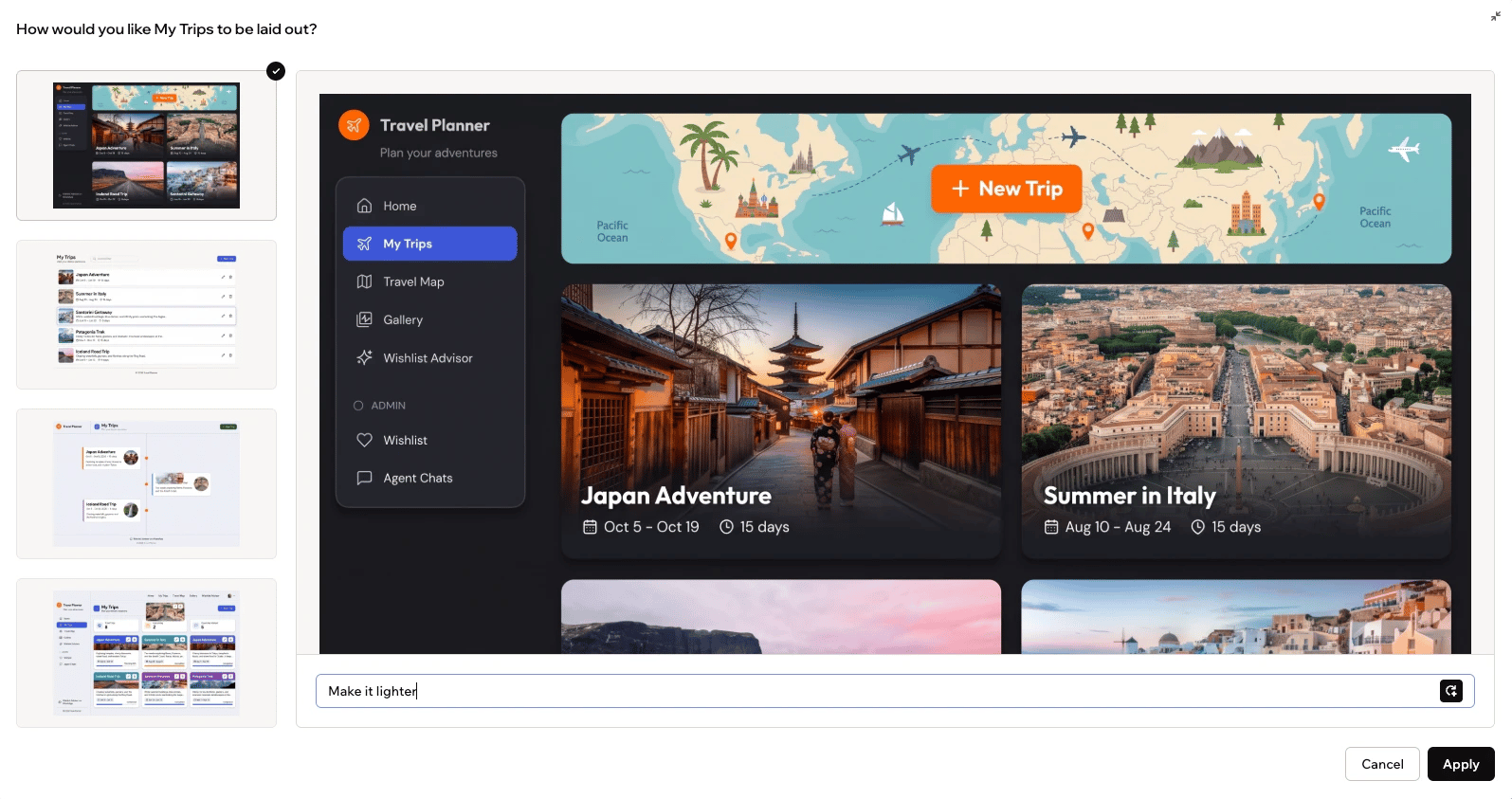
You can also click the **Expand** icon on an option to view it in full mode and refine it before choosing.
For the Theme panel, fonts, and global styling within one app, see [Customizing the design of your app](/Building-your-app/Design).
***
## How design works
You do not need a design tool or any design experience. Your app's design is part of its code, and the AI changes that code for you: every design change is a request in plain language, from "make the buttons rounder" to "redesign this whole page".
There are three ways to make a design change, and choosing the right one saves you time:
| Change you want | Use |
| -------------------------------------------------------------------- | ------------------- |
| Colors or fonts across the whole app | The **Theme** panel |
| One element or section you can point at | **Edit** mode |
| Anything bigger, such as new layouts, redesigns, or a different feel | The AI chat |
**A good order for a full redesign:**
1. Set the overall look first: colors and fonts in the [Theme panel](/Building-your-app/Design#global-changes).
2. Ask the AI for page-level changes, one page at a time.
3. Polish individual elements in **Edit** mode.
Nothing is permanent. You can click **Revert** on any prompt to undo that change, or restore an earlier version of your app from its version history, so it is always safe to experiment.
***
## Designing in the chat
The AI chat is ideal for global changes and design decisions that affect many parts of your app. You can define a persona and brief once, then build on that:
```text theme={null}
You are my product designer for this app.
Design brief:
- Purpose: Help content teams plan, write, and ship articles faster.
- People: Busy content leads and writers on laptops during the workday.
- Feel: Calm, focused, modern, trustworthy.
Use this brief as the basis for all design suggestions and decisions.
```
You also do not need design vocabulary. Describe the feeling you want, name a product whose style you like, or upload a screenshot of a design you admire and ask the AI to match its style:
```text theme={null}
Make this page feel calmer and more premium. Use the attached screenshot as a reference for the overall style.
```
Helpful patterns:
* Ask for a critique before asking for changes.
* Ask for a plan in Discuss mode, approve it, and then ask AI to implement it.
* Always clarify the scope of the design: the whole app, one page, or one element.
Example:
```text theme={null}
Critique the design of this dashboard only.
Focus on layout, hierarchy, color, typography, and spacing.
Then propose a short plan of small changes.
Wait for my approval before you apply anything.
```
After you review:
```text theme={null}
Apply the plan you proposed for this dashboard.
Make changes in small groups and describe each group briefly as you go.
```
***
## Choosing a design option
When you ask the AI to change the design or layout of a section or element, it may present visual options for you to choose from instead of applying a change right away. Each option shows a preview so you can see what it will look like before committing.
You can also click the **Expand** icon on an option to view it in full mode and refine it before choosing.
 Describe a targeted change, such as a lighter background, to adjust only those details, or ask for a completely different direction to replace that option. When it looks right, click **Apply**.
 ***
## Exploring design directions
You can use the AI chat to explore different directions before you commit. You do not need to describe your current design: the AI takes a screenshot of your page and reviews what is actually there.
Critique loop:
```text theme={null}
Act as a senior product designer.
Review this page and describe three specific visual issues.
For each issue, write a Base44 prompt that would fix it.
Do not make any changes yet.
```
Alternative directions:
```text theme={null}
Create two visual options for this dashboard:
- Option A: very minimal, mostly neutral with a single accent color
- Option B: more expressive, with richer color and slightly larger typography
Keep content and layout the same.
Describe each option in a short summary and wait for me to choose.
```
Once you pick an option, you can ask AI to apply that direction to similar pages.
***
## Using Edit mode
**Edit** mode is ideal when you want to adjust what you see without rewriting everything.
***
## Exploring design directions
You can use the AI chat to explore different directions before you commit. You do not need to describe your current design: the AI takes a screenshot of your page and reviews what is actually there.
Critique loop:
```text theme={null}
Act as a senior product designer.
Review this page and describe three specific visual issues.
For each issue, write a Base44 prompt that would fix it.
Do not make any changes yet.
```
Alternative directions:
```text theme={null}
Create two visual options for this dashboard:
- Option A: very minimal, mostly neutral with a single accent color
- Option B: more expressive, with richer color and slightly larger typography
Keep content and layout the same.
Describe each option in a short summary and wait for me to choose.
```
Once you pick an option, you can ask AI to apply that direction to similar pages.
***
## Using Edit mode
**Edit** mode is ideal when you want to adjust what you see without rewriting everything.
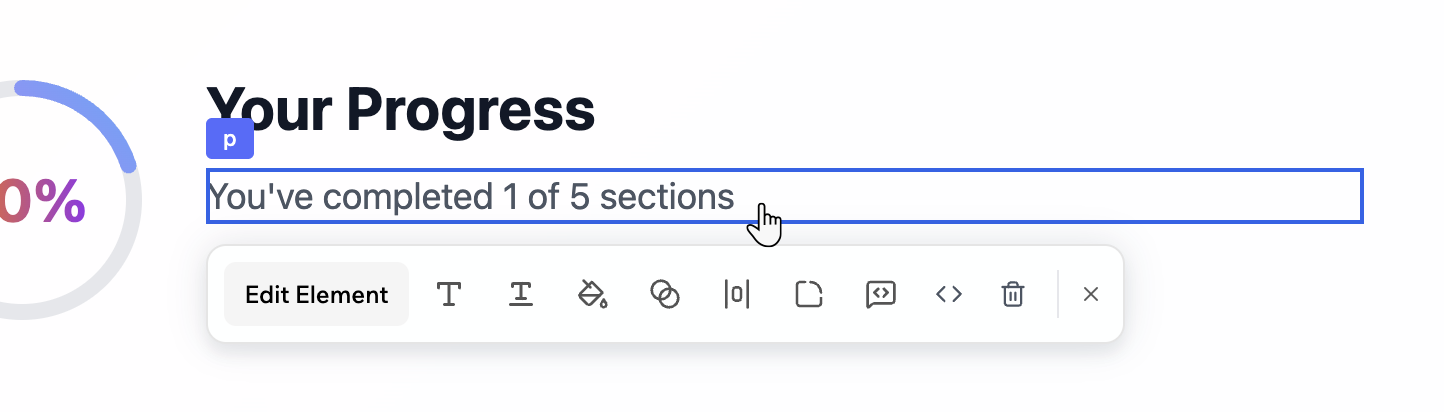 Click **Edit** in the chat and then select the element you want to change. You can:
* Select a section and adjust colors, spacing, and layout visually.
* Ask AI to restyle just one component instance.
* Delete elements you no longer need using the **Delete** icon .
* Use it as a safe sandbox before you roll a pattern out to the rest of your app.
Click **Edit Element** on the Edit toolbar to ask the AI to make changes. For example:
```text theme={null}
In this selected section:
- Lighten the background slightly
- Increase vertical spacing between the heading and content
- Use the primary button style for the main action and secondary style for the others
```
```text theme={null}
For this card only:
- Increase padding
- Move the icon to the left of the title
- Use a softer shadow that matches other cards in the app
```
***
## Using AI Controls
Use the [AI Controls](/Building-your-app/AI-chat-modes#setting-ai-controls) in the chat to guide and protect your design.
You can:
* Set design guidelines that apply to every prompt.
* Freeze specific files or pages so AI does not change them.
* Establish a tone such as minimal, bold, or playful.
Example guidelines:
```text theme={null}
Global design guidelines:
- Prefer calm, minimal visuals with plenty of white space
- Use rounded corners with radius 12 on cards and buttons
- Avoid heavy gradients and glass effects
- Keep animations subtle and respect reduced motion preferences
```
Always be explicit about scope in your prompts. The same change can apply to the whole app, one page, or a single element, and AI will follow your lead:
```text theme={null}
Update the primary button style and propagate it to all places where the primary button component is used.
Do not change secondary buttons.
```
```text theme={null}
Update only the hero section on the homepage:
- Change the background to a soft gradient
- Increase the heading size
- Use the primary button style for the main call to action
Do not change other sections or pages.
```
To protect areas you are happy with while experimenting elsewhere:
* Use AI Controls to freeze specific files or pages so AI does not change them.
* Use the **Revert** option on individual prompts to undo a single change.
* Use version history to roll back to an earlier state.
***
## FAQs
Click a question below to learn more about designing with AI.
Yes. Design prompts are AI chat messages, so they use your message credits the same way as any other request in the chat.
**Edit** mode styles one element or section at a time. The **Theme** panel changes colors and fonts across your entire app at once. To learn more about the Theme panel, see [Customizing the design of your app](/Building-your-app/Design).
Click **Edit** in the chat and then select the element you want to change. You can:
* Select a section and adjust colors, spacing, and layout visually.
* Ask AI to restyle just one component instance.
* Delete elements you no longer need using the **Delete** icon .
* Use it as a safe sandbox before you roll a pattern out to the rest of your app.
Click **Edit Element** on the Edit toolbar to ask the AI to make changes. For example:
```text theme={null}
In this selected section:
- Lighten the background slightly
- Increase vertical spacing between the heading and content
- Use the primary button style for the main action and secondary style for the others
```
```text theme={null}
For this card only:
- Increase padding
- Move the icon to the left of the title
- Use a softer shadow that matches other cards in the app
```
***
## Using AI Controls
Use the [AI Controls](/Building-your-app/AI-chat-modes#setting-ai-controls) in the chat to guide and protect your design.
You can:
* Set design guidelines that apply to every prompt.
* Freeze specific files or pages so AI does not change them.
* Establish a tone such as minimal, bold, or playful.
Example guidelines:
```text theme={null}
Global design guidelines:
- Prefer calm, minimal visuals with plenty of white space
- Use rounded corners with radius 12 on cards and buttons
- Avoid heavy gradients and glass effects
- Keep animations subtle and respect reduced motion preferences
```
Always be explicit about scope in your prompts. The same change can apply to the whole app, one page, or a single element, and AI will follow your lead:
```text theme={null}
Update the primary button style and propagate it to all places where the primary button component is used.
Do not change secondary buttons.
```
```text theme={null}
Update only the hero section on the homepage:
- Change the background to a soft gradient
- Increase the heading size
- Use the primary button style for the main call to action
Do not change other sections or pages.
```
To protect areas you are happy with while experimenting elsewhere:
* Use AI Controls to freeze specific files or pages so AI does not change them.
* Use the **Revert** option on individual prompts to undo a single change.
* Use version history to roll back to an earlier state.
***
## FAQs
Click a question below to learn more about designing with AI.
Yes. Design prompts are AI chat messages, so they use your message credits the same way as any other request in the chat.
**Edit** mode styles one element or section at a time. The **Theme** panel changes colors and fonts across your entire app at once. To learn more about the Theme panel, see [Customizing the design of your app](/Building-your-app/Design).