> ## Documentation Index
> Fetch the complete documentation index at: https://docs.base44.com/llms.txt
> Use this file to discover all available pages before exploring further.
# Commenting on your app
> Pin comments to any element on your app preview, discuss feedback in threads with your collaborators, and send comments to the AI chat for Base44 to handle.
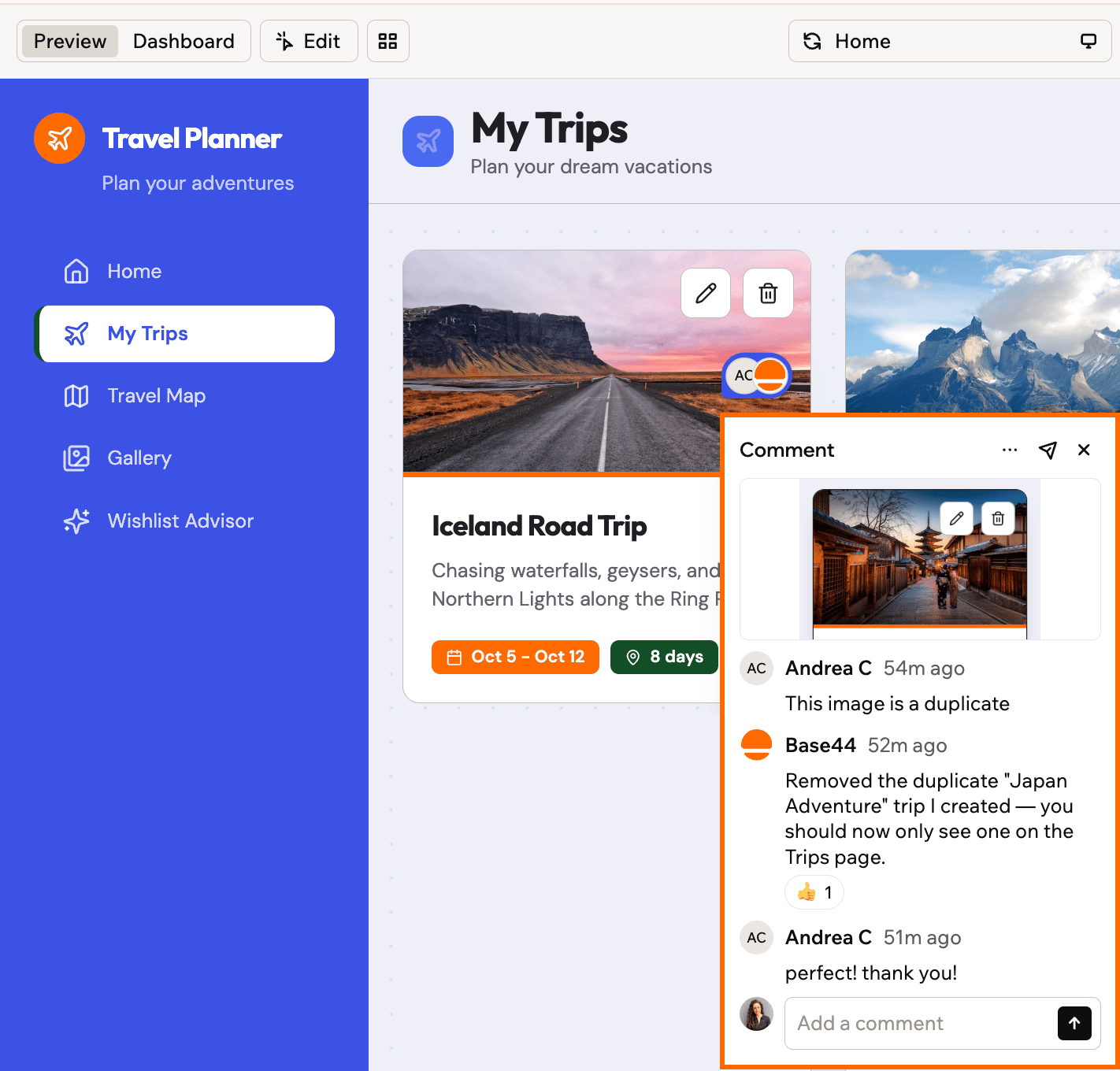
Comments give you and your collaborators a way to discuss your app while you build and edit it, right on the preview. Pin a comment to any element, work through feedback in threads, and send comments straight to the chat for Base44 to handle.
 Comments are rolling out gradually and aren't available to everyone yet.
***
## How comments work
Comments live in your app editor's preview. Each comment is pinned to the element you click and starts a thread where your collaborators can reply, react, and resolve.
Everyone who can edit the app sees the same comments, and new activity appears for all of you in real time. Comments stay anchored to their element as your app changes, so a thread you start today still points at the right spot after your next build.
Comments are only visible inside the app editor. People using your published app never see them.
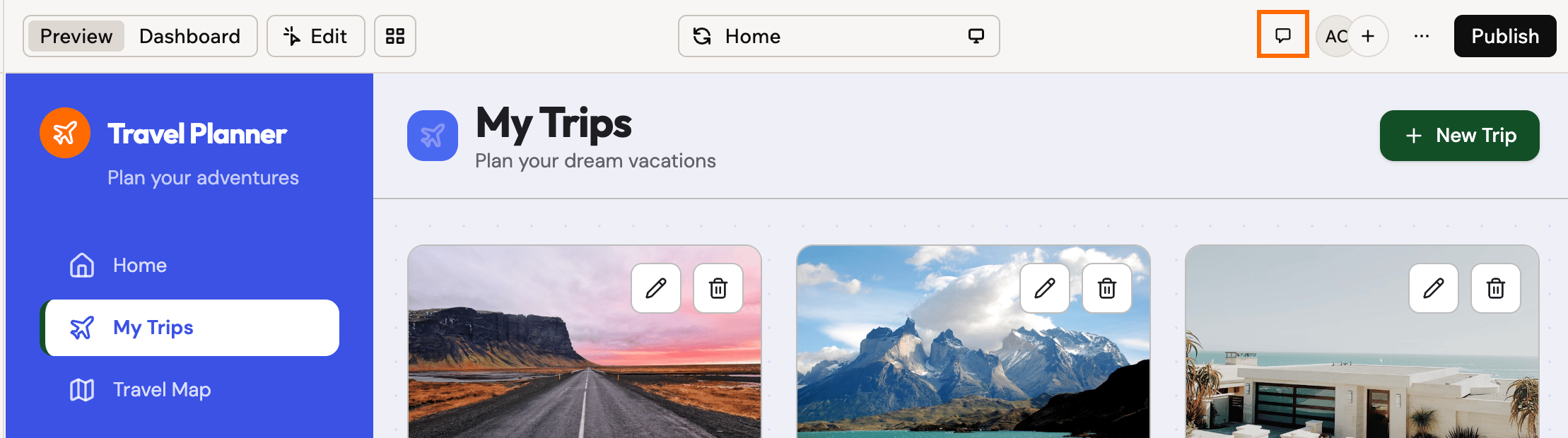
To turn on comments, click the **Comments** icon at the top right of your app editor, next to your avatar.
Comments are rolling out gradually and aren't available to everyone yet.
***
## How comments work
Comments live in your app editor's preview. Each comment is pinned to the element you click and starts a thread where your collaborators can reply, react, and resolve.
Everyone who can edit the app sees the same comments, and new activity appears for all of you in real time. Comments stay anchored to their element as your app changes, so a thread you start today still points at the right spot after your next build.
Comments are only visible inside the app editor. People using your published app never see them.
To turn on comments, click the **Comments** icon at the top right of your app editor, next to your avatar.
 ***
## Adding a comment
Add a comment by pointing at the exact element you want to talk about.
### Writing your comment
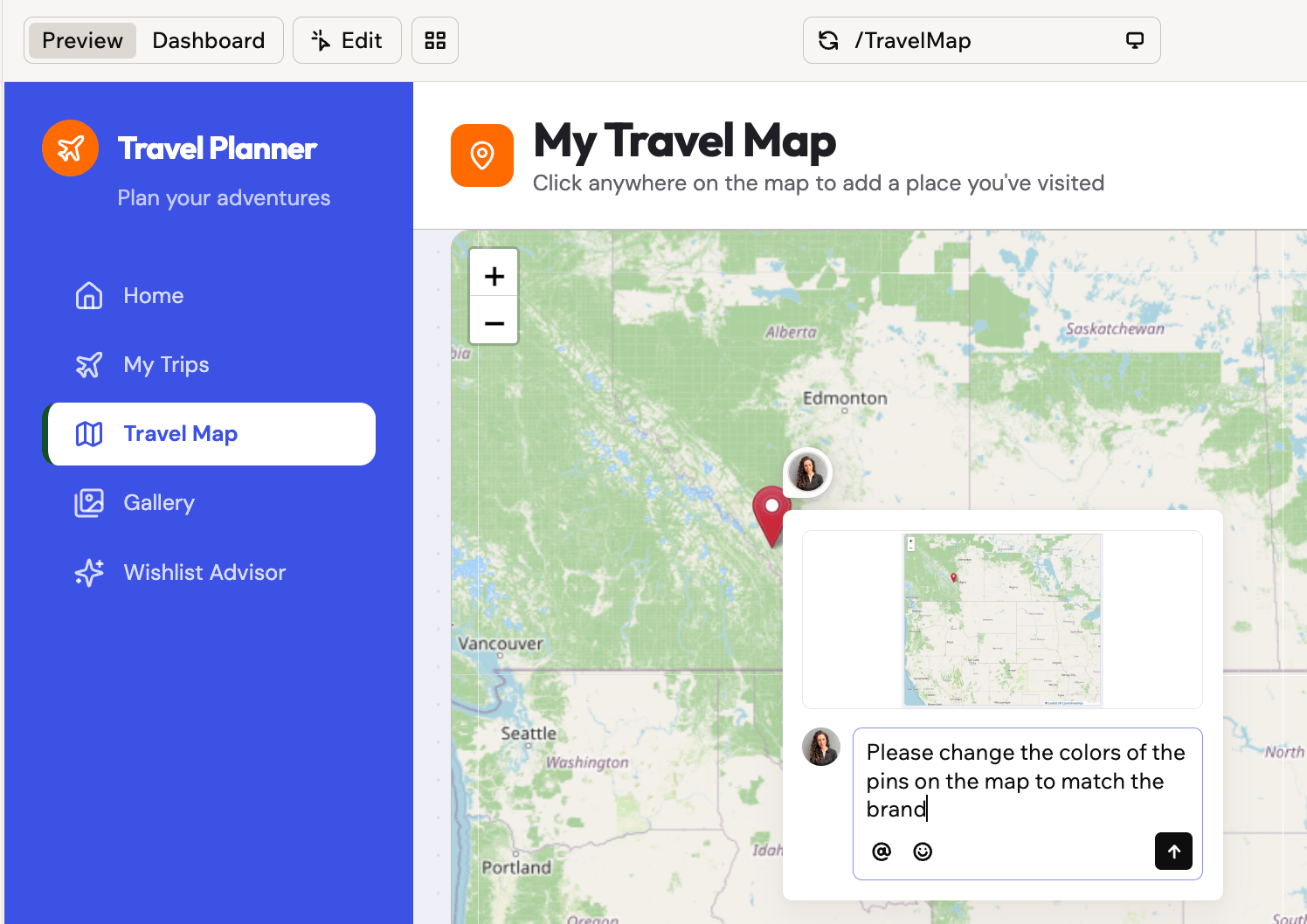
Base44 captures a screenshot of the spot you click, and you can mention collaborators or add emoji as you write.
**To add a comment:**
1. Click the **Comments** icon to turn on comments.
2. Click the element you want to comment on. Base44 drops a pin and captures a screenshot of that part of the page.
3. Type your comment.
* To mention a collaborator, type **@** or click the **Mention someone** icon , then choose them from the list.
* To include an emoji, click the **Add emoji** icon .
4. Click the send icon or press **Enter** to post it.
***
## Adding a comment
Add a comment by pointing at the exact element you want to talk about.
### Writing your comment
Base44 captures a screenshot of the spot you click, and you can mention collaborators or add emoji as you write.
**To add a comment:**
1. Click the **Comments** icon to turn on comments.
2. Click the element you want to comment on. Base44 drops a pin and captures a screenshot of that part of the page.
3. Type your comment.
* To mention a collaborator, type **@** or click the **Mention someone** icon , then choose them from the list.
* To include an emoji, click the **Add emoji** icon .
4. Click the send icon or press **Enter** to post it.
 ### Editing a comment
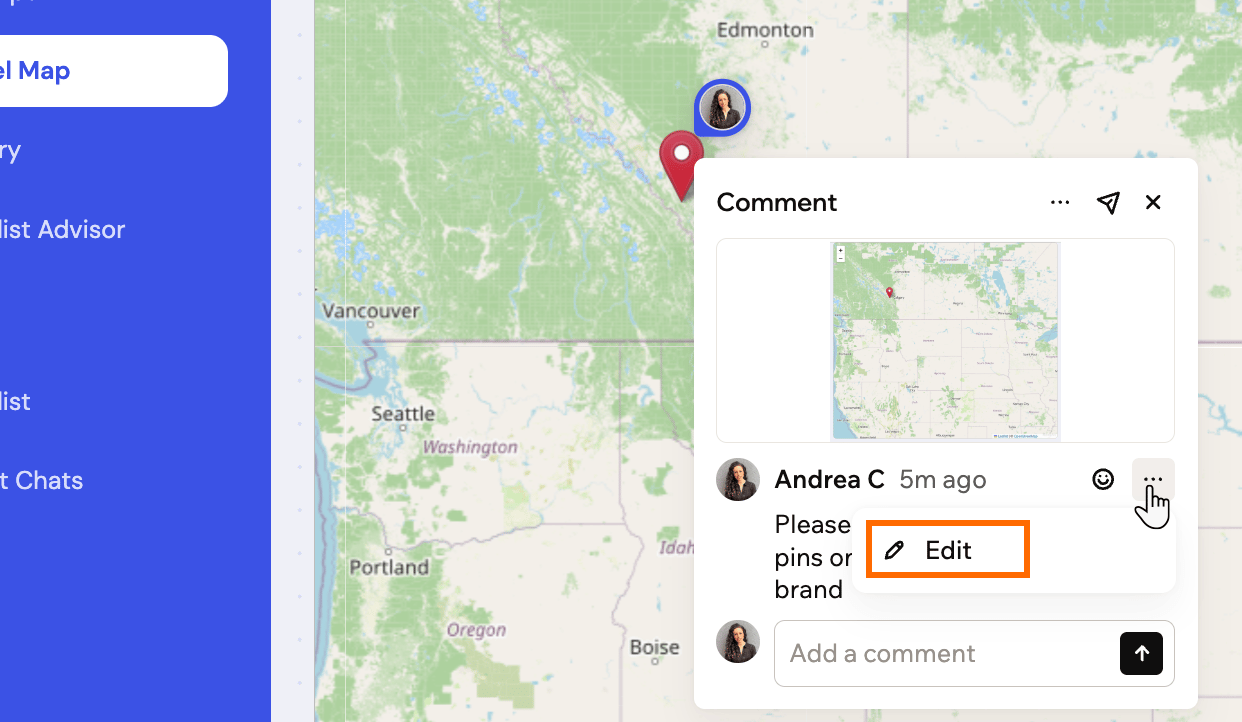
You can rewrite comments you posted yourself.
**To edit a comment:**
1. Open the thread and hover over your comment.
2. Click the **More Actions** icon and select **Edit**.
3. Change your text, then confirm.
### Editing a comment
You can rewrite comments you posted yourself.
**To edit a comment:**
1. Open the thread and hover over your comment.
2. Click the **More Actions** icon and select **Edit**.
3. Change your text, then confirm.
 ### Editing the screenshot
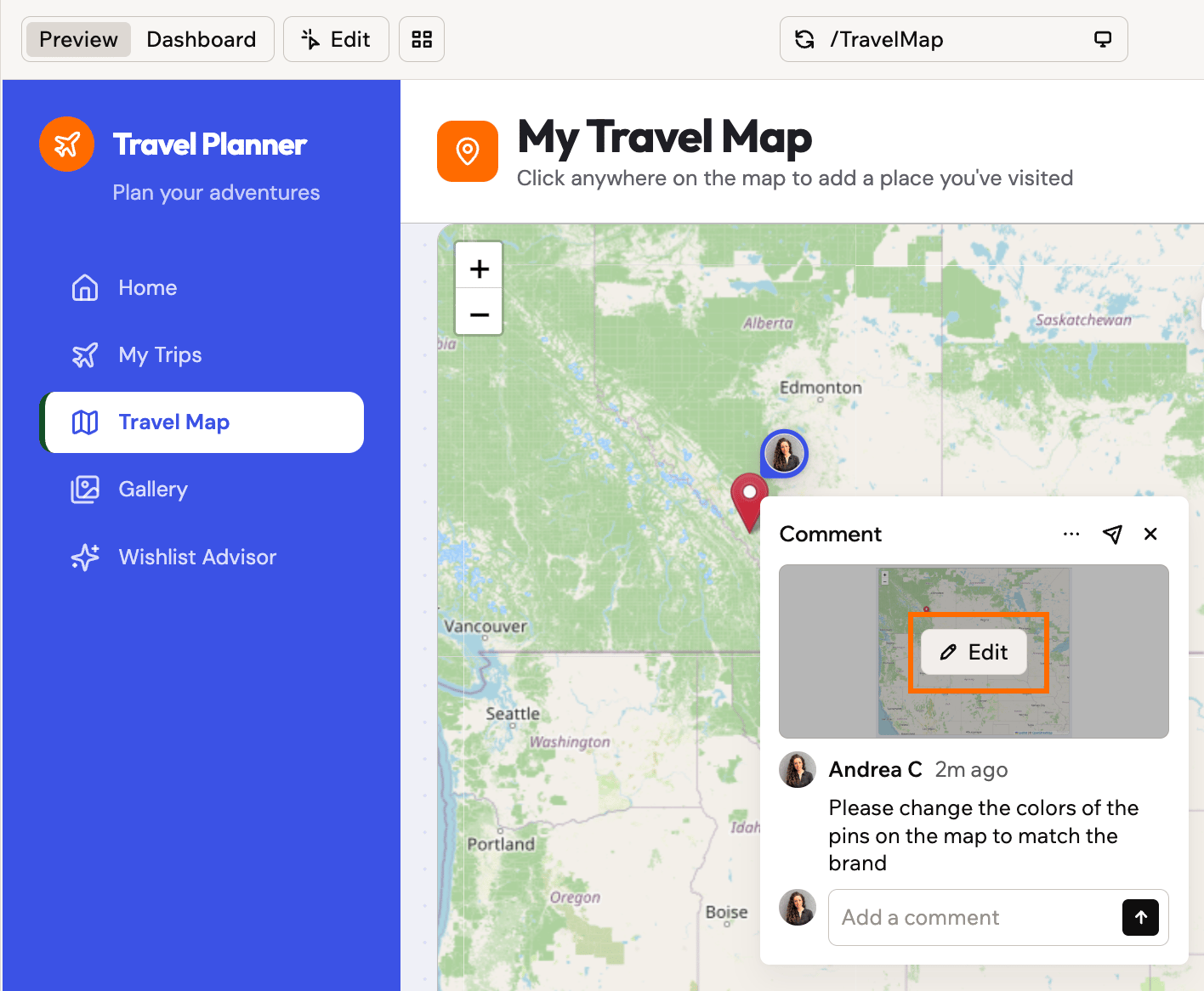
If the captured screenshot doesn't frame the right area, you can re-crop it on comments you created. Moving the frame also moves the comment's pin to the element under it.
**To edit a comment's screenshot:**
1. Open the thread, hover over the screenshot, and click **Edit**.
2. Drag the frame over the area you want to capture.
3. Click **Save screenshot area**.
### Editing the screenshot
If the captured screenshot doesn't frame the right area, you can re-crop it on comments you created. Moving the frame also moves the comment's pin to the element under it.
**To edit a comment's screenshot:**
1. Open the thread, hover over the screenshot, and click **Edit**.
2. Drag the frame over the area you want to capture.
3. Click **Save screenshot area**.
 ***
## Working with comment threads
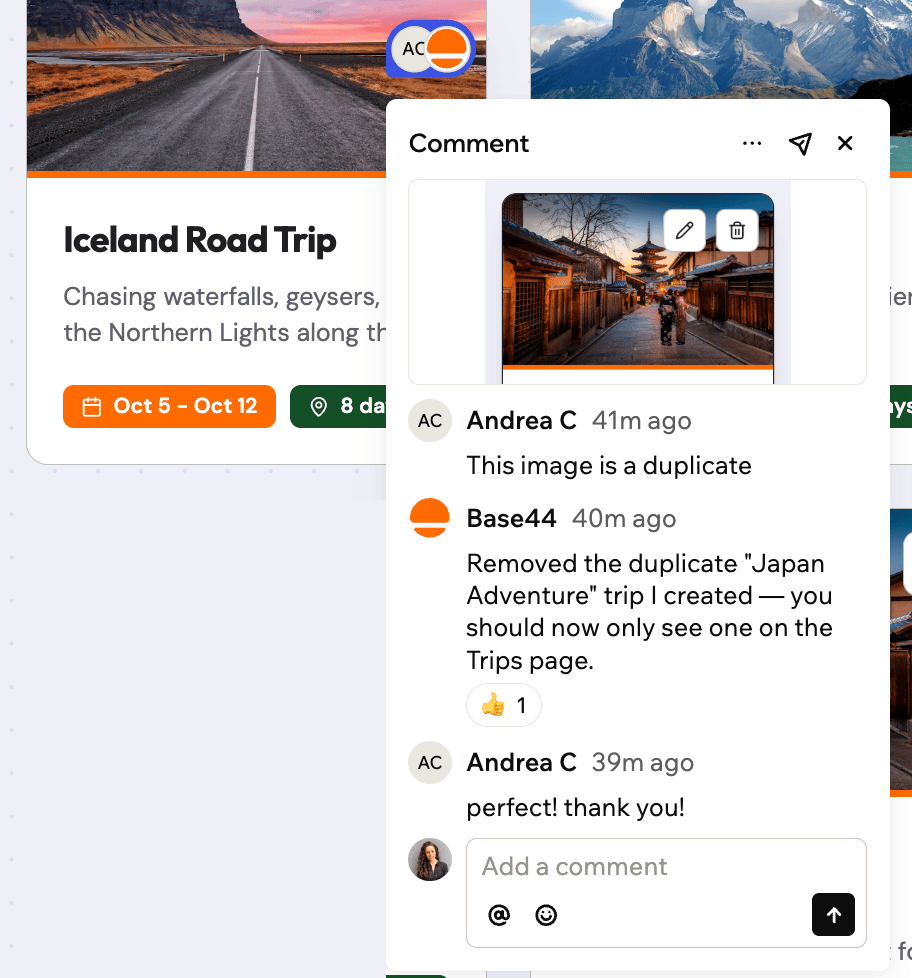
A pin shows the avatars of everyone in the conversation. Click it to open the thread, or hover over it for a quick preview. In a thread you can:
* **Reply**: Continue the conversation under the original comment.
* **React**: Hover over a comment and click the **Add reaction** icon .
* **Resolve**: Click the **More Actions** icon and select **Resolve** to mark the thread as handled. Resolved threads leave the preview and the default list, and you can unresolve a thread to bring it back.
* **Delete**: Remove a reply you wrote, or select **Delete thread** under the **More Actions** icon to remove the entire thread. Deleting a thread removes it for everyone and can't be undone.
***
## Working with comment threads
A pin shows the avatars of everyone in the conversation. Click it to open the thread, or hover over it for a quick preview. In a thread you can:
* **Reply**: Continue the conversation under the original comment.
* **React**: Hover over a comment and click the **Add reaction** icon .
* **Resolve**: Click the **More Actions** icon and select **Resolve** to mark the thread as handled. Resolved threads leave the preview and the default list, and you can unresolve a thread to bring it back.
* **Delete**: Remove a reply you wrote, or select **Delete thread** under the **More Actions** icon to remove the entire thread. Deleting a thread removes it for everyone and can't be undone.
 ***
## Sending comments to the AI chat
Instead of handling feedback yourself, hand it to Base44. Sending a thread to the chat asks Base44 to read the comment, look at its screenshot, and act on it.
**What happens when you send a comment:**
* The thread appears in your chat as a comment card that tracks its status live, and you can click **View thread** on the card to jump back to the comment.
* Base44 adds a 👀 reaction to the comment while it works. If the comment asks a question, Base44 answers inside the thread without changing your app. If it asks for a change, Base44 builds it and replies in the thread when it's done.
* Sending a comment doesn't resolve it, so you decide when the thread is closed.
### Sending a comment
You can hand a single thread to Base44 right from the comment.
**To send a comment to the chat, do one of the following:**
* Mention **@Base44** in a comment or reply.
* Open the thread and click the **Send to chat** icon .
### Sending several comments
You can send up to 20 threads to the chat as a single request, and Base44 works through them one by one.
**To send a batch of threads:**
1. In the [comments panel](#browsing-all-comments), click the **More Actions** icon and select **Send to chat**.
2. Select the threads you want to include, or check **Select all threads**.
3. Click **Send threads**. The button shows how many threads you selected.
***
## Browsing all comments
The comments panel collects every thread across your app, so nothing gets lost between pages.
When comments are turned on, a sidebar sits along the right edge of the preview, showing the people who commented. Hover over the sidebar to open the panel, where you can:
* **Search**: Find comments by their text or author.
* **Filter**: Click the filter icon to show only comments on the **Current page**, or only **Unread** ones.
* **Resolve**: Hover over a comment and click the **Resolve** icon to close its thread without opening it.
* **Show resolved**: Click the **More Actions** icon and turn on **Show resolved** to see handled threads, or select **Mark all as read** to clear your unread indicators.
* **Jump to a comment**: Click any comment to open its pin, even when it lives on another page.
A dot on the **Comments** icon means there's activity you haven't read yet.
***
## FAQs
Here are answers to common questions about comments.
No. Mentions only list people who have access to the app. To mention someone else, [invite them to your app](/Setting-up-your-app/Managing-access#inviting-collaborators) first, and they appear in the mention list.
Click the **Comments** icon again to turn comments off. This hides the sidebar and the pinned comments until you turn comments back on.
The pin no longer appears on the preview, but the thread stays in the comments panel with its screenshot, so the conversation and its context aren't lost.
Yes. Comments belong to the app, not to a branch, so a thread you start on one branch appears on every other branch too.
Each comment or reply can be up to 5,000 characters.
***
## Sending comments to the AI chat
Instead of handling feedback yourself, hand it to Base44. Sending a thread to the chat asks Base44 to read the comment, look at its screenshot, and act on it.
**What happens when you send a comment:**
* The thread appears in your chat as a comment card that tracks its status live, and you can click **View thread** on the card to jump back to the comment.
* Base44 adds a 👀 reaction to the comment while it works. If the comment asks a question, Base44 answers inside the thread without changing your app. If it asks for a change, Base44 builds it and replies in the thread when it's done.
* Sending a comment doesn't resolve it, so you decide when the thread is closed.
### Sending a comment
You can hand a single thread to Base44 right from the comment.
**To send a comment to the chat, do one of the following:**
* Mention **@Base44** in a comment or reply.
* Open the thread and click the **Send to chat** icon .
### Sending several comments
You can send up to 20 threads to the chat as a single request, and Base44 works through them one by one.
**To send a batch of threads:**
1. In the [comments panel](#browsing-all-comments), click the **More Actions** icon and select **Send to chat**.
2. Select the threads you want to include, or check **Select all threads**.
3. Click **Send threads**. The button shows how many threads you selected.
***
## Browsing all comments
The comments panel collects every thread across your app, so nothing gets lost between pages.
When comments are turned on, a sidebar sits along the right edge of the preview, showing the people who commented. Hover over the sidebar to open the panel, where you can:
* **Search**: Find comments by their text or author.
* **Filter**: Click the filter icon to show only comments on the **Current page**, or only **Unread** ones.
* **Resolve**: Hover over a comment and click the **Resolve** icon to close its thread without opening it.
* **Show resolved**: Click the **More Actions** icon and turn on **Show resolved** to see handled threads, or select **Mark all as read** to clear your unread indicators.
* **Jump to a comment**: Click any comment to open its pin, even when it lives on another page.
A dot on the **Comments** icon means there's activity you haven't read yet.
***
## FAQs
Here are answers to common questions about comments.
No. Mentions only list people who have access to the app. To mention someone else, [invite them to your app](/Setting-up-your-app/Managing-access#inviting-collaborators) first, and they appear in the mention list.
Click the **Comments** icon again to turn comments off. This hides the sidebar and the pinned comments until you turn comments back on.
The pin no longer appears on the preview, but the thread stays in the comments panel with its screenshot, so the conversation and its context aren't lost.
Yes. Comments belong to the app, not to a branch, so a thread you start on one branch appears on every other branch too.
Each comment or reply can be up to 5,000 characters.