> ## Documentation Index
> Fetch the complete documentation index at: https://docs.base44.com/llms.txt
> Use this file to discover all available pages before exploring further.
# Using the AI Chat in Base44
> Describe your idea, and the AI builds it for you. Use chat modes and AI controls to fine-tune your app and get the results you want.
## About the AI chat
The Base44 AI chat is more than just a code generator. It works as your intelligent assistant, understands your goal, and uses the right tools to get you there. Your apps become more accurate, context-aware, and flexible, so you can focus on building complex features quickly, with smart automation working in the background.
Unlike traditional AI that only responds with text, the agentic AI knows when to search the web, check your files, or pull in data from other sources. It also uses automatic model selection to choose state-of-the-art models based on what your prompt needs, so you get real solutions without needing to manage models or technical details yourself.
* Share a public website link with the chat to instantly copy the design, layout, and visible content into your app. For example: "Copy the layout from `https://example.com`."
* Ask the agent to help you follow best practices by searching for ready-made code or common solutions. For example: "Show me the standard pattern for user authentication."
* Pull lists or content from other websites and use it in your app, such as importing product catalogs or gathering site text and images. For example: "Import the product list from `https://example.com`."
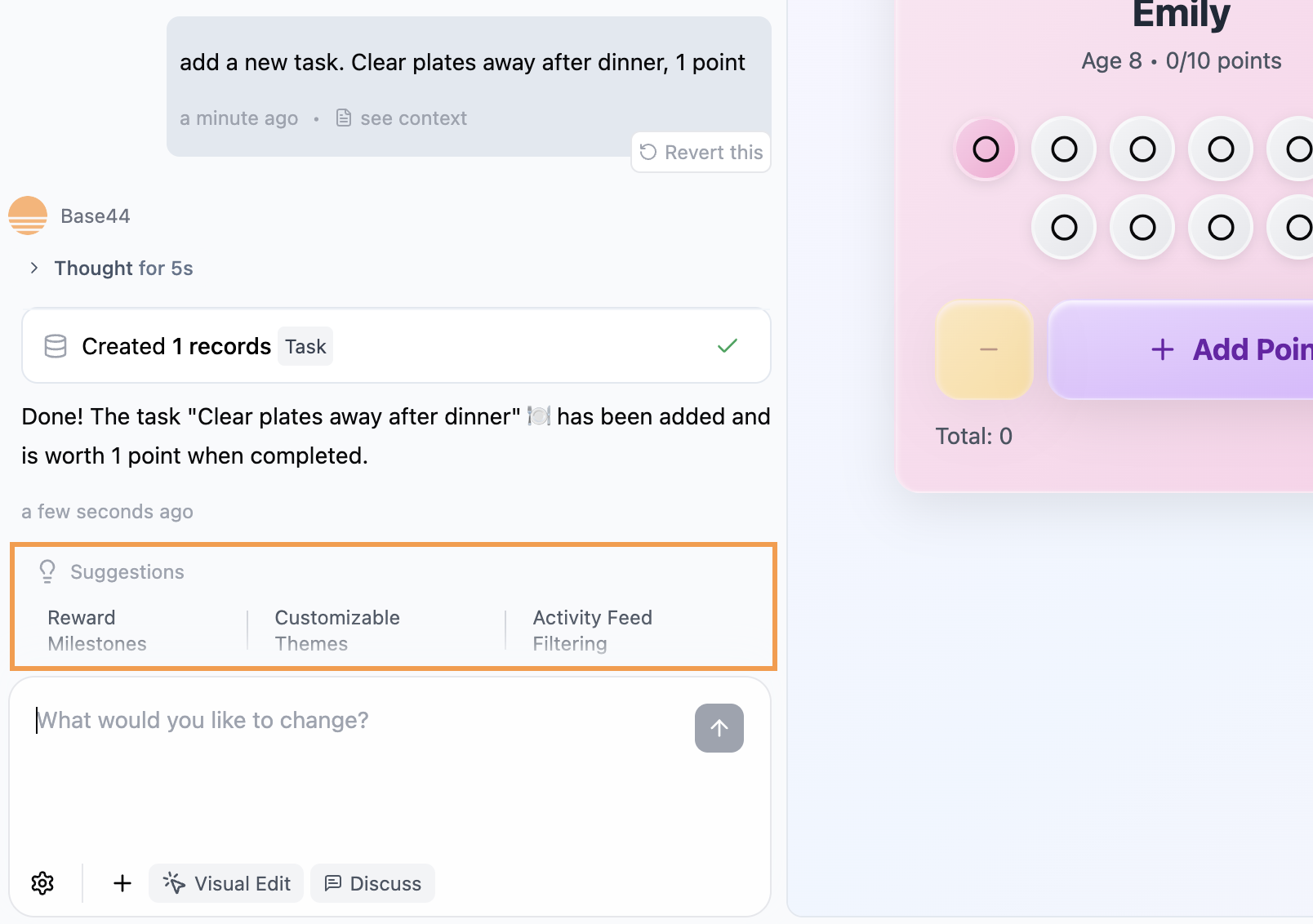
* Directly update your app's database with simple, clear instructions. For example: "Give Emily a point for doing her homework."
After the AI applies your changes, it automatically checks the output in the background and fixes any errors it finds, without interrupting your workflow or requiring any input from you.
The AI chat also suggests useful next steps as you build. These suggestions appear below the chat and are tailored to your current workflow, helping you discover new features and make the most of your app.
 ***
## Using the AI chat modes
Base44's [AI app builder](https://base44.com/ai-app-builder) includes 3 chat modes for building your app:
* **Default:** Acts instantly on your prompts.
* **Discuss:** Lets you plan and refine ideas safely before applying changes.
* **Edit:** Lets you click elements in your preview to adjust visuals directly.
You can switch between modes anytime to brainstorm ideas, make design tweaks, or apply instant changes, all in one chat.
### Default mode
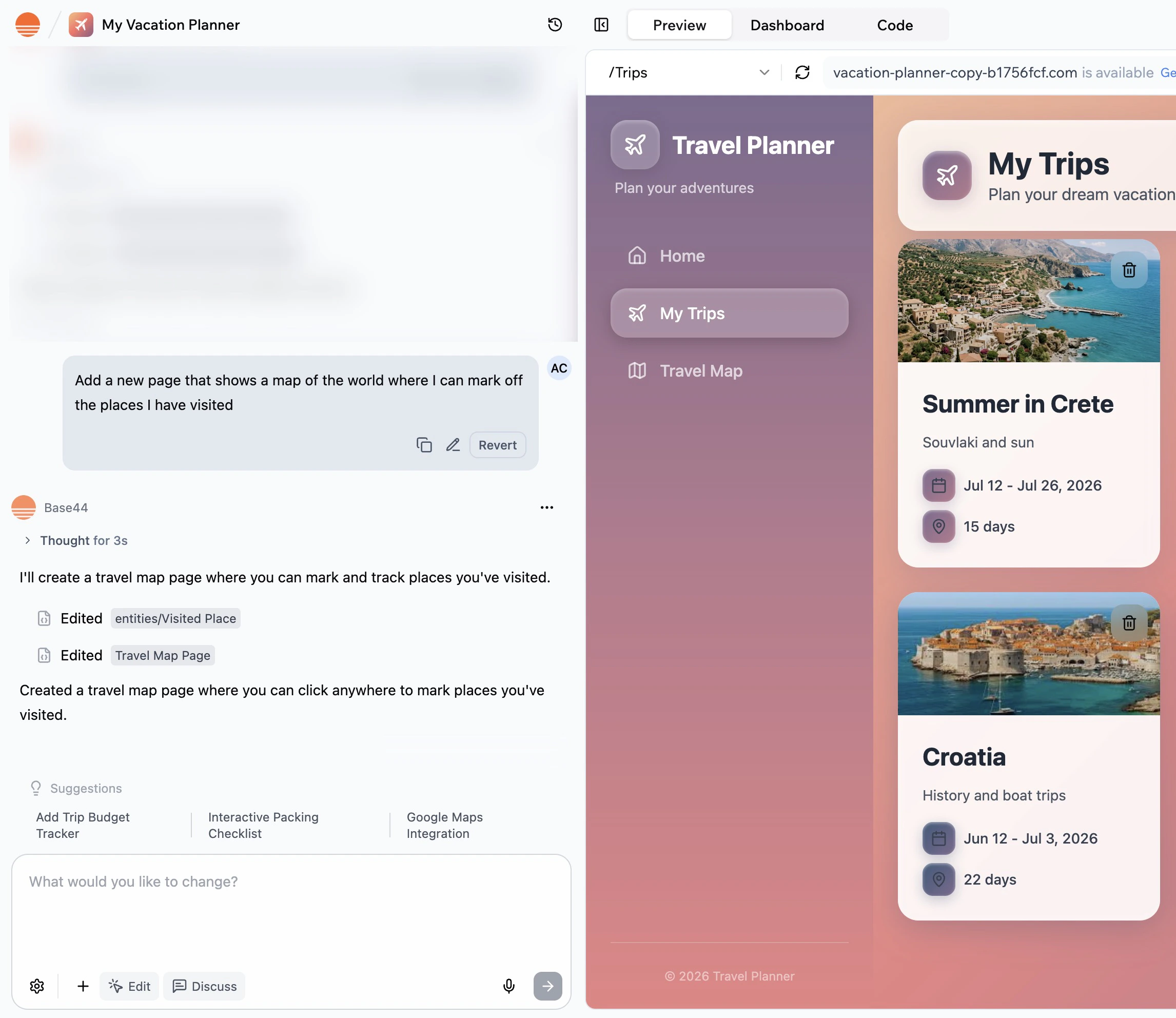
Type what you need, and the AI acts right away. This mode is perfect for quick edits and feature requests. To get the best results, be as specific as possible. The more detail you give, the more precisely the AI builds your app.
> **For example:** Ask the AI to create a new page to your app.
***
## Using the AI chat modes
Base44's [AI app builder](https://base44.com/ai-app-builder) includes 3 chat modes for building your app:
* **Default:** Acts instantly on your prompts.
* **Discuss:** Lets you plan and refine ideas safely before applying changes.
* **Edit:** Lets you click elements in your preview to adjust visuals directly.
You can switch between modes anytime to brainstorm ideas, make design tweaks, or apply instant changes, all in one chat.
### Default mode
Type what you need, and the AI acts right away. This mode is perfect for quick edits and feature requests. To get the best results, be as specific as possible. The more detail you give, the more precisely the AI builds your app.
> **For example:** Ask the AI to create a new page to your app.
 For more examples and prompt frameworks, check out the [Prompt Guide](/Getting-Started/Prompt-guide).
### Discuss mode
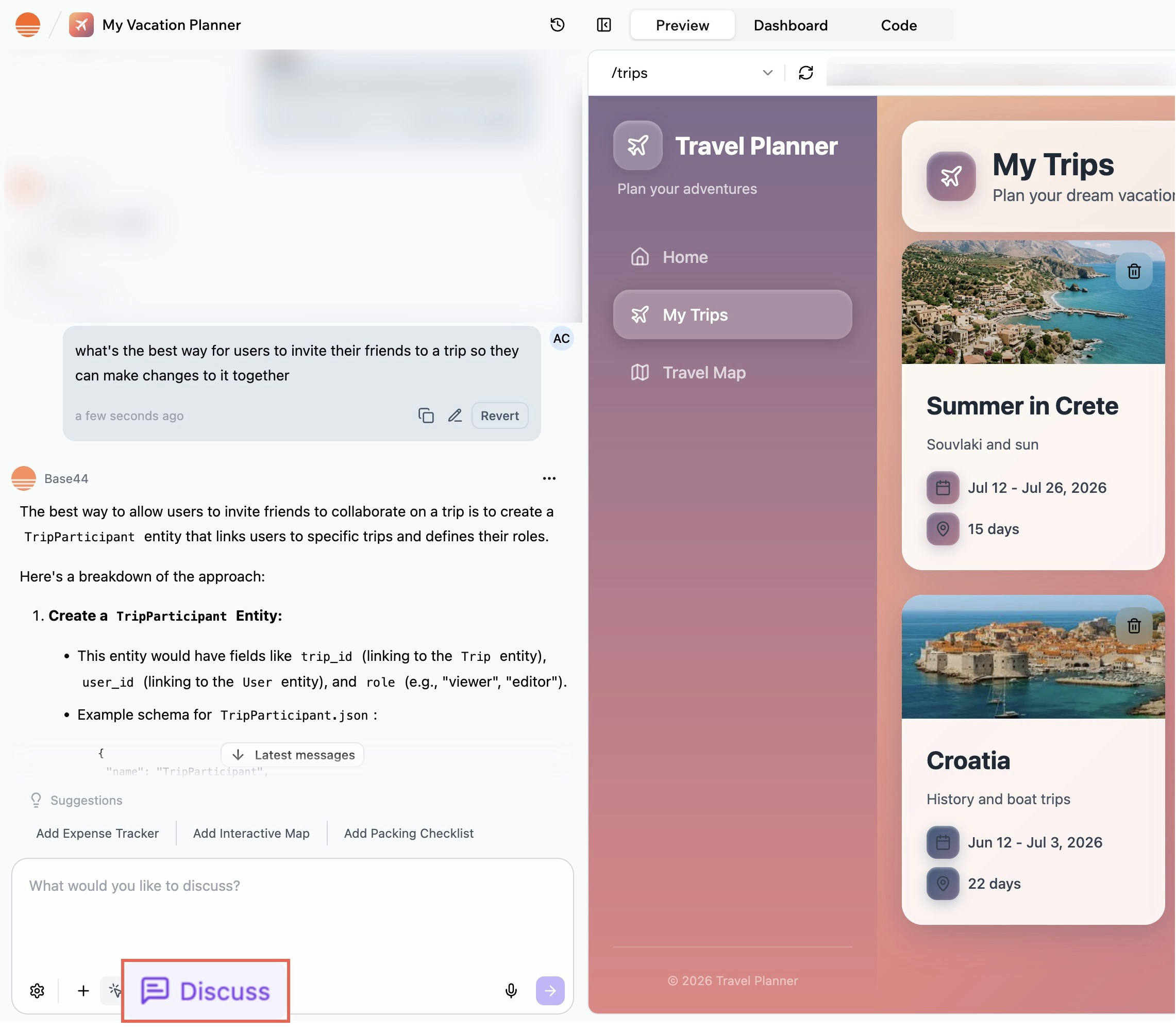
Click **Discuss** in the AI chat to have a conversation with the AI to brainstorm, clarify, or explore ideas before making any changes to your app. It is a safe space to ask questions, get suggestions, or talk through options without affecting your project. In Discuss mode, you can freely chat and refine your goals with the AI, but no app changes take place. Each message in Discuss mode uses 0.3 credits.
Discuss mode helps you save credits by avoiding unnecessary trial and error before finalizing changes.
Once you are ready for the AI to implement changes in your app, turn off **Discuss** and ask the AI to make the changes.
> **For example:** Discuss the best way for users to invite their friends to their app.
For more examples and prompt frameworks, check out the [Prompt Guide](/Getting-Started/Prompt-guide).
### Discuss mode
Click **Discuss** in the AI chat to have a conversation with the AI to brainstorm, clarify, or explore ideas before making any changes to your app. It is a safe space to ask questions, get suggestions, or talk through options without affecting your project. In Discuss mode, you can freely chat and refine your goals with the AI, but no app changes take place. Each message in Discuss mode uses 0.3 credits.
Discuss mode helps you save credits by avoiding unnecessary trial and error before finalizing changes.
Once you are ready for the AI to implement changes in your app, turn off **Discuss** and ask the AI to make the changes.
> **For example:** Discuss the best way for users to invite their friends to their app.
 Discuss mode uses its own AI model regardless of the model you have selected in your app. This keeps Discuss mode costs low and consistent at 0.3 credits per message.
### Edit mode
Use **Edit** mode to make changes to the design of your app. You can do it manually or ask the AI to make the changes for you.
Your edits save automatically as you work. You can undo and redo up to 50 steps within the same visual edit session using the undo/redo buttons at the top of the editor, and your edits remain through preview reloads.
If you try to leave with unsaved changes, your browser warns you before you go. Your edits also appear in [**Version History**](#restoring-or-publishing-a-previous-version), so you can restore a previous set of manual edits at any time.
**To make changes to the design of your app:**
1. Go to the AI chat in your app editor.
2. Click **Edit**.
3. Make changes to the design:
* **Manually:** Select an element in your app preview to make the changes directly. For example, you can change background colors, text colors, or spacing. You can also quickly access the element's code to make changes, adjust tailwind classes directly to fine-tune spacing, typography, layout, and responsiveness, or remove the selected element or section with the **Delete** icon in the Edit toolbar. This method does not use credits.
Discuss mode uses its own AI model regardless of the model you have selected in your app. This keeps Discuss mode costs low and consistent at 0.3 credits per message.
### Edit mode
Use **Edit** mode to make changes to the design of your app. You can do it manually or ask the AI to make the changes for you.
Your edits save automatically as you work. You can undo and redo up to 50 steps within the same visual edit session using the undo/redo buttons at the top of the editor, and your edits remain through preview reloads.
If you try to leave with unsaved changes, your browser warns you before you go. Your edits also appear in [**Version History**](#restoring-or-publishing-a-previous-version), so you can restore a previous set of manual edits at any time.
**To make changes to the design of your app:**
1. Go to the AI chat in your app editor.
2. Click **Edit**.
3. Make changes to the design:
* **Manually:** Select an element in your app preview to make the changes directly. For example, you can change background colors, text colors, or spacing. You can also quickly access the element's code to make changes, adjust tailwind classes directly to fine-tune spacing, typography, layout, and responsiveness, or remove the selected element or section with the **Delete** icon in the Edit toolbar. This method does not use credits.
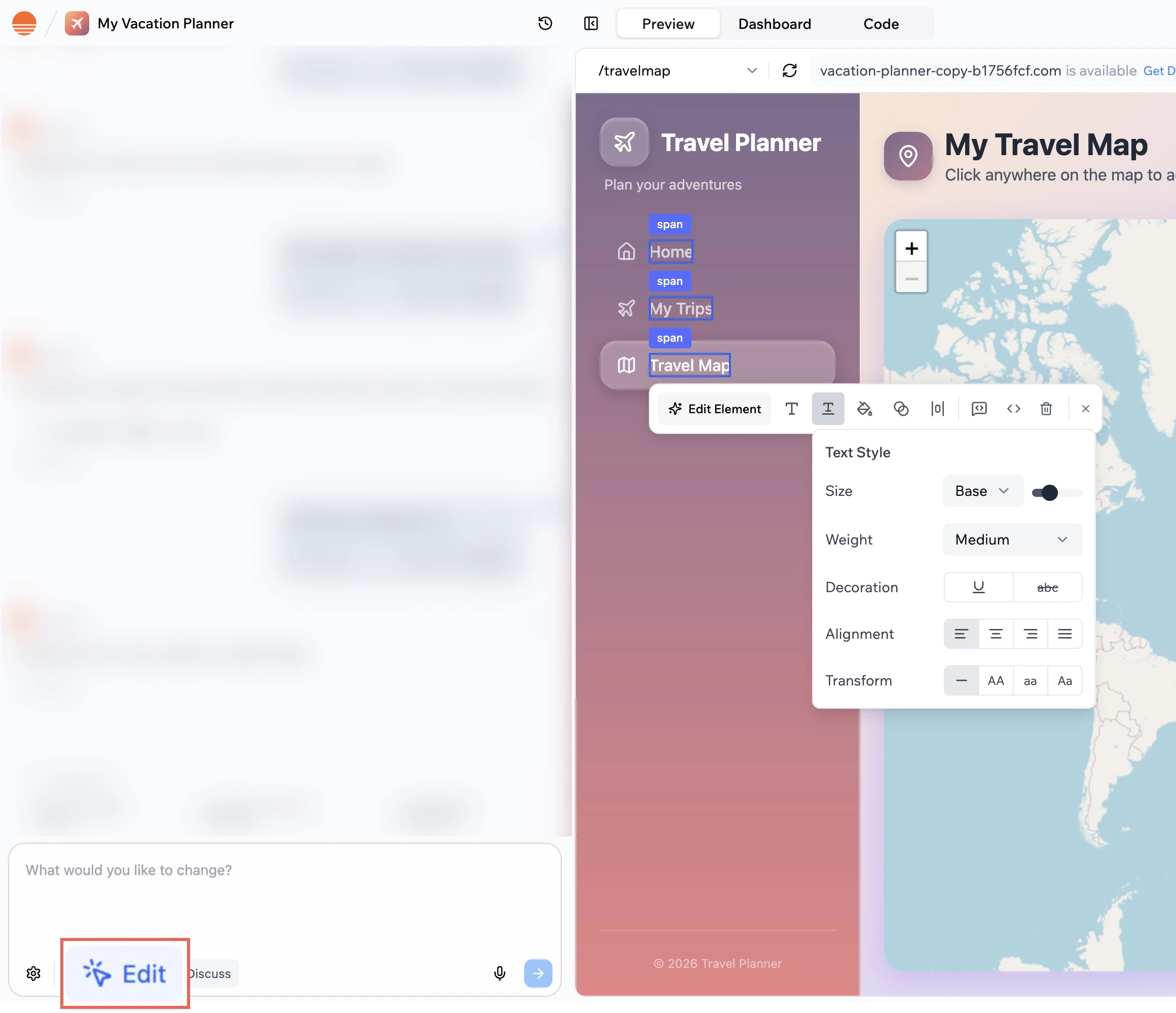 * **Using the AI chat:** Select an element in the app preview and then click **Edit Element**. Write what you want to change about the element and the AI will take care of it. This method uses message credits. The number of credits depends on the size and complexity of the change.
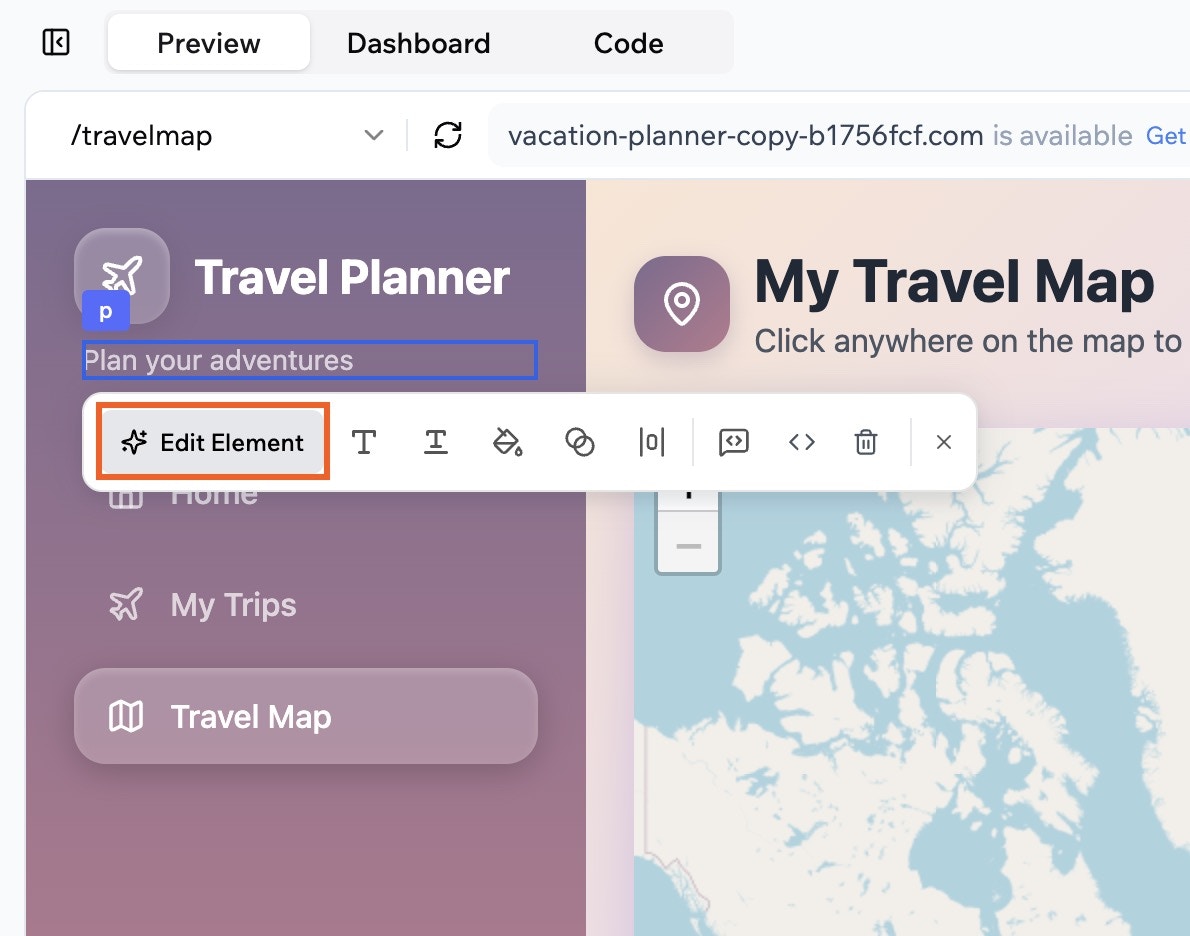 If you have multiple elements that repeat, you can apply bulk changes to them. Click the element and all repeating elements are highlighted, so you can apply changes to all of them at once.

 ***
## Queuing messages in the chat
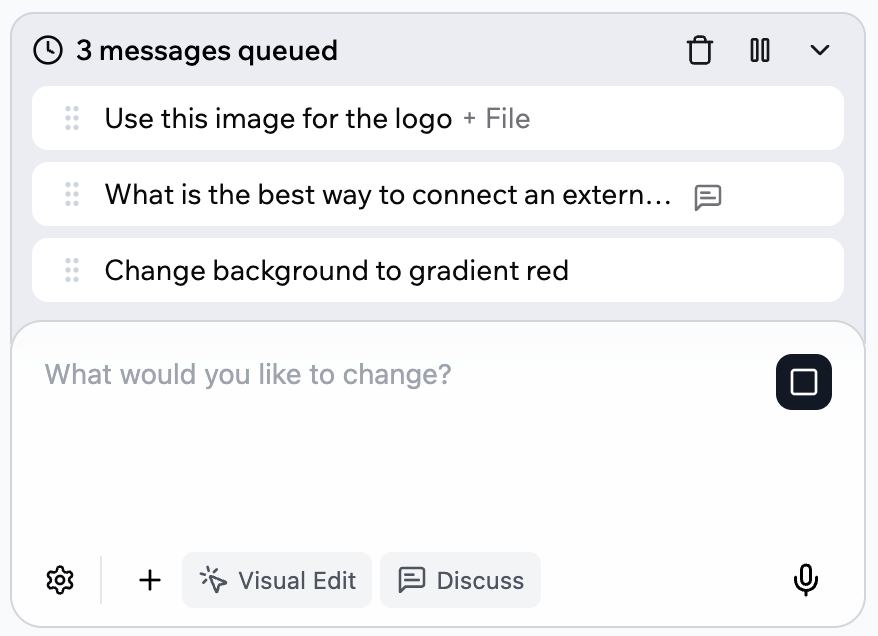
When the AI chat is already working on a prompt, you do not need to wait before asking something else. You can keep typing, add more prompts, and attach files. The AI chat adds them to a message queue and sends them one by one as each response finishes.
***
## Queuing messages in the chat
When the AI chat is already working on a prompt, you do not need to wait before asking something else. You can keep typing, add more prompts, and attach files. The AI chat adds them to a message queue and sends them one by one as each response finishes.
 **Notes:**
* The queue appears above the chat input and shows all pending prompts in the order they will run.
* You can queue up to 7 messages at once.
* Queued messages do not send if you close the app editor. When you reopen the editor, any queued messages will resume.
You can edit your queue at any time. Drag and drop messages to change their order, edit a queued message inline before it is sent, remove individual messages or clear the entire queue if you change your mind. You can also pause or resume the queue whenever you need.
***
## Customizing the AI chat
You can tailor how the AI behaves and set custom controls.
### Choosing your AI model
Choose a model manually when you want more control. Each model brings unique strengths, so you can pick the best fit for your prompt.
**Before you choose a model:**
* You need a [**Builder plan**](https://base44.com/pricing) or higher to choose an AI model.
* When you choose a model manually, credit usage varies by model and may use more credits than **Automatic**. Check the exact cost under **Credits Used** for each message.
* Some models are rolling out gradually and may not be available to all accounts yet.
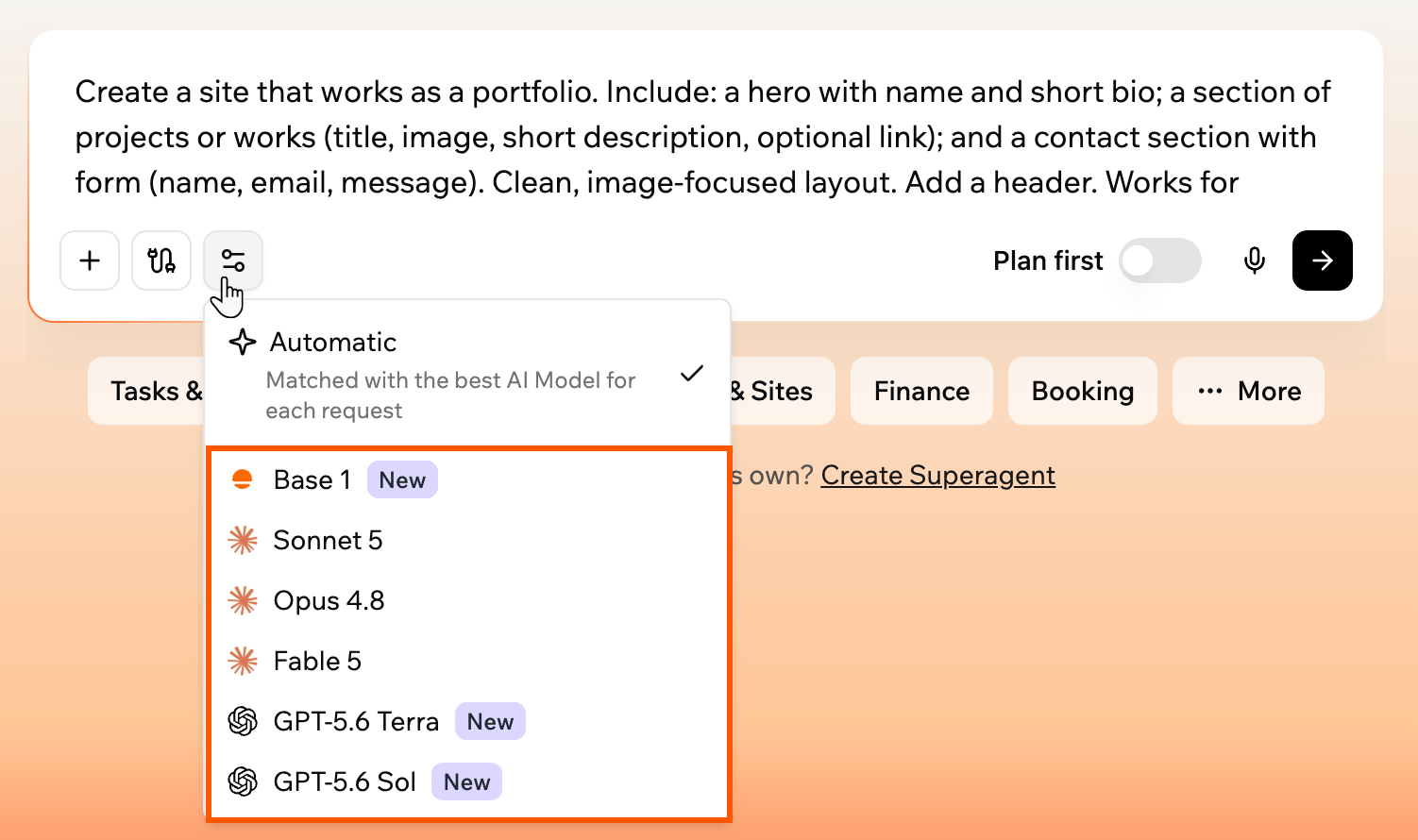
You can choose your model from your first prompt, or change it at any time while building. Expand an option below to see how.
Set your model before you send your first prompt, so your first build uses the one you want.
1. On the Base44 homepage, below the prompt box, click the model selector.
2. Select the model you want, or keep **Automatic**.
**Notes:**
* The queue appears above the chat input and shows all pending prompts in the order they will run.
* You can queue up to 7 messages at once.
* Queued messages do not send if you close the app editor. When you reopen the editor, any queued messages will resume.
You can edit your queue at any time. Drag and drop messages to change their order, edit a queued message inline before it is sent, remove individual messages or clear the entire queue if you change your mind. You can also pause or resume the queue whenever you need.
***
## Customizing the AI chat
You can tailor how the AI behaves and set custom controls.
### Choosing your AI model
Choose a model manually when you want more control. Each model brings unique strengths, so you can pick the best fit for your prompt.
**Before you choose a model:**
* You need a [**Builder plan**](https://base44.com/pricing) or higher to choose an AI model.
* When you choose a model manually, credit usage varies by model and may use more credits than **Automatic**. Check the exact cost under **Credits Used** for each message.
* Some models are rolling out gradually and may not be available to all accounts yet.
You can choose your model from your first prompt, or change it at any time while building. Expand an option below to see how.
Set your model before you send your first prompt, so your first build uses the one you want.
1. On the Base44 homepage, below the prompt box, click the model selector.
2. Select the model you want, or keep **Automatic**.
 Switch models at any time while building your app from the app editor.
1. Go to your app editor.
2. Click the **Settings** icon at the bottom of the chat.
3. Click **AI Model**.
4. Select the model you want to use, or keep **Automatic** to let Base44 pick the best model for each request.
Switch models at any time while building your app from the app editor.
1. Go to your app editor.
2. Click the **Settings** icon at the bottom of the chat.
3. Click **AI Model**.
4. Select the model you want to use, or keep **Automatic** to let Base44 pick the best model for each request.
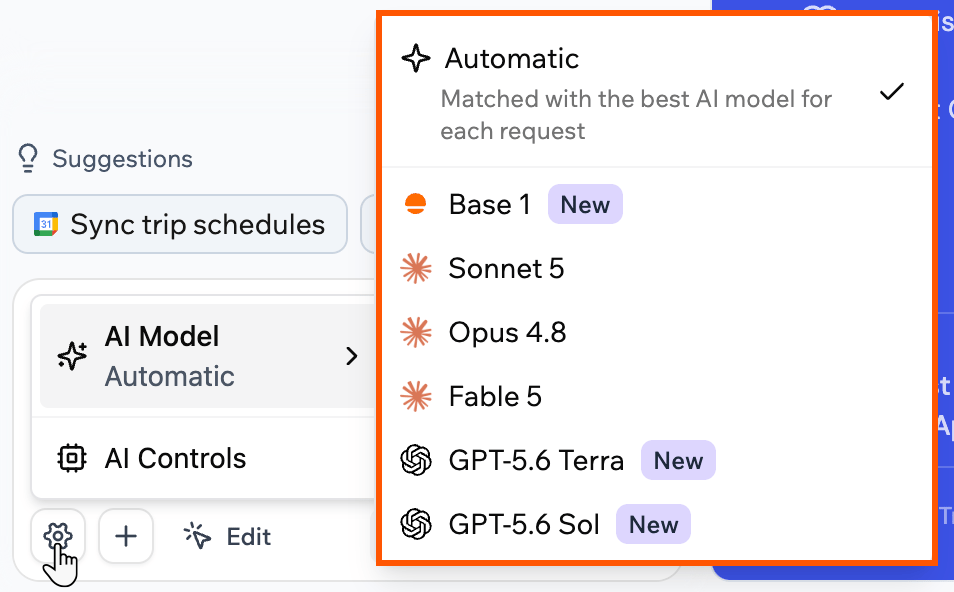 * **Base 1:** Base44's first in-house model, trained on real building patterns from across the platform. A well-rounded, general-purpose choice for both everyday building and conversation.
* **Sonnet 5:** A well-balanced choice for day-to-day building, writing, refactoring, and troubleshooting, with a strong mix of quality and speed.
* **Opus 4.8:** The most advanced reasoning model, built for the hardest problems. Use it for complex multi-step logic, intricate architecture decisions, and edge cases where you need the highest level of accuracy.
* **Fable 5:** Great for complex, multi-step builds and detailed debugging, when you want thorough, high-quality results.
* **GPT-5.5:** A strong choice for complex reasoning and multi-step planning, with improved accuracy and consistency across large or evolving projects.
* **GPT-5.6 Terra:** A cost-efficient GPT-5.6 option for complex reasoning and multi-step planning, at a lower credit cost.
* **GPT-5.6 Sol:** The most capable GPT-5.6 option, for the hardest reasoning and large, evolving projects. Uses more credits.
Not sure which model to choose? Keep **Automatic** and Base44 selects the best model for each request.
### Setting AI controls
AI controls let you define how the AI interacts with your app. They help you set consistent rules and protect important areas from accidental edits.
Click the **Settings** icon at the bottom of the chat, then select **AI Controls** to open the panel:
* **Custom Instructions:** Add default guidance for every AI interaction, such as tone, design standards, or preferred behavior.
* **Freeze Files:** Lock specific files or entities so the AI does not modify them.
* **Base 1:** Base44's first in-house model, trained on real building patterns from across the platform. A well-rounded, general-purpose choice for both everyday building and conversation.
* **Sonnet 5:** A well-balanced choice for day-to-day building, writing, refactoring, and troubleshooting, with a strong mix of quality and speed.
* **Opus 4.8:** The most advanced reasoning model, built for the hardest problems. Use it for complex multi-step logic, intricate architecture decisions, and edge cases where you need the highest level of accuracy.
* **Fable 5:** Great for complex, multi-step builds and detailed debugging, when you want thorough, high-quality results.
* **GPT-5.5:** A strong choice for complex reasoning and multi-step planning, with improved accuracy and consistency across large or evolving projects.
* **GPT-5.6 Terra:** A cost-efficient GPT-5.6 option for complex reasoning and multi-step planning, at a lower credit cost.
* **GPT-5.6 Sol:** The most capable GPT-5.6 option, for the hardest reasoning and large, evolving projects. Uses more credits.
Not sure which model to choose? Keep **Automatic** and Base44 selects the best model for each request.
### Setting AI controls
AI controls let you define how the AI interacts with your app. They help you set consistent rules and protect important areas from accidental edits.
Click the **Settings** icon at the bottom of the chat, then select **AI Controls** to open the panel:
* **Custom Instructions:** Add default guidance for every AI interaction, such as tone, design standards, or preferred behavior.
* **Freeze Files:** Lock specific files or entities so the AI does not modify them.
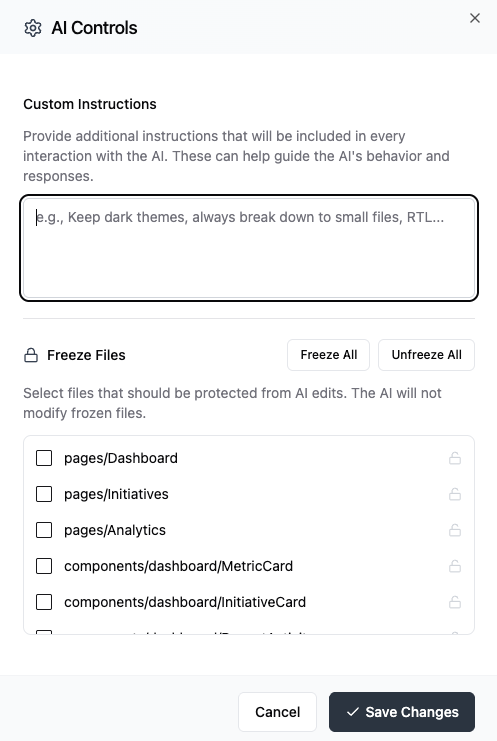 Clear, well-defined AI controls keep your app consistent and prevent accidental overwrites.
***
## Reverting changes
Experiment freely and try new ideas, knowing you can always undo your changes at any time. You can roll your app back to a specific prompt, restore a previous version into the editor, or publish a previous version directly from Version History without changing what you are currently working on.
### Reverting a specific prompt
Hover over the relevant message in your chat history and click the **Revert** icon under it to roll your app back to the state it was in just before that change. Any changes made after that point are also undone, so you can quickly return to an earlier version of your app.
If you want to change what you asked instead of just undoing it, click the **Edit** icon on that earlier message. The chat opens an **Edit this message and resend** panel. When you resend, Base44 reverts any changes made after that message and then applies your updated request.
Clear, well-defined AI controls keep your app consistent and prevent accidental overwrites.
***
## Reverting changes
Experiment freely and try new ideas, knowing you can always undo your changes at any time. You can roll your app back to a specific prompt, restore a previous version into the editor, or publish a previous version directly from Version History without changing what you are currently working on.
### Reverting a specific prompt
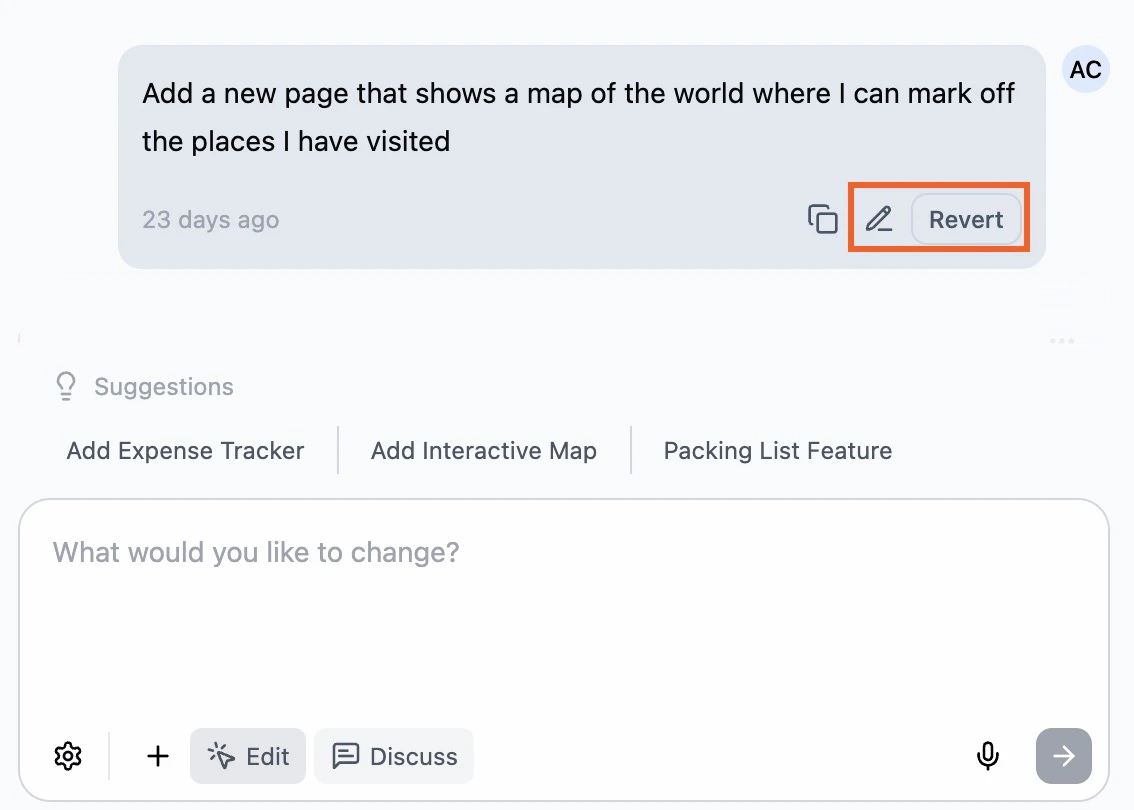
Hover over the relevant message in your chat history and click the **Revert** icon under it to roll your app back to the state it was in just before that change. Any changes made after that point are also undone, so you can quickly return to an earlier version of your app.
If you want to change what you asked instead of just undoing it, click the **Edit** icon on that earlier message. The chat opens an **Edit this message and resend** panel. When you resend, Base44 reverts any changes made after that message and then applies your updated request.
 ### Restoring or publishing a previous version
Click the **Version History** icon at the top of the chat to open your version list. From there you can preview versions, publish a previous version without changing your current draft, revert your editor to an older version, view the code, or jump back to the chat message that created that version.
### Restoring or publishing a previous version
Click the **Version History** icon at the top of the chat to open your version list. From there you can preview versions, publish a previous version without changing your current draft, revert your editor to an older version, view the code, or jump back to the chat message that created that version.
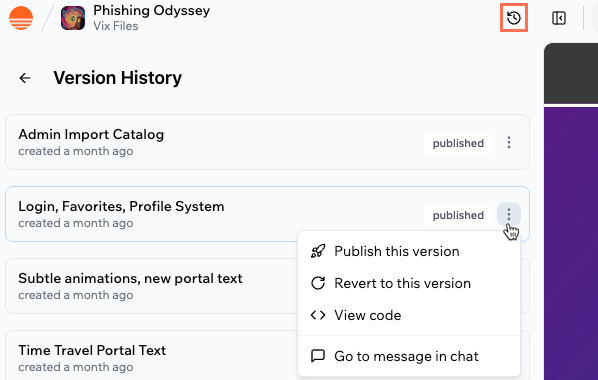 Click a version in the list to load it in the preview. For each version, click the **More Actions** icon and choose:
* **Publish this version:** Publish this version to your live app while keeping your current draft open in the editor so you can keep working.
* **Revert to this version:** Replace your current draft in the app editor with this version.
* **View code:** Open the code for this version.
* **Go to message in chat:** Jump to the chat message that created this version.
***
## FAQs
Click a question below to learn more about AI chat modes and controls.
Click the **Hide chat panel** icon above the preview window to display your app exactly as visitors see it, without any editor panels or chat tools.
Click a version in the list to load it in the preview. For each version, click the **More Actions** icon and choose:
* **Publish this version:** Publish this version to your live app while keeping your current draft open in the editor so you can keep working.
* **Revert to this version:** Replace your current draft in the app editor with this version.
* **View code:** Open the code for this version.
* **Go to message in chat:** Jump to the chat message that created this version.
***
## FAQs
Click a question below to learn more about AI chat modes and controls.
Click the **Hide chat panel** icon above the preview window to display your app exactly as visitors see it, without any editor panels or chat tools.
 When Base44 detects a JavaScript error in your app preview, an **Issues Found** notification appears in the editor with a description of the error and where it occurred.
Click **Resolve with AI** to send the error details to the AI chat. The AI reviews the error and applies a fix. This does not count toward your message credits.
To dismiss the notification without fixing it, click **X** to close it.
If your app freezes or behaves unexpectedly, try these steps to get back on track:
* **Refresh the page** to reload your latest working version.
* **Clear your browser cache** and reload your app to remove any stored conflicts.
* **Try a private window** or another browser to rule out extension conflicts.
* **Disable browser extensions** temporarily if the issue persists.
* **Check your credits and plan limits**, since running out of credits can interrupt AI actions.
* **Revert the last AI action** in the chat by clicking the **Revert** icon under that message, or use **Version History** to roll back to a stable version.
For more help, see the [Troubleshooting guide](/Community-and-support/Troubleshooting).
Base44 does not offer refunds or credit reversals for AI actions. You can use [**Version History**](#reverting-changes) to undo changes and restore your app.
The agentic AI uses a wide range of tools to help you build and manage your app, including:
**Database tools:**
* Read, create, update, and delete records in your app's database. It can filter, sort, paginate, or update or delete in bulk. For example, add test people, mark old messages as read, or remove expired records.
**Web tools:**
* Perform web searches to find relevant documentation or features. This works like a search engine with relevant pages, titles, and descriptions.
* Fetch website data from any URL. Retrieve markdown or HTML, for example to scrape documentation or get live page content.
**Code and file tools:**
* Smart file search. Quickly find files or code snippets needed for your workflow.
* Read the contents of any project file before editing. This is useful for reviewing your app's code structure.
* Modify files in your project. Edit pages, components, entities, functions, or layouts, and support targeted partial edits. For example, fix bugs, add features, or update styling.
* Inspect logs and console output to help with debugging or understanding errors.
**Configuration tools:**
* Set or update environment variables and secrets as needed. For example, add or update API keys like `OPENAI_API_KEY` or `STRIPE_SECRET_KEY`.
The agent automatically chooses and combines these tools based on what you need, so you can focus on describing your goals instead of the technical steps.
The agentic AI can fetch and interpret content from public website pages and other static data, but it cannot automatically access or migrate complex backend logic, databases, or private integrations. If your project requires backend features, connections to other services, or secure data, you still need to set these up manually.
For example, if you ask the agent to copy content or features from another app, it can match layouts, text, and the overall look based on what is visible on the public site, but it does not copy any backend logic, migrate private integrations, or access protected database content.
For any work that goes beyond the public front end, manual setup is required to complete your app.
All times in the Base44 builder are managed and displayed using Coordinated Universal Time (UTC). This keeps everything consistent across different regions and makes it easier to coordinate actions or schedules, no matter where you or the people using your app are located. There is no option to change the time zone within the builder at this time.
Yes, you can use your voice to interact with the AI chat in Base44. Click the microphone icon in the chat box to turn on speech-to-text, then speak your question or request. The AI transcribes your speech and responds as usual, so you can get help hands-free.
When Base44 detects a JavaScript error in your app preview, an **Issues Found** notification appears in the editor with a description of the error and where it occurred.
Click **Resolve with AI** to send the error details to the AI chat. The AI reviews the error and applies a fix. This does not count toward your message credits.
To dismiss the notification without fixing it, click **X** to close it.
If your app freezes or behaves unexpectedly, try these steps to get back on track:
* **Refresh the page** to reload your latest working version.
* **Clear your browser cache** and reload your app to remove any stored conflicts.
* **Try a private window** or another browser to rule out extension conflicts.
* **Disable browser extensions** temporarily if the issue persists.
* **Check your credits and plan limits**, since running out of credits can interrupt AI actions.
* **Revert the last AI action** in the chat by clicking the **Revert** icon under that message, or use **Version History** to roll back to a stable version.
For more help, see the [Troubleshooting guide](/Community-and-support/Troubleshooting).
Base44 does not offer refunds or credit reversals for AI actions. You can use [**Version History**](#reverting-changes) to undo changes and restore your app.
The agentic AI uses a wide range of tools to help you build and manage your app, including:
**Database tools:**
* Read, create, update, and delete records in your app's database. It can filter, sort, paginate, or update or delete in bulk. For example, add test people, mark old messages as read, or remove expired records.
**Web tools:**
* Perform web searches to find relevant documentation or features. This works like a search engine with relevant pages, titles, and descriptions.
* Fetch website data from any URL. Retrieve markdown or HTML, for example to scrape documentation or get live page content.
**Code and file tools:**
* Smart file search. Quickly find files or code snippets needed for your workflow.
* Read the contents of any project file before editing. This is useful for reviewing your app's code structure.
* Modify files in your project. Edit pages, components, entities, functions, or layouts, and support targeted partial edits. For example, fix bugs, add features, or update styling.
* Inspect logs and console output to help with debugging or understanding errors.
**Configuration tools:**
* Set or update environment variables and secrets as needed. For example, add or update API keys like `OPENAI_API_KEY` or `STRIPE_SECRET_KEY`.
The agent automatically chooses and combines these tools based on what you need, so you can focus on describing your goals instead of the technical steps.
The agentic AI can fetch and interpret content from public website pages and other static data, but it cannot automatically access or migrate complex backend logic, databases, or private integrations. If your project requires backend features, connections to other services, or secure data, you still need to set these up manually.
For example, if you ask the agent to copy content or features from another app, it can match layouts, text, and the overall look based on what is visible on the public site, but it does not copy any backend logic, migrate private integrations, or access protected database content.
For any work that goes beyond the public front end, manual setup is required to complete your app.
All times in the Base44 builder are managed and displayed using Coordinated Universal Time (UTC). This keeps everything consistent across different regions and makes it easier to coordinate actions or schedules, no matter where you or the people using your app are located. There is no option to change the time zone within the builder at this time.
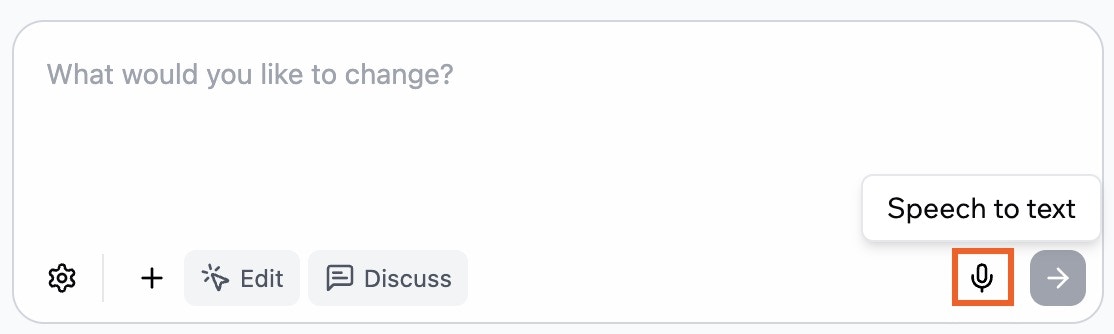
Yes, you can use your voice to interact with the AI chat in Base44. Click the microphone icon in the chat box to turn on speech-to-text, then speak your question or request. The AI transcribes your speech and responds as usual, so you can get help hands-free.
 If AI chat is unresponsive, gets stuck processing, or does not undo changes as expected, there are ways to recover.
Check out the full troubleshooting guide for step-by-step solutions, including how to:
* Use Version History or **Revert** under a previous message to safely undo actions.
* Unstick a frozen prompt or stop button.
* Get help if the chat panel is completely unresponsive.
For detailed instructions and workarounds, see the [Troubleshooting Issues](/Community-and-support/Troubleshooting) article.
Base44 uses automatic model selection to match each request with the engine best suited for the job. Design tweaks, layout changes, and deep logic updates may all use different AI models. The chat handles this in the background, so you can stay focused on describing what you want to build.
* For small visual or copy tweaks, it chooses fast, efficient models that optimize for speed and responsiveness.
* For larger architectural changes or data flows, it uses deeper reasoning models that can plan across files, entities, and logic.
* When something fails or runs into an error, it can switch strategies or models to recover and try again.
Note that Discuss mode uses its own fixed model regardless of your selection. [Learn more about Discuss mode.](https://docs.base44.com/Building-your-app/AI-chat-modes#discuss-mode)
If AI chat is unresponsive, gets stuck processing, or does not undo changes as expected, there are ways to recover.
Check out the full troubleshooting guide for step-by-step solutions, including how to:
* Use Version History or **Revert** under a previous message to safely undo actions.
* Unstick a frozen prompt or stop button.
* Get help if the chat panel is completely unresponsive.
For detailed instructions and workarounds, see the [Troubleshooting Issues](/Community-and-support/Troubleshooting) article.
Base44 uses automatic model selection to match each request with the engine best suited for the job. Design tweaks, layout changes, and deep logic updates may all use different AI models. The chat handles this in the background, so you can stay focused on describing what you want to build.
* For small visual or copy tweaks, it chooses fast, efficient models that optimize for speed and responsiveness.
* For larger architectural changes or data flows, it uses deeper reasoning models that can plan across files, entities, and logic.
* When something fails or runs into an error, it can switch strategies or models to recover and try again.
Note that Discuss mode uses its own fixed model regardless of your selection. [Learn more about Discuss mode.](https://docs.base44.com/Building-your-app/AI-chat-modes#discuss-mode)