> ## Documentation Index
> Fetch the complete documentation index at: https://docs.base44.com/llms.txt
> Use this file to discover all available pages before exploring further.
# Credits
> Credits power your app building and operations in Base44. Learn how credits work so you can build confidently without hitting limits.
## About credits in Base44
Credits are the units Base44 uses when you interact with Base44's AI or connect your app to external tools. Credit usage adjusts dynamically based on how much work the builder needs to do behind the scenes.
### Types of credits
Base44 uses 2 types of credits to support your [app building](https://base44.com/ai-app-builder) and operations:
Used when you interact with Base44's AI while building apps. Message credits are used for prompts that plan, update, or fix parts of your app.
**Examples:**
* Asking the AI to add or refine a small feature.
* Debugging or fixing logic in a specific part of your app.
* Getting the AI to rewrite copy or microcopy.
* Applying AI-suggested changes from the chat.
Used whenever your app uses Base44's built-in services, such as sending an email, generating an image, running an LLM call, or using [in-app agents](/Building-your-app/AI-agents-for-apps). Integration credits are not used if you call external services through your own API keys or backend functions.
[See the full cost breakdown.](#integration-credit-examples)
***
## How credits are used
There is no set credit amount used per message. Different actions use credits in different ways, depending on what you ask the AI to do.
Short, focused prompts usually require less work behind the scenes, while broader prompts that touch several pages or components can require more. Manual visual edits, such as dragging elements, changing layouts, or editing text directly in the editor, do not use credits.
Even when a request looks simple or your message is very short, the AI still has a lot to do in the background. It needs to read what you already built, understand your request, figure out the safest way to change it, and apply the update without breaking other parts of your app.
Credits are based on how much work the system has to do, not on how small the change looks. This is why something that feels like a quick tweak, such as "translate the whole app" or "rebuild this page for mobile," can still use a few credits as the AI has to review many files and make complex updates that you do not always see.
**Important:**
* The credit amounts shown on this page are estimates based on standard models and average complexity, provided as a guide rather than exact figures. They are subject to change at Base44's discretion. For details, see the [Base44 Terms of Service](https://base44.com/terms-of-service).
* The credits used for a given action can vary and are calculated after the action runs, so the actual cost may be higher or lower than the figure shown here. To see how many credits you have used, check your [credit usage](#checking-your-credit-balance).
* There is no way to preview an integration credit cost before running an action. To estimate it, run the action in a controlled test and review the execution logs afterward.
### Message credit examples
These are rough ranges. Actual usage depends on how much work the AI needs to do behind the scenes.
| Scope of change | What it usually involves | Typical credits used |
| ------------------------------ | ---------------------------------------------------------------------------- | -------------------- |
| Simple visual or text change | A lightweight update to a single element or short piece of text. | \~0.5 credits |
| Improving a small feature | Adjusting logic across a few files, higher than a simple style tweak. | \~1 credit |
| Adding a complex module | Entities, flows, and logic across multiple files, requiring deeper planning. | \~2 credits |
| Large-scale or app-wide change | Touching many pages, components, or the full app structure. | \~3–4 credits |
### Integration credit examples
Each call to a Base44 built-in service uses integration credits. Open a category below to see the cost for each integration.
| Integration | What it does | Cost |
| ------------------------------------------------------------------------------------------------------ | ---------------------------------------------- | ------------------------------------------------- |
| [SendEmail](/documentation/building-your-app/sending-emails) | Sends an email from your app | 1 credit per email |
| [SendEmail](/documentation/building-your-app/sending-emails) with custom domain | Sends an email from your own domain address | 2 credits per email |
| [UploadFile](/Integrations/built-in-integrations#uploading-files) | Handles a file upload in your app | 1 credit per upload |
| [ExtractDataFromUploadedFile](/Integrations/built-in-integrations#extracting-data-from-uploaded-files) | Extracts structured data from an uploaded file | 1 credit per call |
| [GenerateImage](/Integrations/built-in-integrations#generating-images) | Generates an image with AI | 1 credit per image |
| [GenerateVideo](/Integrations/built-in-integrations#generating-videos) | Generates a video with AI | 5 credits per second of video |
| [GenerateSpeech](/Integrations/built-in-integrations#generating-speech) | Converts text to audio | 1 credit per 50 characters (maximum 100 per call) |
| [invokeLLM](/Integrations/built-in-integrations#running-llm-calls) (Automatic) | Runs an LLM call in a flow or backend function | \~3 credits per call |
| [invokeLLM](/Integrations/built-in-integrations#running-llm-calls) (Gemini 3 Flash) | Stronger reasoning at moderate cost | \~5 credits per call |
| [invokeLLM](/Integrations/built-in-integrations#running-llm-calls) (GPT-5) | Complex analysis and high-accuracy tasks | \~15 credits per call |
Each message sent to an [in-app agent](/Building-your-app/AI-agents-for-apps) uses integration credits. Cost varies based on the AI model selected.
| Model | Best for | Cost |
| -------------- | ---------------------------------------- | ------------------------ |
| Automatic | General-purpose, fast responses | \~3 credits per message |
| Gemini 3 Flash | Stronger reasoning at moderate cost | \~5 credits per message |
| GPT-5 | Complex analysis and high-accuracy tasks | \~15 credits per message |
Each time an [automation](/Building-your-app/Creating-automations) runs, it uses 1 integration credit, regardless of type (scheduled, data event, in-app agent trigger, or connector). Any built-in integrations called inside the automation are charged separately on top of that.
For example, an automation that calls invokeLLM and then sends an email costs the 1-credit automation run plus \~3 credits for the LLM call plus 1 credit for the email, roughly 5 credits each time it fires. Automations that run frequently or chain several actions can add up quickly.
To estimate an automation's credit cost, run it once manually and check the execution logs in your app dashboard.
| Action | What it does | Cost |
| ------------------------------------------------------------------------- | --------------------------------------- | ------------------- |
| [Generate content plan](/promoting-your-app/social-content) | Generates a social media content plan | 10 credits per plan |
| [Improve with AI or Regenerate image](/promoting-your-app/social-content) | Refines a post or regenerates its image | 1 credit per action |
### Viewing credits used per message
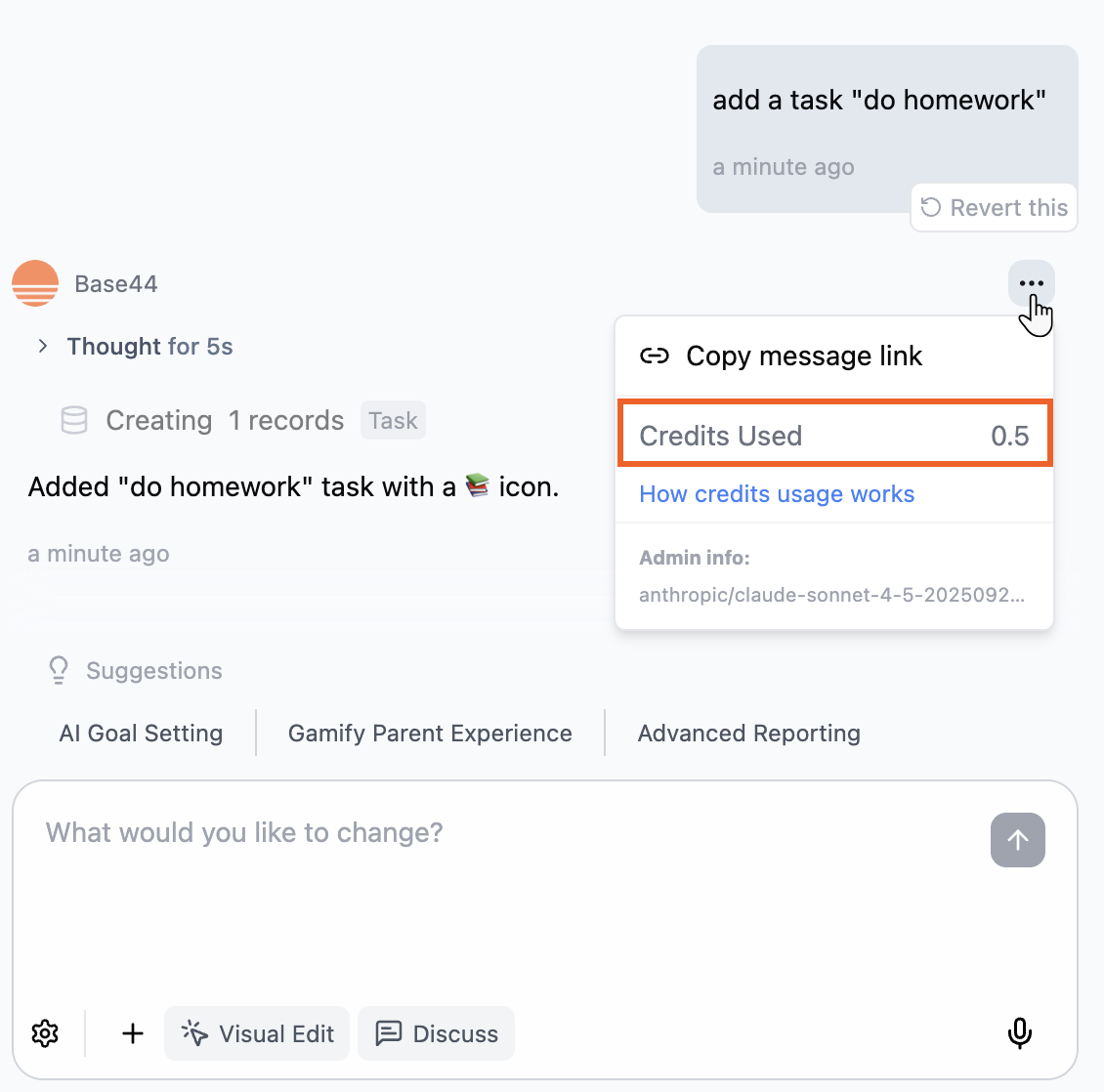
You can see how many credits a prompt used. Click the **More Actions** icon under your prompt to open the menu, then look under **Credits Used** to see the cost for that specific message.
### Maximizing your credits
Get more out of your Base44 credits with these practical tips. Open each tip below to see how you can save credits and keep your workflow efficient.
Planning before you start helps you save both time and credits.
Start by deciding what your app should do and outlining its main parts. You can use any AI tool to organize your thoughts and write a clear prompt. List the key features you want and describe how people will use your app, step by step.
You can also ask another AI tool to help you draft a ready-to-use prompt for Base44, then paste it directly into your project.
Keep the AI model set to **Automatic** unless you have a specific need to choose a manual model. Base44 automatically routes each prompt to the AI models best suited for your task, so you get accurate results while your credit usage stays efficient, without needing to worry about the technical details.
Manually choosing a model is less predictable and can use more credits, especially for complex work.
Write short, focused prompts for each message instead of one very broad request. Focused prompts often use fewer credits and lead to better results. Ask the AI to work on specific files, pages, or functions instead of your entire app, and clearly state what change you want to make.
For example, you could say: `Update the Home page text to match the new pricing plan`.
Use **Discuss** mode to brainstorm, ask questions, or refine ideas without changing your app. Each message in Discuss mode uses **0.3 message credits**. When you are ready to apply changes, switch back to the regular chat. [Learn more about Discuss mode](/Building-your-app/AI-chat-modes#discuss-mode).
Use the regular chat mode only when you are ready to make direct changes to your app.
For UI tweaks, select the element in **Edit** mode before you describe the change so the AI does not need to scan your entire layout.
If a change is not what you wanted, click the **Revert** icon on that message instead of using extra prompts to debug or undo it.
If you encounter errors, try using the automatic fix once or twice. If the problem is not resolved, avoid repeating the auto-fix. Switch to **Discuss** mode, explain what is not working, and ask the AI to help you find a solution.
Add new features or make changes to your app one step at a time. Start by building the basics, such as pages, navigation, and a consistent design. Then add new features like forms, search, analytics, or integrations gradually, testing after each change.
This step-by-step method helps you catch issues early, makes troubleshooting easier, and reduces the risk of using more credits on major fixes.
Keep an eye on your credit usage by checking your balance while editing your app, or from your workspace settings.
Monitoring your credits helps you spot actions that use the most credits and plan resets or upgrades if needed, so you can avoid interruptions to your workflow.
You can also see [how many credits a specific prompt used](#viewing-credits-used-per-message) from the **More Actions** icon under that prompt in the builder.
***
## Credit resets
Your credits refresh automatically based on your plan:
* **Free plan:** You can use up to 5 credits a day, up to a total of 25 credits each month. Once you reach your daily limit, features that require credits are unavailable until your daily balance resets, as long as you still have monthly credits left.
* **Paid plans:** Message and integration credits reset monthly on your reset date, which is the same day of the month you subscribed. For example, if you subscribed on July 5, your credits reset on the 5th of every month.
Unused monthly credits expire at the end of your credit cycle and do not carry over to the next month. If you upgrade mid-cycle, how any added credits apply can vary depending on your plan. Any changes are shown for your review before you confirm.
If you reach your credit limit, actions that require credits pause until your next reset. If you prefer not to wait, you can upgrade or adjust your plan from your [**billing dashboard**](https://app.base44.com/billing?utm_source=Mintlify\&utm_medium=Billing\&utm_content=credits).
***
## Checking your credit balance
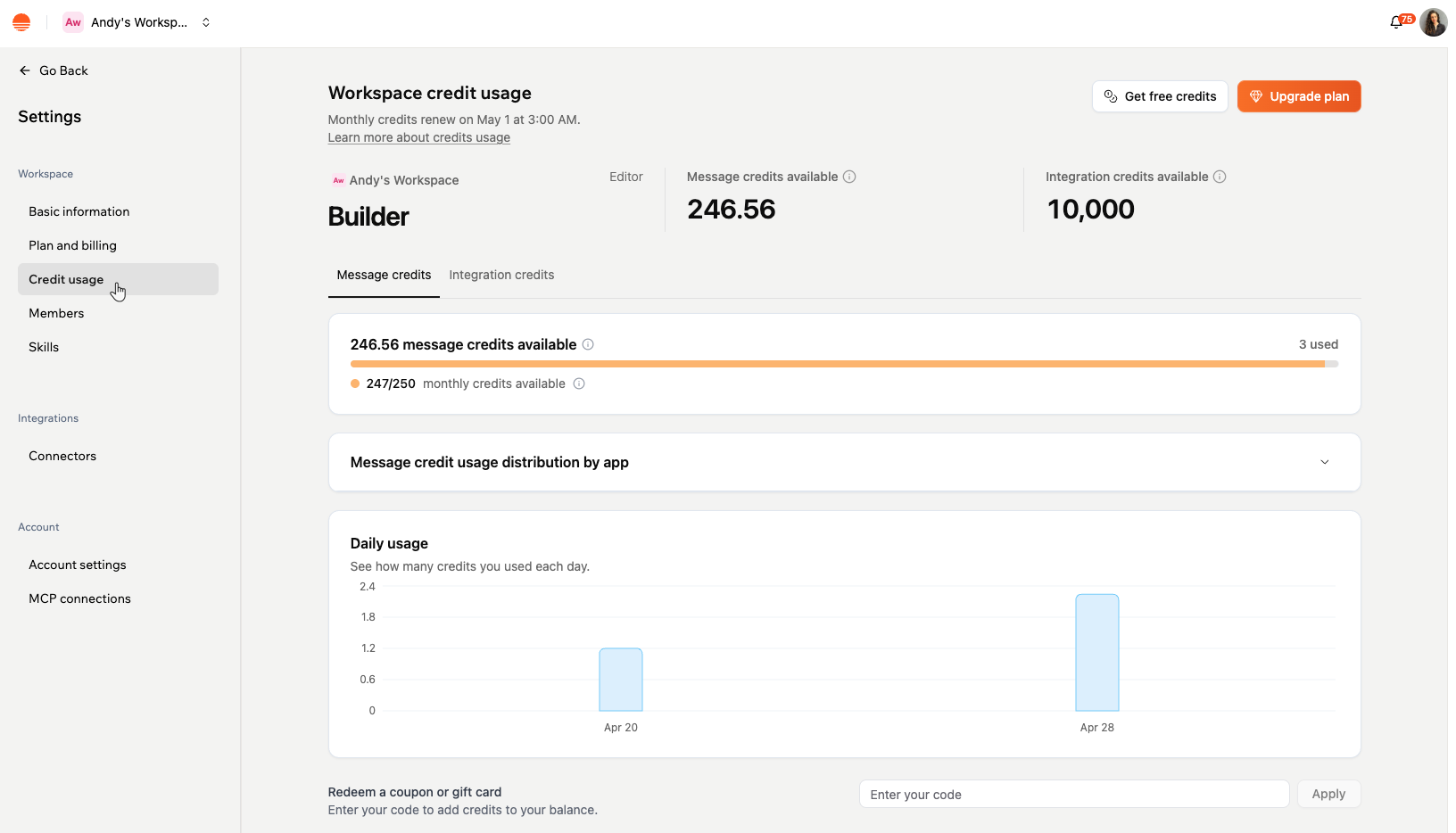
Your credit balance shows how many message credits and integration credits you have available in the current billing cycle. You can also drill into how credits are distributed across your apps and track your daily usage over time.
You can also view your remaining credits while working in your app editor by clicking the Base44 logo at the top left.
**To check your balance:**
1. Click your workspace name at the top left of your workspace.
2. Click **Settings**.
3. Click **Credit usage** under **Workspace**.
4. Review your available **Message credits** and **Integration credits** shown at the top of the page.
### Viewing credit usage per app
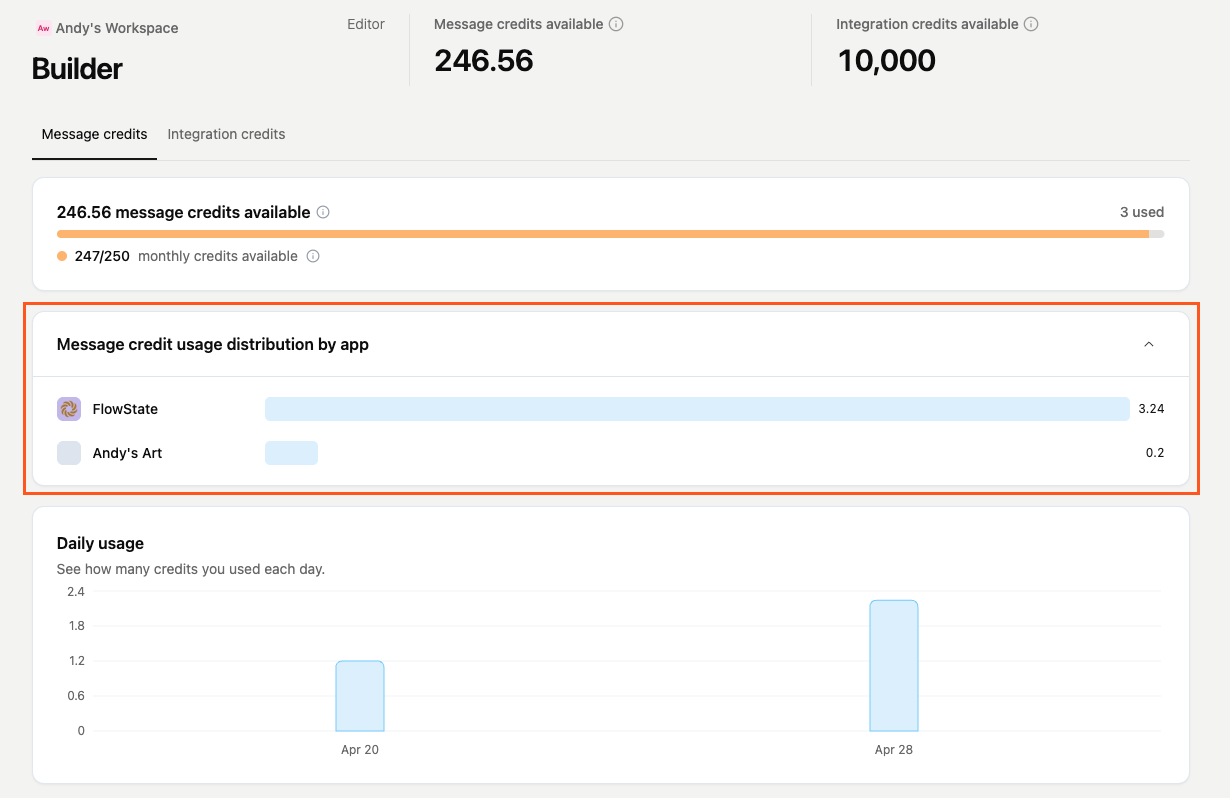
Both the **Message credit usage distribution by app** and **Integration credit usage distribution by app** sections show how each credit type is distributed across your apps in the current billing cycle. Expand either section to see a ranked list of your apps with a bar chart and credit totals for each.
### Daily credit usage
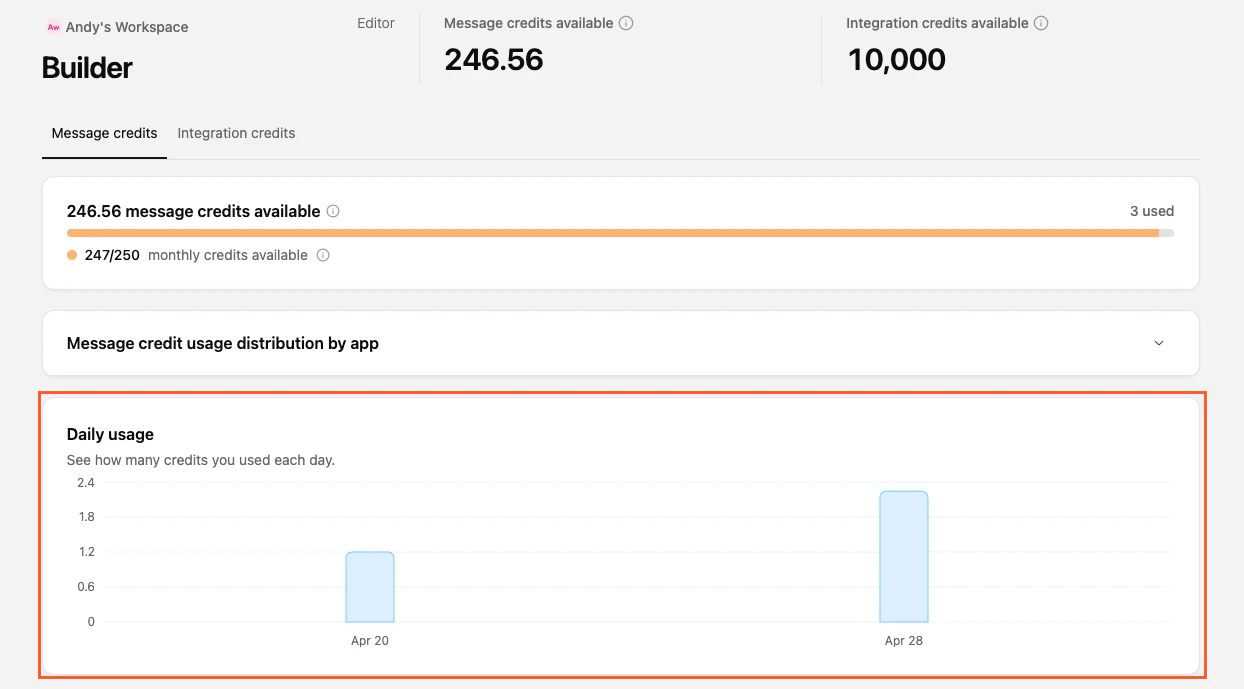
The **Daily usage** chart shows how many message or integration credits you used each day. Use the **Message credits** and **Integration credits** tabs at the top to switch between the two views.
### Viewing usage for a single app
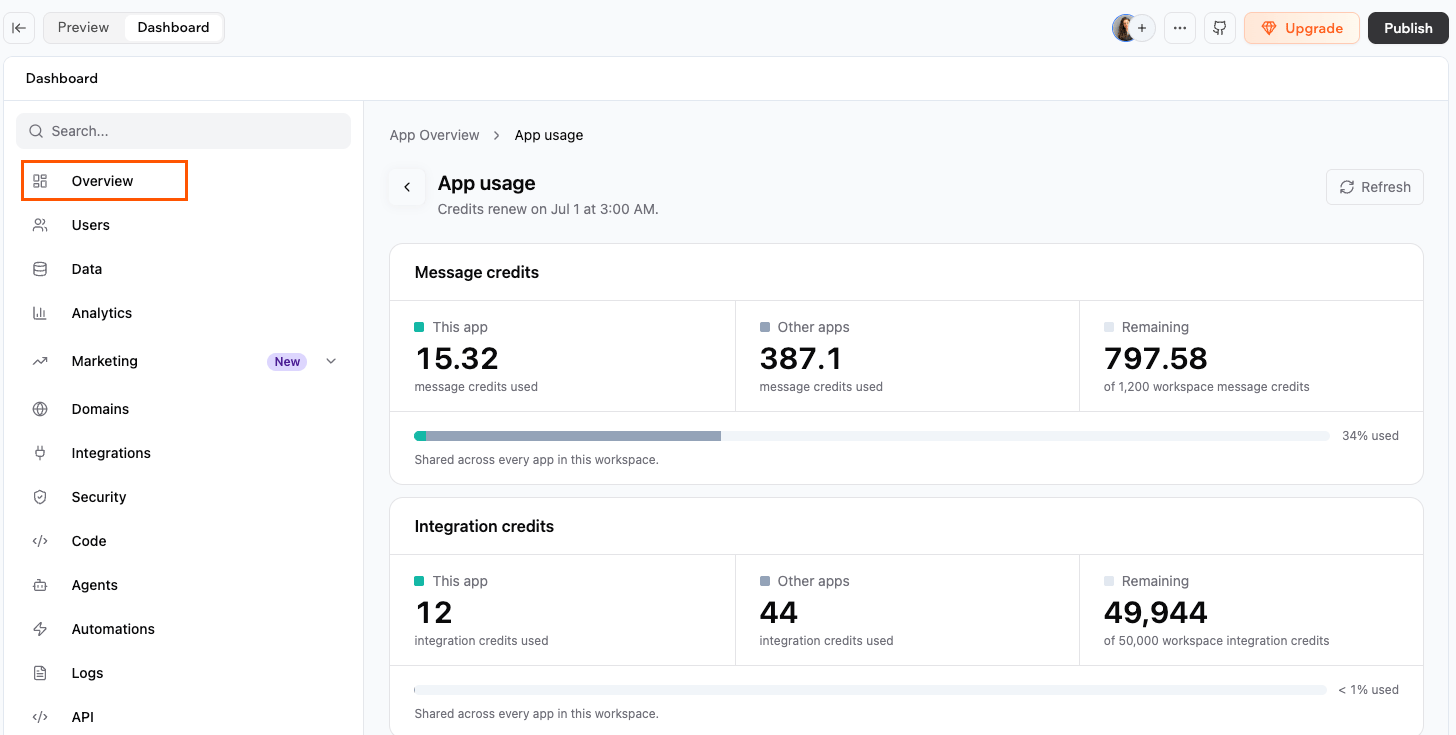
The **App usage** page breaks down your app's message and integration credit spend for the current billing cycle, so you can track and manage your credit usage more effectively. Credits are shared across every app in the workspace, and the date they renew is shown at the top of the page.
**To view a single app's usage:**
1. Click **Dashboard** in the app editor.
2. Click **Overview**.
3. Click **App usage**.
For each credit type, you see:
* **This app:** Credits this app has used in the current cycle.
* **Other apps:** Credits used by every other app in your workspace.
* **Remaining:** Credits left out of your workspace total.
Under **Integration credits**, the **By source** section breaks down what used integration credits this cycle, such as automations, AI, and tools. Select **Show details** to see a ranked list of the specific sources and how many credits each one used.
***
## Using credits with teams
Credits in your workspace are shared across everyone you invite. When any member builds or uses apps, credits are drawn from the workspace's shared pool.
* **Message credits:** Drawn from the workspace pool whenever anyone in the workspace sends a prompt.
* **Integration credits:** Drawn from the workspace pool whenever an app triggers a built-in Base44 service, such as sending an email, generating an image, or calling an LLM.
***
## Sharing your app and earning credits
You can earn 20 credits by sharing your Base44 project on LinkedIn or X. Spread the word about your app and get rewarded with extra credits to keep building. Once your post is approved, the credits are added to your account and work like regular credits.
**Notes:**
* You can only earn these credits once per Base44 account by sharing an app on **LinkedIn or X**.
* Your account must have more than 100 followers.
**To earn free credits:**
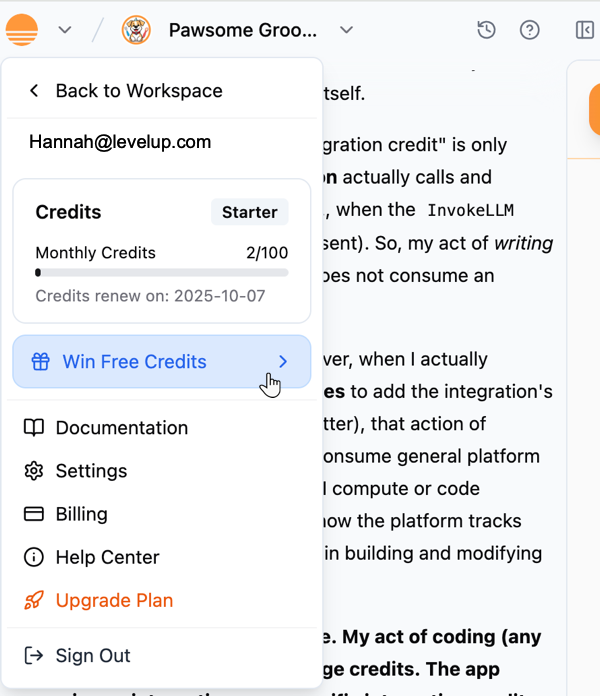
1. Click the **Base44** icon at the top left corner of your app editor.
2. Click **Win Free Credits**.
3. In the popup, review the **Sharing Guidelines**.
4. After you share, copy the link to your **LinkedIn** or **X** post.
5. In the same popup, click **support system**. \
**Note:** This opens the support system where you can submit a ticket that connects directly to your app.
6. Write in the ticket that you have shared a social link, paste the link to your post and submit it.
The support ticket that you submit needs to be handled by an expert. The credits cannot be given automatically. Please make sure that your ticket is escalated.
***
## FAQs
Click a question below to learn more about credits.
Credit usage depends on how much work the builder needs to do behind the scenes.
Simple, focused prompts usually require fewer steps, so they tend to use fewer credits. For example, changing a button color or adjusting padding is often a lightweight update.
Larger or more complex prompts, such as adding new pages, features, or integrations, often involve planning, updating multiple files, and running more checks. These usually use more credits, although in some cases the builder can complete a large task efficiently in a single pass.
There is no fixed minimum or maximum. A simple automation with no additional calls costs 1 integration credit as a baseline, but the total scales with every action it triggers. For example, an automation that calls invokeLLM and sends an email costs the 1-credit run plus the LLM call plus the email send. LLM calls also vary by model — lighter models cost fewer credits than advanced ones.
Because the range is wide, run the action in a controlled test and check the execution logs to understand the cost for your specific workflow.
No. Reading and writing data to your app's database does not use integration credits. Integration credits are only charged when your app calls a Base44 built-in service, such as sending an email, generating an image, running an LLM call, or triggering an automation. Standard database operations are included at no extra credit cost.
Message credits cover your building process, while integration credits cover your app's live operations and automations. Separating them makes it easier to understand and manage the cost of development versus runtime activity.
We understand that issues can arise, and we are here to support you. Credits are non-refundable for tool behavior and AI mistakes. Each prompt still requires work from the builder, even if the result is not what you expected.
If something remains unresolved or you need further assistance, contact support with a detailed description of the issue, screenshots, and a link to your app.
Base44 may issue extra credits for sign-ups, campaigns, or promo codes. These credits appear in your dashboard and work like regular credits, but are often one-time or limited-time.
For example, you can earn credits by sharing your project on LinkedIn or X.
Base44 may provide coupon codes that add extra credits to your account.
**To redeem a coupon code:**
1. Click your workspace name at the top left of your workspace.
2. Click **Settings**.
3. Click **Credit usage** under **Workspace**.
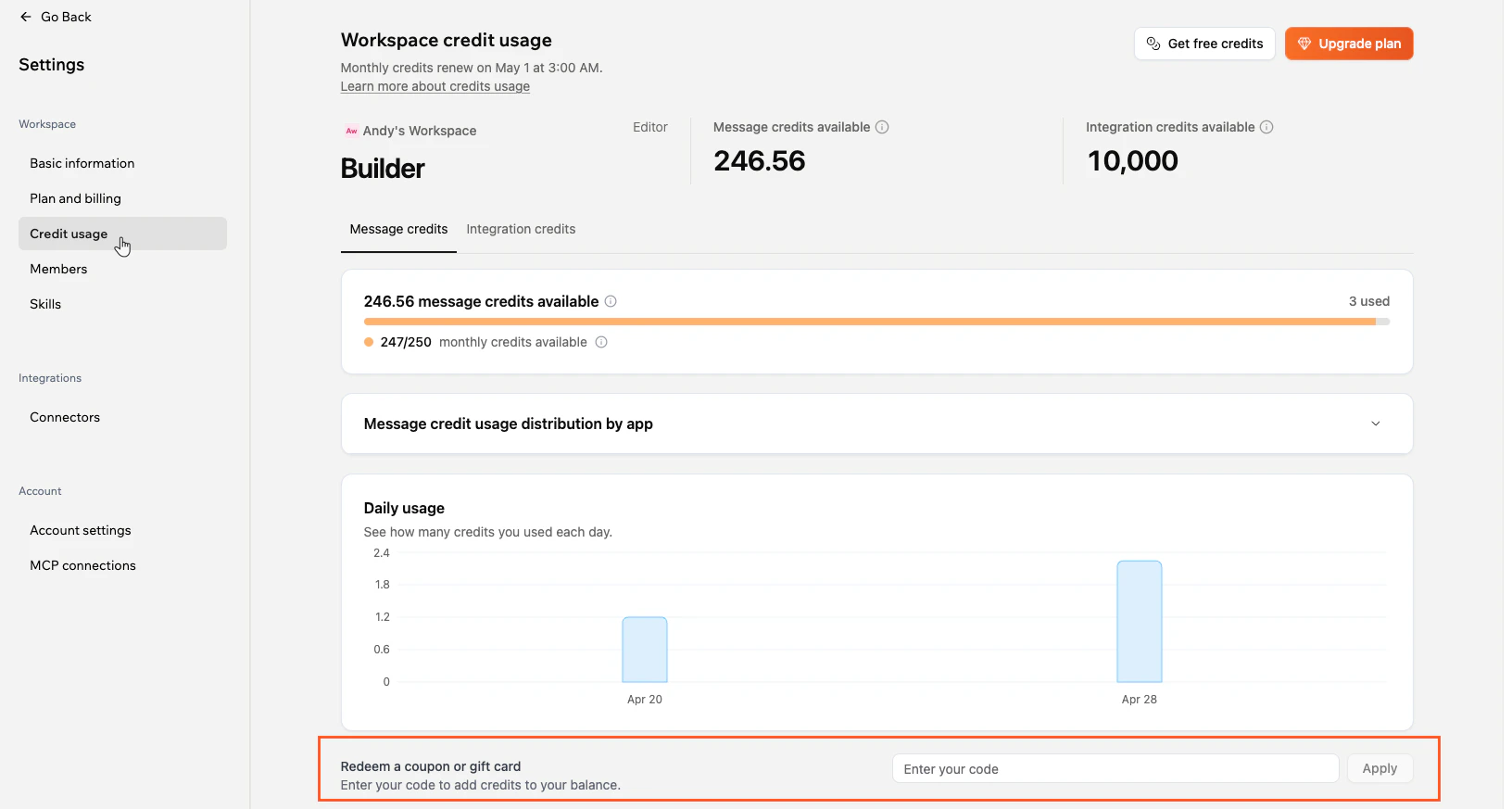
4. Enter your code in the field next to **Redeem a coupon or gift card**.
5. Click **Apply**.
On the Free plan, both **Resolve with AI** and automatic error fix messages consume message credits. Each message and automatic fix counts as work, so both draw from your message credit balance.
On paid plans, automatic AI fixes are free and do not use credits.
If you are using integrations and run out of integration credits:
* We email you when your integration credits run out.
* Any action you perform that requires integration credits fails and shows an error that you have used all your integration credits.
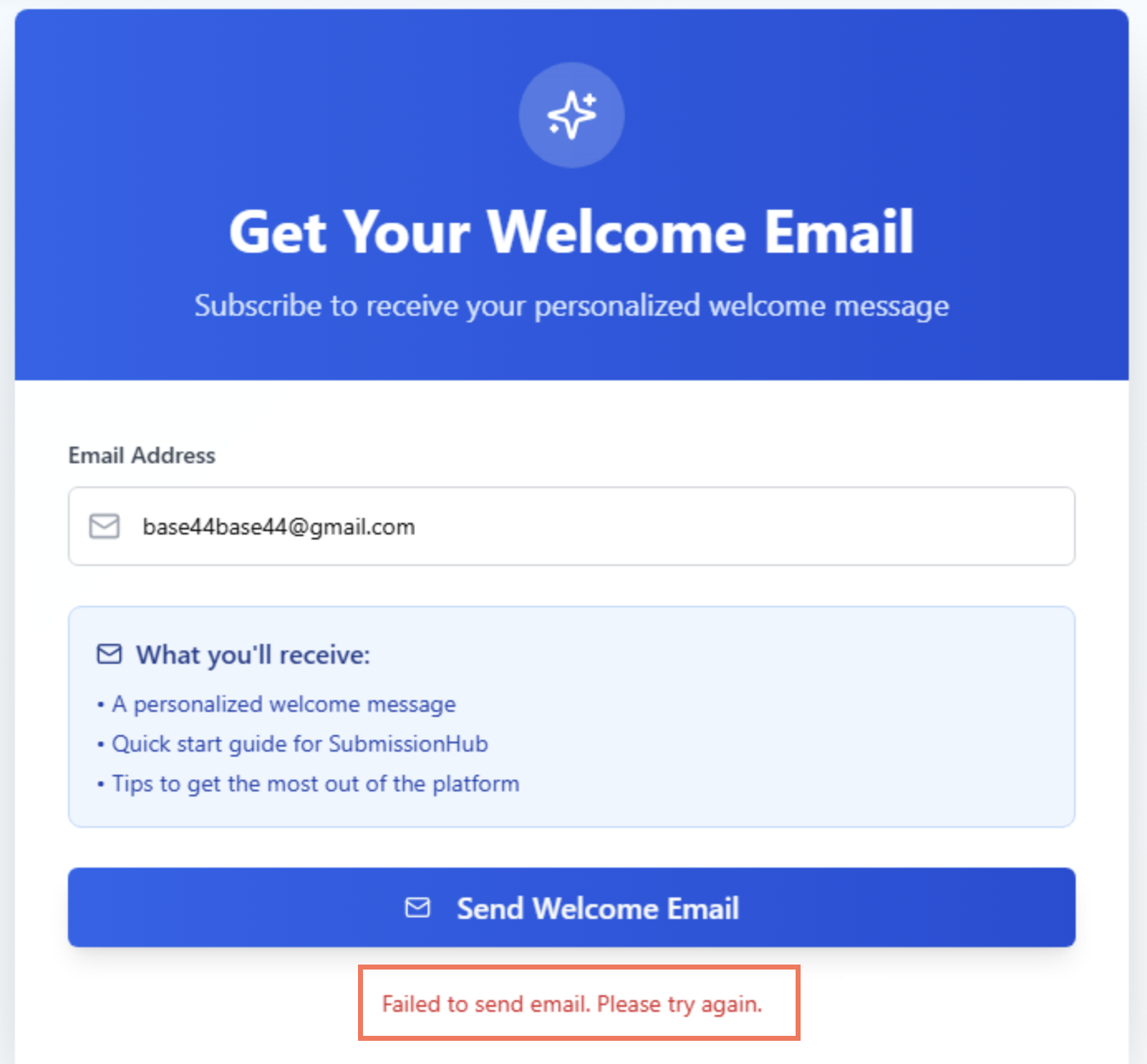
If someone using your app attempts an action that uses integration credits, for example subscribing to your app and triggering an email, they receive a generic error message without any reference to integration credits:
Your message and integration credits reset each cycle at the exact time your subscription was purchased, based on Coordinated Universal Time (UTC), not just on the calendar date in your own time zone.
For example, if your reset date is the 5th and you are several hours behind UTC, your credits may refresh while it is still the 4th where you are, or later in the day on the 5th.
If your credits have not refreshed after your reset time has passed in UTC and you checked your billing cycle and current credit usage, wait and check again later in the day. Your credits should update once your reset time passes.
Backend functions are available on the Builder plan and above. If your workspace is on a Builder plan or higher and backend functions are still blocked, check that the app owner's workspace has the right plan. If the app was created in a different workspace, backend functions follow the plan of that workspace.
If AI chat is unresponsive, gets stuck processing, or does not undo changes as expected, there are a few ways to recover.
For step-by-step solutions, including how to use **Version History** or the **Revert** option, unstick a frozen prompt, or get help if the chat panel is completely unresponsive, see the [Troubleshooting Issues](/Community-and-support/Troubleshooting) article.
 ### Maximizing your credits
Get more out of your Base44 credits with these practical tips. Open each tip below to see how you can save credits and keep your workflow efficient.
### Maximizing your credits
Get more out of your Base44 credits with these practical tips. Open each tip below to see how you can save credits and keep your workflow efficient.
 ### Viewing credit usage per app
Both the **Message credit usage distribution by app** and **Integration credit usage distribution by app** sections show how each credit type is distributed across your apps in the current billing cycle. Expand either section to see a ranked list of your apps with a bar chart and credit totals for each.
### Viewing credit usage per app
Both the **Message credit usage distribution by app** and **Integration credit usage distribution by app** sections show how each credit type is distributed across your apps in the current billing cycle. Expand either section to see a ranked list of your apps with a bar chart and credit totals for each.
 ### Daily credit usage
The **Daily usage** chart shows how many message or integration credits you used each day. Use the **Message credits** and **Integration credits** tabs at the top to switch between the two views.
### Daily credit usage
The **Daily usage** chart shows how many message or integration credits you used each day. Use the **Message credits** and **Integration credits** tabs at the top to switch between the two views.
 ### Viewing usage for a single app
The **App usage** page breaks down your app's message and integration credit spend for the current billing cycle, so you can track and manage your credit usage more effectively. Credits are shared across every app in the workspace, and the date they renew is shown at the top of the page.
**To view a single app's usage:**
1. Click **Dashboard** in the app editor.
2. Click **Overview**.
3. Click **App usage**.
For each credit type, you see:
* **This app:** Credits this app has used in the current cycle.
* **Other apps:** Credits used by every other app in your workspace.
* **Remaining:** Credits left out of your workspace total.
Under **Integration credits**, the **By source** section breaks down what used integration credits this cycle, such as automations, AI, and tools. Select **Show details** to see a ranked list of the specific sources and how many credits each one used.
### Viewing usage for a single app
The **App usage** page breaks down your app's message and integration credit spend for the current billing cycle, so you can track and manage your credit usage more effectively. Credits are shared across every app in the workspace, and the date they renew is shown at the top of the page.
**To view a single app's usage:**
1. Click **Dashboard** in the app editor.
2. Click **Overview**.
3. Click **App usage**.
For each credit type, you see:
* **This app:** Credits this app has used in the current cycle.
* **Other apps:** Credits used by every other app in your workspace.
* **Remaining:** Credits left out of your workspace total.
Under **Integration credits**, the **By source** section breaks down what used integration credits this cycle, such as automations, AI, and tools. Select **Show details** to see a ranked list of the specific sources and how many credits each one used.
 ***
## Using credits with teams
Credits in your workspace are shared across everyone you invite. When any member builds or uses apps, credits are drawn from the workspace's shared pool.
* **Message credits:** Drawn from the workspace pool whenever anyone in the workspace sends a prompt.
* **Integration credits:** Drawn from the workspace pool whenever an app triggers a built-in Base44 service, such as sending an email, generating an image, or calling an LLM.
***
## Sharing your app and earning credits
You can earn 20 credits by sharing your Base44 project on LinkedIn or X. Spread the word about your app and get rewarded with extra credits to keep building. Once your post is approved, the credits are added to your account and work like regular credits.
***
## Using credits with teams
Credits in your workspace are shared across everyone you invite. When any member builds or uses apps, credits are drawn from the workspace's shared pool.
* **Message credits:** Drawn from the workspace pool whenever anyone in the workspace sends a prompt.
* **Integration credits:** Drawn from the workspace pool whenever an app triggers a built-in Base44 service, such as sending an email, generating an image, or calling an LLM.
***
## Sharing your app and earning credits
You can earn 20 credits by sharing your Base44 project on LinkedIn or X. Spread the word about your app and get rewarded with extra credits to keep building. Once your post is approved, the credits are added to your account and work like regular credits.
 **To earn free credits:**
1. Click the **Base44** icon at the top left corner of your app editor.
2. Click **Win Free Credits**.
3. In the popup, review the **Sharing Guidelines**.
4. After you share, copy the link to your **LinkedIn** or **X** post.
5. In the same popup, click **support system**. \
**Note:** This opens the support system where you can submit a ticket that connects directly to your app.
6. Write in the ticket that you have shared a social link, paste the link to your post and submit it.
**To earn free credits:**
1. Click the **Base44** icon at the top left corner of your app editor.
2. Click **Win Free Credits**.
3. In the popup, review the **Sharing Guidelines**.
4. After you share, copy the link to your **LinkedIn** or **X** post.
5. In the same popup, click **support system**. \
**Note:** This opens the support system where you can submit a ticket that connects directly to your app.
6. Write in the ticket that you have shared a social link, paste the link to your post and submit it.